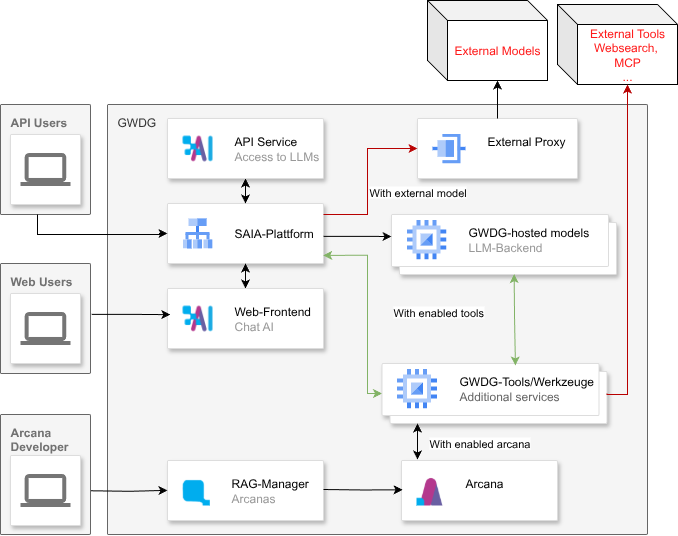
While we are updating this page, the most current information about the AI services can be found at GWDG HPC Docs.
Please check back: We well soon publish additional details here, especially about AI service procurement and technical rate limits.
Subsections of GWDG AI Documentation
Procurement
Available AI Products
Within the Academic Cloud
The Academic Cloud is a modular service portal available nationwide for universities, colleges, and research institutions. As a shared platform, it enables the provision, development, and use of digital services across institutional boundaries and supports cross-institutional collaboration.
Within the Academic Cloud, our AI service is available in two product packages, each offering two different pricing models. Additionally, a free version of “Chat AI” is available for testing and evaluation purposes. Both product packages are also available as “API-only” variants for users seeking API access only. The two product packages are:
Chat AI External Models for integrating commercial frontier models from external cloud providers into our web tools, as well as API access to these models.
Except for the Free variant, both products are available as either Prepaid or Flexible pricing models. The Prepaid model is a credit-based system with a fixed budget, while the Flexible model is a pay-as-you-go system with a monthly billing cycle.
Request
Requirements
There are multiple access points to our AI services. Generally, access is provided through our web frontend within the Academic Cloud. At minimum, your institution’s administrator needs an account within the Academic Cloud – the Academic ID. A video tutorial on creating an Academic ID is available on the kisski website. To inquire whether your institution can gain access to the Academic Cloud, please contact the Academic Cloud website here.
Request Content
Please include the following information in your request:
Name and address of your institution
Access point (see below)
Contact person and contact details at your institution
Are you already a customer of the Academic Cloud?
If you are a new customer: Does your institution have an Identity Provider? If so, what type?
Which services are you requesting and with what specificationsDetails
Example:
- Chat AI Prepaid in category AC3.1 with full access
- Chat AI External Flexible with full access, soft limit 4,000 € monthly, hard limit 5,000 € monthly
How many authorized accounts does your institution require at maximum?
What special considerations are important for your institution?
If you wish to access our AI services through our partnership with DFN, you must additionally sign the appropriate contracts between you, GWDG, and DFN. Please contact verkauf@gwdg.de and include this information in your request. We will then provide you with the necessary documents and instructions for signing the contracts.
Access Point via KI:Connect
The standard approach for KI:Connect is using open-weight models via API endpoint. Legally, there is NO requirement to sign an AVV with us, but it is useful if someone accidentally enters personal data in accordance with GDPR. Institutions using external models via API under our KI:Connect partnership require an additional API key. Please contact kisski-support@gwdg.de for this.
Subsections of Procurement
Chat AI Free
Chat AI Free
Chat AI Free provides access to the open-weight models hosted by GWDG in Göttingen for testing and evaluation purposes. All users must have an Academic ID and a valid email address. The service is free of charge and can be accessed on an individual basis.
Limitations for Chat AI Free
Minimal cluster resources are allocated for the free variant.
There is no additional contract required for “Chat AI Free.” Users must accept our Terms of Use by agreeing to the terms provided in the links above.
Chat AI Prepaid
Chat AI Prepaid
Chat AI Prepaid provides access to the open-weight models hosted by GWDG in Göttingen. It is designed for organizations that desire fixed budgets and annual payment plans while maintaining some budget flexibility during the ongoing contract cycle. The contract is valid for 12 months and can be extended upon request. The organization must also sign an Academic Cloud Basic contract. Using the AI models via our web interface or API is optional.
There are multiple variants available for the “Chat AI Prepaid” contract:
Selection of Academic Cloud User Quota
The Academic Cloud Basic contract defines the maximum number of users from your organization who are allowed to register an Academic Cloud account. For the Chat AI Prepaid contract, this quota can be freely selected. The recommended user count indicates how many users are typically supported by the given budget. Your specific organization may choose a different quota based on your needs. The Academic Cloud user quota is not included in the Chat AI Prepaid contract price and must be ordered separately.
Pricing Table for Chat AI Prepaid
Quota
Recommended User Count
€ per Year
AC1.3
30
1,000
AC2.1
100
2,000
AC2.3
300
3,750
AC3.1
1,000
7,500
AC3.3
3,000
15,000
ACCampus
10,000
30,000
ACCampusPlus
30,000
60,000
ACCampusMax
100,000
100,000
Choice between Full Access and API-Only Access
Full Access: The organization can use the AI models via our web interface and/or via API.
API-Only Access: The organization can use the AI models only via API. An Academic Cloud Basic contract is still required for this option to register the organization’s administrators.
Additional Documents for the Contract
Data Processing Agreement (AVV) with GWDG
Data Protection Officer and authorized persons
Technical responsible persons for the IDM All contract documents will be provided with the offer.
Chat AI Flexible provides access to the open-weight models hosted by GWDG in Göttingen. It is designed for organizations that require monthly billing plans for flexible usage of AI models. Typical use cases include publicly accessible applications. The contract is valid for 12 months and can be extended upon request. The organization must also sign an Academic Cloud Basic contract. Using the AI models via our web interface or API is optional.
There are multiple variants available for the “Chat AI Flexible” contract:
Selection of Academic Cloud User Quota
The Academic Cloud Basic contract defines the maximum number of users from your organization who are allowed to register an Academic Cloud account. The Academic Cloud user quota is not included in the Chat AI Flexible contract price and must be ordered separately. For the Chat AI Flexible contract, there is no quota corresponding to the Academic Cloud user quota. Instead, the organization defines usage limits, and monthly costs are calculated based on actual usage (see below).
Selection of Chat AI Flexible Limits
Organizations define monthly usage limits for AI models initially when signing the contract. These limits can only be changed via a support request from organizational administrators designated as authorized.
Soft Budget Limitobligatory: The organization defines a soft budget limit for monthly AI model usage. When the soft budget limit is reached, the organization is notified. The soft budget limit serves as a warning that monthly usage is approaching a certain value. The organization can then decide whether to continue using the AI models or reduce usage. They can also decide to increase the hard budget limit (if set) to prevent usage from being blocked in the current month.
Hard Budget Limitrecommended: The organization can define a hard budget limit for monthly AI model usage. When the hard budget limit is reached, the organization is notified and AI model usage is blocked until the next month. The hard budget limit helps prevent unexpected costs for the organization.
Choice between Full Access and API-Only Access
Full Access: The organization can use the AI models via our web interface and/or via API.
API-Only Access: The organization can use the AI models only via API. An Academic Cloud Basic contract is still required for this option to register the organization’s administrators.
Additional Documents for the Contract
Data Processing Agreement (AVV) with GWDG
Data Protection Officer and authorized persons
Technical responsible persons for the IDM All contract documents will be provided with the offer.
Billing
Billing is based on actual AI model usage according to the current pricing list.
Billing starts at a minimum consumption of 1,000 € net.
If token consumption exceeds 1,000 € net, monthly billing begins.
The invoice amount equals the usage volume of the previous month (or 1,000 € if the usage volume threshold was reached), plus the usage volume of the previous month as a prepayment.
If actual usage in the current month is lower than the prepayment from the previous month, the difference is carried over to the next month.
Chat AI External Models Prepaid provides access to the externally hosted AI models. It is designed for organizations that desire fixed budgets and annual payment plans while maintaining some budget flexibility during the ongoing contract cycle. The contract is valid for 12 months and can be extended upon request. The organization must also sign an Academic Cloud Basic contract. Using the AI models via our web interface or API is optional.
There are multiple variants available for the “Chat AI External Models Prepaid” contract:
Selection of Academic Cloud User Quota
The Academic Cloud Basic contract defines the maximum number of users from your organization who are allowed to register an Academic Cloud account. For the Chat AI External Models Prepaid contract, this quota can be freely selected. The recommended user count indicates how many users are typically supported by the given budget. Your specific organization may choose a different quota based on your needs. The Academic Cloud user quota is not included in the Chat AI External Models Prepaid contract price and must be ordered separately.
Pricing Table for Chat AI External Models Prepaid
Quota
Recommended User Count
€ per Year
AC1.3
30
1,000
AC2.1
100
2,000
AC2.3
300
3,750
AC3.1
1,000
7,500
AC3.3
3,000
15,000
ACCampus
10,000
30,000
ACCampusPlus
30,000
60,000
ACCampusMax
100,000
100,000
Choice between Full Access and API-Only Access
Full Access: The organization can use the AI models via our web interface and/or via API.
API-Only Access: The organization can use the AI models only via API. An Academic Cloud Basic contract is still required for this option to register the organization’s administrators.
Additional Documents for the Contract
Data Processing Agreement (AVV) with GWDG
Data Protection Officer and authorized persons
Technical responsible persons for the IDM All contract documents will be provided with the offer.
Chat AI External Models Flexible provides access to externally hosted AI models. It is designed for organizations that require monthly billing plans for flexible usage of AI models. Typical use cases include publicly accessible applications and internal tools with variable usage patterns. The contract is valid for 12 months and can be extended upon request. The organization must also sign an Academic Cloud Basic contract. Using the AI models via our web interface or API is optional.
There are multiple variants available for the “Chat AI External Models Flexible” contract:
Selection of Academic Cloud User Quota
The Academic Cloud Basic contract defines the maximum number of users from your organization who are allowed to register an Academic Cloud account. The Academic Cloud user quota is not included in the Chat AI External Models Flexible contract price and must be ordered separately. For the Chat AI External Models Flexible contract, there is no quota corresponding to the Academic Cloud user quota. Instead, the organization defines usage limits, and monthly costs are calculated based on actual usage (see below).
Selection of Chat AI External Models Limits
Organizations define monthly usage limits for AI models initially when signing the contract. These limits can only be changed via a support request from organizational administrators designated as authorized.
Soft Budget Limitobligatory: The organization defines a soft budget limit for monthly AI model usage. When the soft budget limit is reached, the organization is notified. The soft budget limit serves as a warning that monthly usage is approaching a certain value. The organization can then decide whether to continue using the AI models or reduce usage. They can also decide to increase the hard budget limit (if set) to prevent usage from being blocked in the current month.
Hard Budget Limitrecommended: The organization can define a hard budget limit for monthly AI model usage. When the hard budget limit is reached, the organization is notified and AI model usage is blocked until the next month. The hard budget limit helps prevent unexpected costs for the organization.
Choice between Full Access and API-Only Access
Full Access: The organization can use the AI models via our web interface and/or via API.
API-Only Access: The organization can use the AI models only via API. An Academic Cloud Basic contract is still required for this option to register the organization’s administrators.
Additional Documents for the Contract
Data Processing Agreement (AVV) with GWDG
Data Protection Officer and authorized persons
Technical responsible persons for the IDM All contract documents will be provided with the offer.
Billing starts at a minimum consumption of 1,000 € net.
If token consumption exceeds 1,000 € net, monthly billing begins.
The invoice amount equals the usage volume of the previous month (or 1,000 € if the usage volume threshold was reached), plus the usage volume of the previous month as a prepayment.
If actual usage in the current month is lower than the prepayment from the previous month, the difference is carried over to the next month.
The pricing table shows only illustrative prices and is non-binding. We are currently finalizing performance tests for the various models and will announce the valid prices here shortly.
Model
GPU
#
Input Token
Output Token
Qwen 3.6 35B a3b
H100
1
0,0114 €
0,6057 €
GPT OSS 120B
H100
2
0,0029 €
0,8766 €
Gemma 4 31B it
H100
2
0,1390 €
2,3339 €
Meta Llama 3.1 8b instruct
H100
1
0,0209 €
0,3316 €
Qwen 3 30B a3b instruct 2507
H100
1
0,0141 €
0,5716 €
Qwen 3.8 27B
H100
1
0,0378 €
1,1720 €
Qwen 3 coder next
H100
2
0,0422 €
1,0218 €
Eurollm 22B instruct 2512
A100
1
0,1130 €
1,2420 €
Apertus 70B instruct 2509
H100
2
0,1971 €
3,7475 €
Deepseek v4 flash 0731
H100
4
0,1042 €
4,7642 €
Qwen 3 omni 30B a3b instruct
A100
1
0,0353 €
0,9548 €
Qwen 3.5 397B a17b
H100
4
0,6333 €
6,9080 €
Background information on how prices are calculated can be found at Token Cost Calculation.
Administration
Info
We will shortly be updating the documentation to include guidance on budget and API key management for organizational administrators.
User Documentation
Info
Soon you will find the user documentation of our AI services here.
It will contain detailed information about the individual AI services, AI models, web interfaces, terms of use, data protection, and more.
As part of the revision of this documentation, we will make various changes to the organization of the content.
Subsections of User Documentation
Request
How a request is checked
Every request passes three gates before it reaches a model: the API key it
was made with, the user account that key belongs to, and the organisation
that account belongs to. Each gate holds its own set of limits, split into the
two kinds above: a request rate, counted in requests, and a budget, counted in
euros. The request is measured against every limit that is set at that level,
and it is rejected the moment any one of them is out of allowance, without the
later gates being consulted. Only when all three gates pass does the request
reach a model, and its cost is then written back to the budgets of all three
levels at once.
Where each gate’s limits come from differs. An API key and an organisation are
subject only to limits set on them directly, so if none is set, that gate simply
lets the request through. Your user account is the one gate that always has a
limit: your own if you have one, otherwise your organisation’s default for its
members, otherwise the platform default.
A level with no limit set simply adds no restriction; it does not exempt you from the levels after it. What you can actually do is whichever of the three limits is smallest, so a limit on your API key can only restrict you further. It can never grant you more than your account or your organisation allows.
From the ChatAI the first box does not apply: no API key is involved, so the request starts at your user account.
Request rate limits are evaluated across all three levels before budgets are, so a caller who is out of budget is still paced rather than free to retry.
On a rejection, the x-ratelimit-scope header names which of the three stopped you.
Usage Requirements
General Terms
The following general terms apply to the use of GWDG services:
Access to this service requires an Academic Cloud ID. Using an Academic Cloud ID is subject to acceptance of the Academic Cloud’s Terms of Use.
§3 Authorized Use
Users are required to use the technology or services solely for authorized and lawful purposes by complying with all applicable laws, regulations, and rights of others, including national, federal, state, local, and international laws.
§4 Development
You acknowledge that we may develop or obtain similar software, technology, or information from other sources. This acknowledgment does not restrict our development or competitive efforts.
§5 Updates
GWDG will keep the service current through regular updates, which may occur within or outside the dedicated maintenance window of GWDG within reasonable timeframes.
§6 Prohibitions
(1) Users are prohibited from using this service to transmit, generate, or disseminate content (input and output) that:
Depicts child pornography or sexual abuse, including the falsification, deception, or imitation of such;
Is sexually explicit and used for non-educational or non-scientific purposes;
Is discriminatory, promotes violence, hate speech, or illegal activities;
Violates data protection laws, including the collection or dissemination of personal data without consent;
Is fraudulent, misleading, harmful, or deceptive;
Promotes self-harm, harassment, bullying, violence, or terrorism;
Promotes illegal activities or violates intellectual property rights and other legal and ethical boundaries in online behavior;
Attempts to circumvent our security measures or engages in actions that intentionally violate established guidelines;
Unfairly or adversely affects individuals, particularly in relation to sensitive or protected characteristics;
(2) Users are prohibited from performing the following activities:
Reverse engineering, decompiling, or disassembling the technology;
Unauthorized activities such as spamming, spreading malware, or disruptive behaviors that impair service quality;
Modifying, copying, renting, selling, or distributing our service;
Tracking or monitoring individuals without their explicit consent.
(3) Processing of protected or confidential information is prohibited unless the necessary legal framework is in place. Although the service is technically designed to process sensitive data—such as data containing:
Confidential or sensitive information;
Sensitive or controlled data, including particularly protected data listed in Article 9(1) of the GDPR;
Research involving human subjects;
— the necessary legal framework must exist or be established to ensure lawful processing. This may require, for example, the conclusion of a data processing agreement under Article 28 GDPR.
(4) If you use this service on behalf of an organization and not as an individual, a data processing agreement should be concluded between your organization and GWDG. If you have concerns regarding the security or data privacy of the service, please contact the Data Protection Officer at support@gwdg.de with the subject line “Data Privacy AI Services.”
(5) For research purposes, certain use cases listed in (1) may be permitted in specific instances. In such cases, written agreements between users and GWDG must be established for the intended use.
(6) In particular, when using the server-side RAG system, users must not upload context data to Arcanas that fall under (1) and (3). If a valid legal framework exists permitting such use, individual contractual agreements take precedence.
§7 Termination and Suspension
(1) You may terminate your use of the AI services and your legal relationship with us at any time by ceasing to use the service. If you are a consumer in the EU, you have the right to withdraw from these terms within 14 days of acceptance by contacting support.
(2) We reserve the right to suspend or terminate your access to the AI services or deactivate your account if you violate these terms, if required to comply with legal regulations, or if your use of our service poses a risk or harm to us, our users, or third parties.
(3) We will notify you prior to deactivating your account, unless this is not possible or legally permitted. If you believe your account was mistakenly suspended or deactivated, you may contact support to contest this.
(4) We reserve the right to take legal action to protect our intellectual property rights and the safety of our users. Violations of these terms or illegal activities conducted through the use of our service may result in civil penalties, damages, administrative fines, prosecution, or other legal remedies.
§8 Accuracy of Results
The outputs generated by our services are not always unique, accurate, or precise. They may contain inaccuracies, even if they appear detailed. Users should not rely solely on these results without independently verifying their accuracy. Furthermore, the information provided by our services may be incomplete or outdated, and some results may not align with our perspectives. Therefore, users should exercise caution and avoid using the services for important decisions, especially in areas such as medicine, law, finance, and other professional fields where expertise is essential. It is important to understand that AI and machine learning are continuously evolving, and although we strive to improve the accuracy and reliability of our services, users should always assess the accuracy of the results and ensure they meet their specific requirements by manually reviewing them before use or distribution. Additionally, users should refrain from using results related to individuals for purposes that could significantly affect them, such as legal or financial decisions. Finally, users should be aware that incomplete, inaccurate, or offensive results may occur, which may not necessarily reflect the views of GWDG or its affiliated parties.
§9 Limitation of Liability
(1) General Liability Limitation: GWDG assumes no liability for any claims for damages arising from the use of the AI services. The liability limitation outlined here and further explained in the following sections stems from the fact that GWDG provides only a platform for using AI models. GWDG cannot implement technical measures to intervene in the responses generated by AI models in a way that would exclude liability for misuse by users. Therefore, the full liability for claims for damages arising from misuse of the platform remains with the users. Excluded from this general liability waiver are claims based on the violation of life, body, health, gross negligence, or intentional or grossly negligent breaches of duty. The violation of cardinal obligations is also excluded from the general liability waiver.
(2) Copyright: Users of the AI services are fully and solely responsible for complying with applicable copyright laws. GWDG explicitly informs users that the provided AI models were trained by third parties, and GWDG has no information indicating that the training materials are restricted to free licenses. Therefore, it cannot be excluded that the provided AI models were trained using copyrighted content. Responses generated by the AI models may therefore contain copyrighted material. GWDG explicitly advises users that direct reuse of received responses is not recommended. The responsibility for checking copyright compliance in such cases lies solely with the users. GWDG assumes no liability for any claims for damages arising from copyright violations.
(3) Confidential Information: We assume no liability for loss or disclosure of data provided by users in their requests. This exclusion does not apply to gross negligence or cardinal obligations.
(4) Patent Rights: Users of the AI services are fully and solely responsible for complying with applicable patent laws. Responses from the provided AI models may contain ideas or concepts that are patent-protected. GWDG explicitly advises users that direct reuse of ideas and concepts conveyed in the received responses is not recommended. The responsibility for checking patent protection in such cases lies solely with the users. GWDG assumes no liability for any claims for damages arising from patent violations.
(5) Misinformation: GWDG informs users of the AI services that it is an inherent characteristic of the provided AI models to generate content freely—this is known in AI models as “hallucination.” The information contained in the responses may be outdated, fabricated, inappropriate, taken out of context, or incorrect. This does not constitute a malfunction of the provided platform, as this is technically expected from the AI model’s functionality. Independent and critical review of the received information is solely the responsibility of the users. GWDG assumes no liability for the information contained in the AI model responses. Further information on this topic can be found in “§8 Accuracy.”
(6) When using the server-side RAG system, users bear full responsibility for the legality of documents they upload, save, and index into the Arcanas. GWDG assumes no liability for documents uploaded by users into the RAG system.
§10 Third-Party Services
Our services may include the integration of software, products, or services from third parties, referred to as “Third-Party Services.” These may generate outputs originating from these services, known as “Third-Party Outputs.” It is important to understand that Third-Party Services operate independently and are governed by their own terms and conditions, separate from ours. Therefore, users should be aware that we are not responsible for Third-Party Services or their respective terms and conditions. We do not control these services and are therefore not liable for losses or damages arising from their use. Users decide independently to interact with Third-Party Services and assume full responsibility for all outcomes that may result. Furthermore, we make no warranties or guarantees regarding the performance or reliability of Third-Party Services.
§11 Feedback
We value your feedback on our services and products and encourage you to share your thoughts to help us improve. By providing feedback, you acknowledge that we may disclose, publish, use, or exploit it to improve our offerings without owing you any compensation. We reserve the right to use feedback for any purpose without restriction by confidentiality obligations, regardless of whether it is marked as confidential or not.
§12 Data Privacy
The privacy of user requests is of fundamental importance to us. For more information, please see the Data Protection Notice.
§13 Final Provisions
The General Terms and Conditions remain binding and effective in their remaining parts even if individual provisions are legally invalid. In place of invalid provisions, statutory regulations apply where available. However, if this would impose an unreasonable hardship on one contracting party, the entire contract becomes invalid.
Part B: Service-Specific Modules
B.1 ChatAI External Models
External Models (Azure, Research Partners, LUIS)
B.2 ImageAI Service
By using the service, users acknowledge that the output is AI-generated. The service uses advanced artificial intelligence (AI) technology to generate images from prompts and process user instructions and parameters.
Supplement to §8 Accuracy of Results The results generated by the AI may not always be accurate, complete, or reliable. Users acknowledge and agree that:
The AI image generation functions are intended to support users but should not be used exclusively for critical tasks.
The accuracy of AI-generated content may vary depending on factors such as input quality, language complexity, and selected parameters, instructions, and context.
As with most AI systems designed for general and diverse tasks, there is a risk of “hallucinations” with this service. In this sense, AI-generated images may contain false or misleading information presented as facts.
The risk of bias also exists with this service. AI-generated outputs may be biased due to training data.
Human oversight and monitoring by users are considered necessary to ensure outputs are reliable and consistent with user inputs.
Supplement to §9 Limitation of Liability (2) Copyright The service provider owns all intellectual property rights to the service, including but not limited to software, algorithms, trade secrets, and AI-generated content. Users are granted a limited, non-exclusive, and non-transferable license to use the service for the intended purposes.
Users are required to respect copyright and ownership notices and licenses and prevent unauthorized distribution or reproduction of copyrighted content. The service provider reserves the right to remove or block content believed to infringe copyrights and deactivate accounts of repeat offenders.
B.3 VoiceAI Service
Supplement to §8 Accuracy of Results The results generated by our services may not always be unique, complete, accurate, or precise. They may contain inaccuracies, even if they appear detailed. Users should not rely solely on these results without independently verifying their accuracy. Furthermore, the transcription provided by our services may not always be complete or accurate. Therefore, users should exercise caution and avoid using the services alone for important decisions. It is crucial to understand that AI and machine learning are constantly evolving, and although we strive to improve the accuracy and reliability of our services, users should always assess the accuracy of the results and ensure they meet their specific requirements, verifying them with human input before use or distribution. Additionally, users should refrain from using results related to individuals for purposes that could significantly affect them, such as legal or financial decisions. Lastly, users should be aware that incomplete or inaccurate results may occur, which may not necessarily reflect the views of GWDG or its affiliated parties.
Supplement to §9 Limitation of Liability (2) Copyright
We own all rights, titles, and interests in and to the service.
Users are required to uphold copyright and other proprietary notices, preventing the unauthorized distribution or reproduction of copyrighted content.
We reserve the right to remove or block any content believed to infringe on copyright and to deactivate the accounts of repeat offenders.
Supplement to §12 Data Privacy
The privacy of your requests is fundamental to us. Therefore, our services do not store your audio/conversation on persistent storage, except for BBB transcriptions (future service), which are stored in local MySQL, and audio file transcription results in our data mover node, both of which will be erased after 30 days. The number of requests for either of the services per user and the respective timestamps are recorded so we can monitor the system’s usage and perform accounting.
For technical purposes, the following data is collected by the webserver:
Date of access
Name of the operating system installed on the accessing device
Name of the browser used
Source system via which the access was made
The IP address of the accessing device
The data is also stored in our system’s log files. This data is not stored together with the user’s other personal data. You can find more detailed information regarding data protection in the privacy policy that users shall accept when using this service.
B.4 ProteinAI Service
Supplement to §12 Data Privacy The privacy of your requests is fundamental to us. User protein sequences and predicted structures are stored temporarily (for 30 days) on the GWDG server. During this period, only the respective user has access to their data. At no point do we access it on our servers without user permission. The number of requests for our services per user and the respective timestamps are recorded so we can monitor the system’s usage and perform accounting.
For technical purposes, the following data is collected by the webserver:
Date of access
Name of the operating system installed on the accessing device
Name of the browser used
Source system via which the access was made
The IP address of the accessing device
The data is also stored in our system’s log files. This data is not stored together with the user’s other personal data. You can find more detailed information regarding data protection in the privacy policy that users shall accept when using this service.
Data Privacy Notice - GWDG AI Services
1. General Information
(Applicable to all services)
Data Processor (GWDG Contact)
The data controller responsible for data processing in accordance with Article 4(7) of the GDPR and other national data protection laws of EU member states, as well as other data protection regulations, is:
Gesellschaft für wissenschaftliche Datenverarbeitung mbH Göttingen
Burckhardtweg 4
37077 Göttingen
Germany
Tel: +49 (0) 551 39-30001
Email: support@gwdg.de
Website: www.gwdg.de
Represented by the managing director. The data controller is the natural or legal person who alone or jointly with others determines the purposes and means of processing personal data.
Contact Person / Data Protection Officer
Gesellschaft für wissenschaftliche Datenverarbeitung mbH Göttingen
Data Protection Officer
Burckhardtweg 4
37077 Göttingen
Germany
Tel: +49 (0) 551 39-30001
Email: support@gwdg.de
Purpose of Data Processing
We process personal data of our users only to the extent necessary to provide a functional website and our content and services.
The collection of user inputs via our website and the processing of user inputs on our systems is necessary to generate responses using the selected AI service.
Log file storage is necessary to ensure the functionality of the website. Additionally, these data help us optimize the website and ensure the security of our IT systems. Data will not be used for marketing purposes in this context.
Processing of personal data of our users generally occurs only after obtaining the user’s consent. An exception applies in cases where prior consent is not practically possible and the processing is permitted by law.
Legal Basis for Processing Personal Data
Where we obtain consent from the data subject for processing personal data, Article 6(1)(a) of the EU General Data Protection Regulation (GDPR) serves as the legal basis.
For processing personal data necessary to fulfill a contract of which the data subject is a party, Article 6(1)(b) GDPR serves as the legal basis. This also applies to processing necessary for pre-contractual measures.
Where processing personal data is necessary to comply with a legal obligation to which our company is subject, Article 6(1)(c) GDPR serves as the legal basis.
In cases where the processing of personal data is necessary to protect vital interests of the data subject or another natural person, Article 6(1)(d) GDPR serves as the legal basis.
Where processing is necessary to protect a legitimate interest of our company or a third party, and the interests, rights, and freedoms of the data subject do not override this interest, Article 6(1)(f) GDPR serves as the legal basis.
Rights of Data Subjects
You have various rights regarding the processing of your personal data. These are listed below, with references to the relevant articles (GDPR) or sections (BDSG (2018)) for more detailed information.
Right to Information (GDPR Art. 15, BDSG §34)
You may request confirmation from the controller whether personal data concerning you is being processed by us. This includes the right to obtain information about whether the personal data are transferred to a third country or an international organization.
Right to Rectification (GDPR Art. 16)
You have the right to rectification and/or completion from the controller if the personal data concerning you that are being processed are inaccurate or incomplete. The controller must carry out the rectification without delay.
Right to Erasure / “Right to be Forgotten” / Right to Restriction of Processing (GDPR Art. 17, 18, BDSG §35)
You have the right to demand the immediate erasure of your personal data from the controller. Alternatively, you may request the restriction of processing from the controller.
Restrictions are specified in the GDPR and BDSG under the mentioned articles or sections.
Right to Notification (GDPR Art. 19)
If you have exercised your right to rectification, erasure, or restriction of processing with the controller, the controller is obligated to inform all recipients to whom the personal data concerning you have been disclosed about this rectification or erasure of data or restriction of processing, unless this proves impossible or involves disproportionate effort.
You have the right to be informed by the controller about these recipients.
Right to Data Portability (GDPR Art. 20)
You have the right to receive the personal data concerning you, which you have provided to the controller, in a structured, commonly used, and machine-readable format.
Additionally, it should be noted that data portability for mass data/user data is limited to technical readability. The right to data portability does not include the conversion of data created by the user in a proprietary format into a “common” or standardized format by the controller.
Right to Object (GDPR Art. 21, BDSG §36)
You have the right to object to processing if it is based solely on a balancing of interests by the controller (see GDPR Art. 6(1)(f)).
Right to Withdraw Consent (GDPR Art. 7(3))
You have the right to withdraw your data protection consent at any time. The legality of processing based on consent up to the time of withdrawal is not affected by the withdrawal.
Right to Lodge a Complaint with a Supervisory Authority (GDPR Art. 77)
Without prejudice to any other administrative or judicial remedy, you have the right to lodge a complaint with a supervisory authority, in particular in the Member State of your habitual residence, place of work, or place of the alleged infringement, if you consider that the processing of personal data concerning you infringes the GDPR.
Scope of Application in Case of Individual Agreements
If you access our AI services through your organization, the policies and data protection notices of your organization apply.
In the event of a conflict between these data protection provisions and the terms of one or more agreements with GWDG, such as a data processing agreement concluded with GWDG, the terms of these agreements shall prevail. Fundamental obligations always take precedence over these general provisions.
In case of doubt, you can inquire at your institution which data protection guidelines apply to you.
2. General Technical Data Processing During Use of AI Models
Description and Scope of Data Processing
For billing purposes, the following data are stored and logged on GWDG’s servers with each request:
Timestamp of the request
User ID
Length of the request and length of the response
These data are also stored in our system’s log files. These data are not stored together with other personal data of the user.
Depending on whether locally hosted models or external models are used, slightly different data protection regulations apply.
No liability can be assumed for the automatically generated responses. Responses may be entirely incorrect, contain false partial information, or may contain unlawful content.
Duration of Storage
Billing data are stored for one year.
Scope of Processing of Personal Data
We process personal data of our users only to the extent necessary to provide a functional website and our content and services.
Processing of personal data of our users generally occurs only after obtaining the user’s consent (GDPR Art. 6(1)(a)). An exception applies in cases where prior consent is not practically possible and the processing is permitted by law.
3. Service-Specific Modules
3.1 ChatAI Service
Overview of the Service
The ChatAI service consists of several components, particularly a web frontend and large language models in the backend. The frontend provides users with a web interface to enter user requests directly via browser. Additionally, users can select the desired model and make certain settings. The frontend forwards all requests to the selected model backend. For data protection reasons, a distinction is made between models hosted locally by GWDG and external models from other providers, with external models clearly marked as such.
The backend is hosted via GWDG’s SAIA platform, which receives all requests and forwards them to the corresponding model. In the case of external models, requests—specifically, the user’s history including intermediate text from the models and any “memories” created by the user—are forwarded to the respective external provider. For self-hosted models, requests are processed only on GWDG’s systems.
Additionally, users can activate so-called tools (“GWDG Tools” in the frontend, “Tools” in the OpenAI API) via the frontend or API. Tools intervene in user requests and provide a wide range of extended functionalities. Most offered tools use services provided by GWDG. However, some functionalities (e.g., web search) can only be provided by external services, and these functionalities are marked with a data protection warning in the frontend.
Use of the ChatAI Web Interface (Frontend)
Description and Scope of Data Processing
Every time chat-ai.academiccloud.de is accessed, the system automatically collects data and information from the accessing computer system.
The following data are collected in every case:
Timestamp of access
Name of the operating system installed on the accessing device (User-Agent)
Name of the browser used (User-Agent)
IP address of the accessing device
These data are also stored in our system’s log files. Storage of these data together with other personal data of the user does not occur.
Info
All data displayed in the browser by ChatAI are stored only client-side in the user’s browser and are transmitted to the servers only when the user requests processing, i.e., while the data are being processed by the backend models. After the end of a session in the browser, no user inputs are available anymore.
Use of GWDG-Hosted Models
Description and Scope of Data Processing
To use the models hosted by GWDG, user inputs/requests are processed on GWDG’s systems. Protecting the privacy of user requests is of fundamental importance to us. Therefore, our service, in combination with the locally hosted models by GWDG, does not store the content of user requests (chat history) or any requests or responses at any point on persistent storage.
Duration of Storage
User inputs are stored on GWDG’s servers only during the processing by the large language models themselves, i.e., while the data are being processed on our own systems.
Use of External Models from Azure
Description and Scope of Data Processing
To use Azure’s models, we forward the respective request (user input) from our server to Microsoft’s servers (external service provider). The following data are forwarded to fulfill the service:
User request
Information about the users themselves is not forwarded by GWDG.
However, the user request is forwarded unfiltered, meaning personal information contained within the request itself is transmitted to the external service provider.
Anonymized requests from GWDG servers to the external service provider are logged for up to 30 days under Microsoft’s Data Processing Addendum, exclusively in the case of a misuse attempt, e.g., to generate hate or sexually explicit content. This occurs automatically when the backend detects a misuse attempt. It cannot be excluded that legitimate requests are mistakenly classified as misuse attempts and logged.
Right to Object and Removal
The collection of user input and processing by Microsoft is mandatory for using external models. Although users still have the right to object, objecting means the use of external models is no longer possible.
Use of Research Partner Models
Description and Scope of Data Processing
GWDG has research partners who host models externally on their computing resources. In this case, GWDG forwards the corresponding user request to the research partner. Information about the users themselves is not forwarded. However, user requests are forwarded unfiltered, meaning personal data contained within the request are transmitted to the research partners.
The data processing is based on an agreement on joint responsibility between GWDG and the respective research partners.
The models hosted by research partners are clearly marked in the ChatAI web interface with “(Research Partner)”.
Use of these models is at the user’s own risk.
Use of Models at LUIS
Leibniz University IT Services (LUIS) operate an inference cluster as part of the KISSKI project, providing large language models. These models are marked with LUIS in the ChatAI service menu.
Description and Scope of Data Processing
To use the models hosted at LUIS, user inputs/requests are processed on LUIS’s systems. Protecting the privacy of user requests is of fundamental importance to us. Therefore, our service, in combination with the models hosted at LUIS, does not store the chat history or questions or answers at any point on persistent storage.
Duration of Storage
User inputs are stored on the LUIS server only during the processing by the language models themselves, i.e., while generating a response to the request.
Use of Tools / GWDG Tools
Tools extend the capabilities and power of ChatAI, e.g., through web search, vector databases, external MCP servers, or image/audio generation.
Unless explicitly stated otherwise, tools are provided internally by GWDG.
Web search and MCP server services are external services.
Tools must be selected by users in the frontend via opt-in or requested via API.
The tools provided by GWDG are typically made known to the selected model, which then decides based on the user request whether to use one or more tools—e.g., if the user requests image generation.
In such cases, tools are called with parameters dependent on the user request.
The vector database (Arcana) is a special case.
All tool activities are transparently displayed in ChatAI for users.
GWDG-Internal Tools
Description and Scope of Data Processing
GWDG-internal tools such as image generation receive the model’s request (e.g., ‘generate an audio output “Hello Data Protector”’), process it, and provide the result to the models. At no point are requests or responses (including artifacts like images) permanently stored, but responses and artifacts are directly returned to users.
Vector Database / RAG System / Arcana
The Arcana system of GWDG provides users with a database that makes datasets searchable in ChatAI and uses them as references. The entire system is provided internally by GWDG and consists of a web UI—the RAG manager—and integration into ChatAI.
Description and Scope of Data Processing
Generally, a distinction is made between the role of the developer and the user. The developer provides context data used to build an index server-side. This index is persistent/stored and can be used across multiple sessions and by multiple users. The index is used to provide users access to a large language model that can utilize specific knowledge from the provided context data to answer users’ individual requests.
The developer uploads the data via the RAG manager, where they are stored and indexed in various datasets called Arcanas. An Arcana can be shared with any number of people. Each user must know the name of the Arcana or its ID. It is important to clarify that any person with access to the Arcana can access the contained knowledge.
The context data provided by the developers are indexed server-side into an Arcana and secured with a password. The Arcana is then exported into the context of the open-source models in Chat AI or via API, if an ID is provided by the users.
Duration of Storage
The context data provided by developers are stored permanently until explicitly deleted by the developers. User requests and responses are still stored only locally on users’ client systems, as described in the section “Use of Self-Hosted Models.” The request is only present on GWDG’s servers during the processing of the request.
External Tools
For external tools, the purpose and function is to forward parts of the user request.
GWDG cannot assume liability for the use of external tools!
Description and Scope of Data Processing
The external service provider (e.g., Google) receives the search request requested by the model and the search results are displayed as references.
For external MCP servers, function arguments are passed.
No additional information about the users is transmitted, nor are information about user browsers, etc., passed. If the model decides to use personally identifiable data entered by users, e.g., by being asked to search for a person online, this is exactly the intended functionality.
Duration of Storage
The information is not stored at GWDG. A search engine or MCP server may store the requested query.
3.2 Image AI Service
Overview of the Service
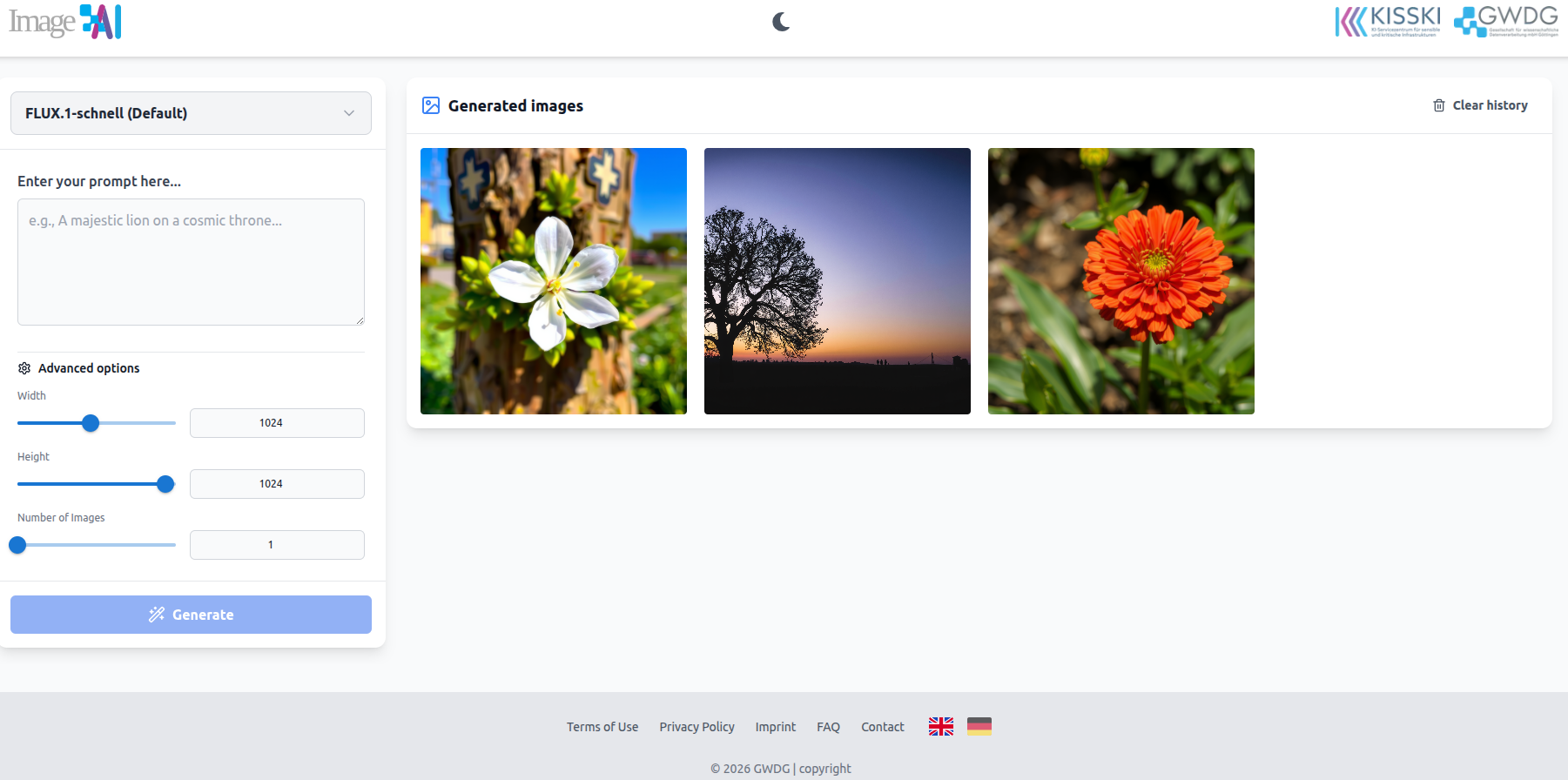
ImageAI is an AI-powered image generation service. The HPC architecture (High Performance Computing) is utilized by the ImageAI service, which uses the FLUX.1 [fast] model to generate images from user data. User data remain secure. The user-friendly web interface allows users to use the service very intuitively and create the desired image very quickly.
The main component of this service is image generation, accessible via the web interface.
Use of the Image-AI Web Interface
Every time image-ai.academiccloud.de/ is accessed, the system automatically collects data and information from the accessing computer system.
The following data are collected in every case:
Access date
Name of the operating system installed on the accessing device
Name of the browser used
Source system via which the access was made
IP address of the accessing device
These data are also stored in our system’s log files. These data are not stored together with other personal data of the user.
All data displayed in the browser by Image-AI are stored only client-side in the user’s browser and are transmitted to the servers only when the user requests processing, i.e., while the data are being processed by the backend models. After the end of a session in the browser, no user inputs are available anymore.
3.3 Voice AI Service
Overview of the Service
The service enables users to:
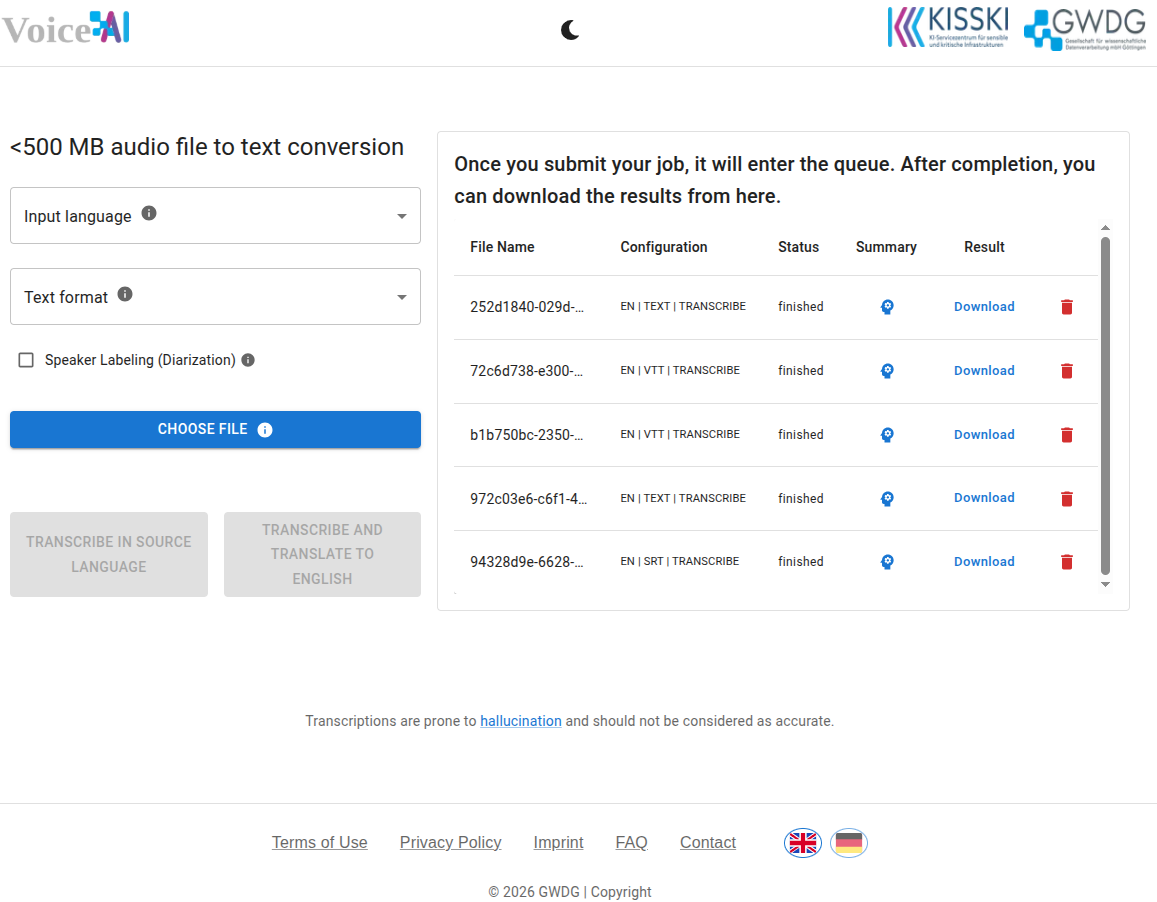
Translate speech streams: Use AI technology to translate speech streams into text in various languages.
Create meeting notes: Automatically generate written notes from the user’s voice input in online meetings using AI technology.
Service Specification: The service consists of two main parts:
Processing of uploaded audio files: This part processes audio files uploaded by users.
Processing of streaming audio from BBB: This part captures and processes streaming audio from BigBlueButton (BBB).
Use of Voice AI
Description and Scope of Data Processing
Every time our website is accessed, our system automatically collects data and information from the accessing computer system.
To use the Voice-AI services hosted by GWDG, user requests/inputs are captured by the website and processed on HPC resources. Protecting the privacy of user requests is of fundamental importance to us. Therefore, our service does not store your audio file or BBB conversation, nor do we store requests or responses on persistent storage. The only exception is BBB transcription, which is written in Etherpad and uses local MySQL and contains audio transcription results over 500 MB stored in our GWDG storage, both of which are deleted after 30 days. The number of requests per user and the respective timestamps are recorded so we can monitor system usage and perform accounting.
The following data are stored to fulfill the service:
Access date
Name of the operating system installed on the accessing device
Name of the browser used
Source system via which the access was made
IP address of the accessing device
These data are also stored in our system’s log files. These data are not stored together with other personal data of the user.
3.4 Protein AI Service
Overview of the Service
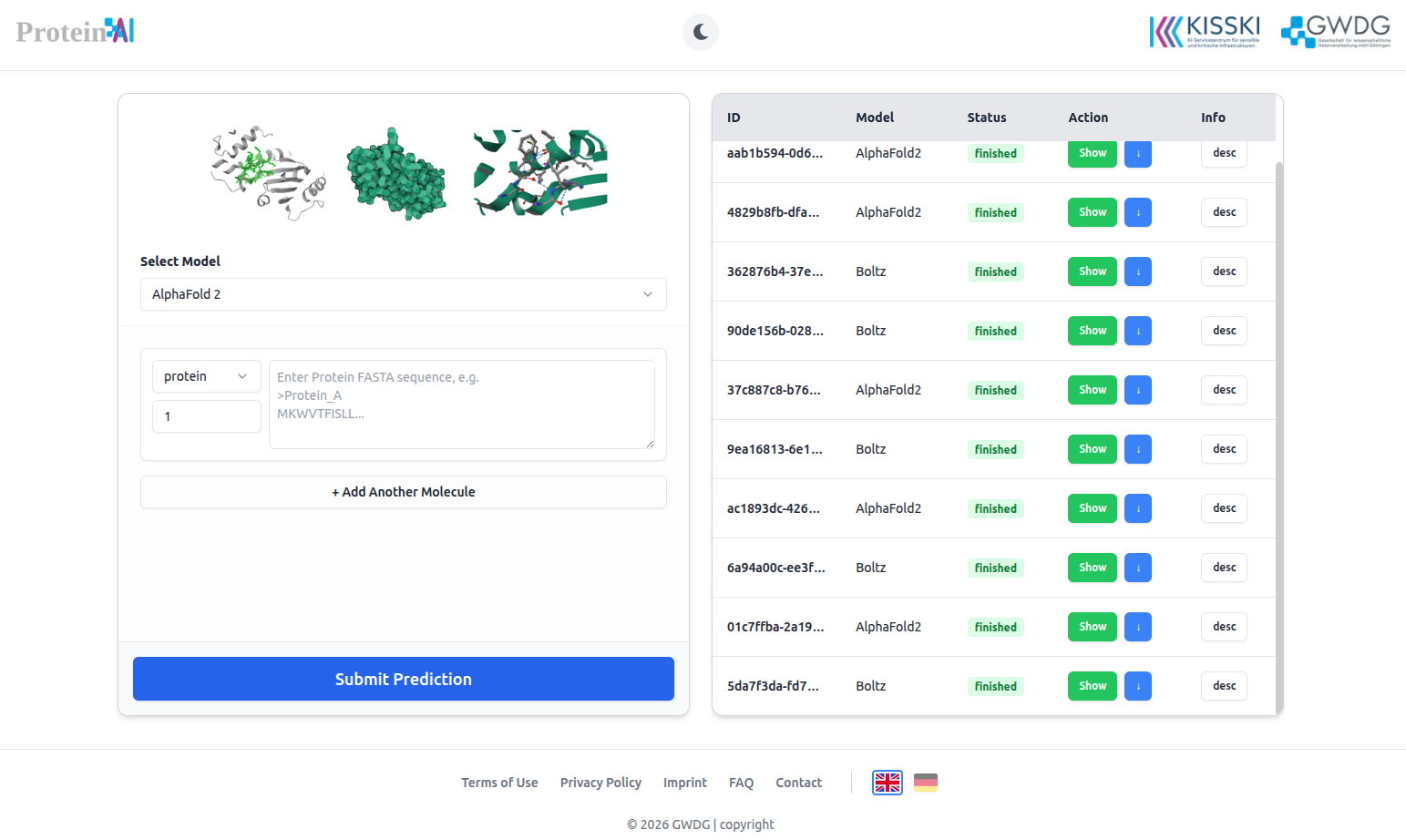
The Protein-AI service consists of several components, particularly a web frontend and backend models (alphafold2/boltz). The frontend provides users with a web interface to enter query sequences directly via a browser. Additionally, users can select the desired model and adjust certain settings.
The frontend forwards all requests to the selected backend model.
The backend is operated via the GWDG platform, which receives all requests and forwards them to the corresponding model.
Use of Protein AI
Every time protein-ai.academiccloud.de/ is accessed, the system automatically collects data and information from the accessing computer system.
The following data are collected:
Access date
Name of the operating system installed on the accessing device
Name of the browser used
Source system via which the access was made
IP address of the accessing device
These data are also stored in our system’s log files. These data are not stored together with other personal data of the user.
After the user’s input sequences are processed by the backend model, they are deleted; only the output result is retained on GWDG’s secure “Data Mover” node for 30 days.
AI Services
The AI services offered by GWDG provide a versatile platform for practical AI applications.
Our portfolio ranges from a chatbot with advanced capabilities (e.g. retrieval augmented generation, tool integration, MCP) to speech transcription and image processing.
All services can be conveniently used via a web interface or seamlessly integrated into existing systems via an OpenAI-compatible API.
Developed as part of the KISSKI project (AI Service Centre for Sensitive and Critical Infrastructures), the services meet high data protection requirements and are therefore particularly suitable for sensitive application scenarios.
If you have more questions, feel free to contact our support.
Or join our community chat on Matrix.
Subsections of AI Services
Arcana/RAG
Arcana is a Retrieval-Augmented Generation (RAG) service that enables you to interact with Documents - such as research papers, manuals, or study materials - using natural language.
LLMs benefit from RAG (Retrieval-Augmented Generation) by using the relevant information provided in a Document Collection (Arcana) for generating more accurate, reliable, and contextually grounded responses.
In order to use it, you need to activate your account for the Arcana page and set up an Arcana following the Getting Started Guide.
Once this is done, you can share it with colleagues or the public.
Details about this process can be found in the usage examples.
This is very useful for making large manuals or legal texts accessible to an audience that is only interested in smaller aspects of the larger document.
An example would be a list of study or exam regulations documents.
These documents can be uploaded and made accessible to students using the Chat AI service.
Students can then ask questions and receive responses containing information from these documents.
If you need assistance, please visit our Support page, where you will also find a short FAQ.
If all you need are some public Arcana links, please check out our published list.
Info
We need your help, if you have created an Arcana which you would like to promote to a larger audience! Please reach out to us.
We can feature it here and communicate it to other users.
Why Use RAG?
The RAG service is designed for businesses and applications that require AI-generated responses to be accurate, explainable, and adaptable to real-world knowledge.
Whether it is used for customer support, knowledge management, research, technical guidance, or expert systems, RAG ensures that AI remains intelligent, trustworthy, and useful in dynamic environments.
By integrating real-time data retrieval with AI-powered language generation, RAG transforms AI from a static knowledge tool into a dynamic, continuously learning system-ensuring that responses are always up to date, relevant, and reliable.
Docling: The program indexing the files is described in the Docling process page
Service Overview
This Service has two sides.
The first is the one where you access a specific Arcana using the Chat AI Service.
Similarly, you can share this ID or the access link with others so they can use the RAG for directly accessing specific documents.
The second side is the Arcana manager where the RAG service can be set up.
There it is possible to create and set up documents for use in the Arcana service in Chat AI.
Additionally, the indexed material can be fine-tuned for specific retrievals if the existing indexing is not good or accurate enough.
It is possible to upload PDF, Text, and Markdown files to be used as base material.
Usage examples
We have written a getting started guide as well as a usage guide.
Please refer to these sections directly if you need information about the interface.
The getting started guide details the arcana interface.
This includes creating an account if you already have an Academic Cloud account as well as setting up an Arcana.
It also contains some information about how to generate the ID and tokes as well as how to use the access link.
The usage guide focuses on the Chat AI interface and how to access Arcanas there.
It also gives some general guidance on how to do prompt engineering with Arcanas.
Subsections of Arcana/RAG
AI Transparency Statement
Goal
Typical LLMs have the advantage, but also the problem, of having been trained on an incredible amount of data.
This means that they know a lot, but are often unable to answer very specific questions.
In these cases, LLMs are very prone to hallucination, which means that they basically make things up.
One way to improve the performance of LLMs for very specific questions is to use Retrieval-Augmented-Generation (RAG).
Here, users provide custom documents that contain the knowledge base they want to ask questions about later.
Before an LLM responds to a user’s query, the most relevant documents previously provided by the user are retrieved and provided to the LLM as additional context.
In our innovative approach, we provide a reference section at the bottom of the answer where you can find the actual part of the document our RAG associated with your question.
As these references are quoted directly from the documents provided by the user, there is no possibility of hallucination.
General Functionality
This section briefly outlines the individual steps required to process a RAG request.
Ingesting Documents
In order to use RAG, a user must first provide a knowledge base, i.e. a set of documents.
These documents are uploaded, converted to markup and then indexed in a database.
Here they are chunked and then transformed into a vector by a special embedding model.
This vector is then stored in a vector database.
In this way, each document provided by a user must be processed to build the knowledge base.
This knowledge base, also known as “Arcana”, is stored at the GWDG until the user explicitly deletes it!
Submitting Requests
Once the general knowledge base has been built, a user can submit queries.
Before these queries are sent to the LLM, they are also transformed into a vector representation using the same embedding model that was used to create the knowledge base in the previous step.
This vector is then used in a similarity search on the previously created vector database to look for parts in the previously captured documents that have a similar meaning.
A configurable number of similar vectors are then returned and passed to the LLM along with the user’s original request.
Generating an Answer
The LLM uses the additional information to provide a more specific response to the user’s request.
This is already much less susceptible to hallucinations, but they are still possible.
In our approach, we provide explicit references to the documents containing the chunks used by the LLM to formulate the answer.
These references are provided in a special reference box at the bottom, which contains the actual citations from the original documents provided by the user.
Therefore, no hallucination is possible on these references.
Further Considerations
Access to the Stored Documents
The ingested knowledge base can be freely shared with other users.
To do this, the Arcana ID must be provided.
IMPORTANT: This gives users full access to your documents and cannot (yet) be revoked individually!
Storage of your Documents
Your indexed data will remain on GWDG systems at all times.
We will not share your documents with third parties.
Processing of your Requests
The processing of your requests, including generating the embeddings, retrieving the relevant documents and performing the inference, is all done on GWDG hardware.
Neither your requests nor your indexed documents are shared with third parties.
Migration Guide
Warning
This service is currently in beta phase and is updated regularly.
The same applies to the documentation.
With the introduction of our new RAG Manager, we have improved the UI and indexing process.
Due to architectural changes, the new interface is only partially backward compatible, particularly in terms of file storage and indexing.
This guide explains:
What still works between the old and new interface
What does not work
How to migrate your existing Arcanas from the old manager to the new System
Details
The old version is still accessible during the transition period and will be removed within the next months. You can continue to use it here
What Does Work
All existing Arcanas created by the old manager continue to work
You can chat with a legacy Arcana via the chat interface.
You can still modify a legacy Arcana in the old interface.
You can delete an Arcana created in the old interface using the new interface.
What Does Not Work
Modifying an Arcana across interfaces is not fully supported:
You can only delete an Arcana or files created in the old interface using the new interface.
You cannot modify and see an Arcana created in the new interface using the old interface.
Re-indexing a legacy Arcana using the new interface does not work, because the file storage architecture differs.
Migration Steps
To migrate a legacy Arcana to the new RAG Manager:
1. Identify Legacy Arcanas
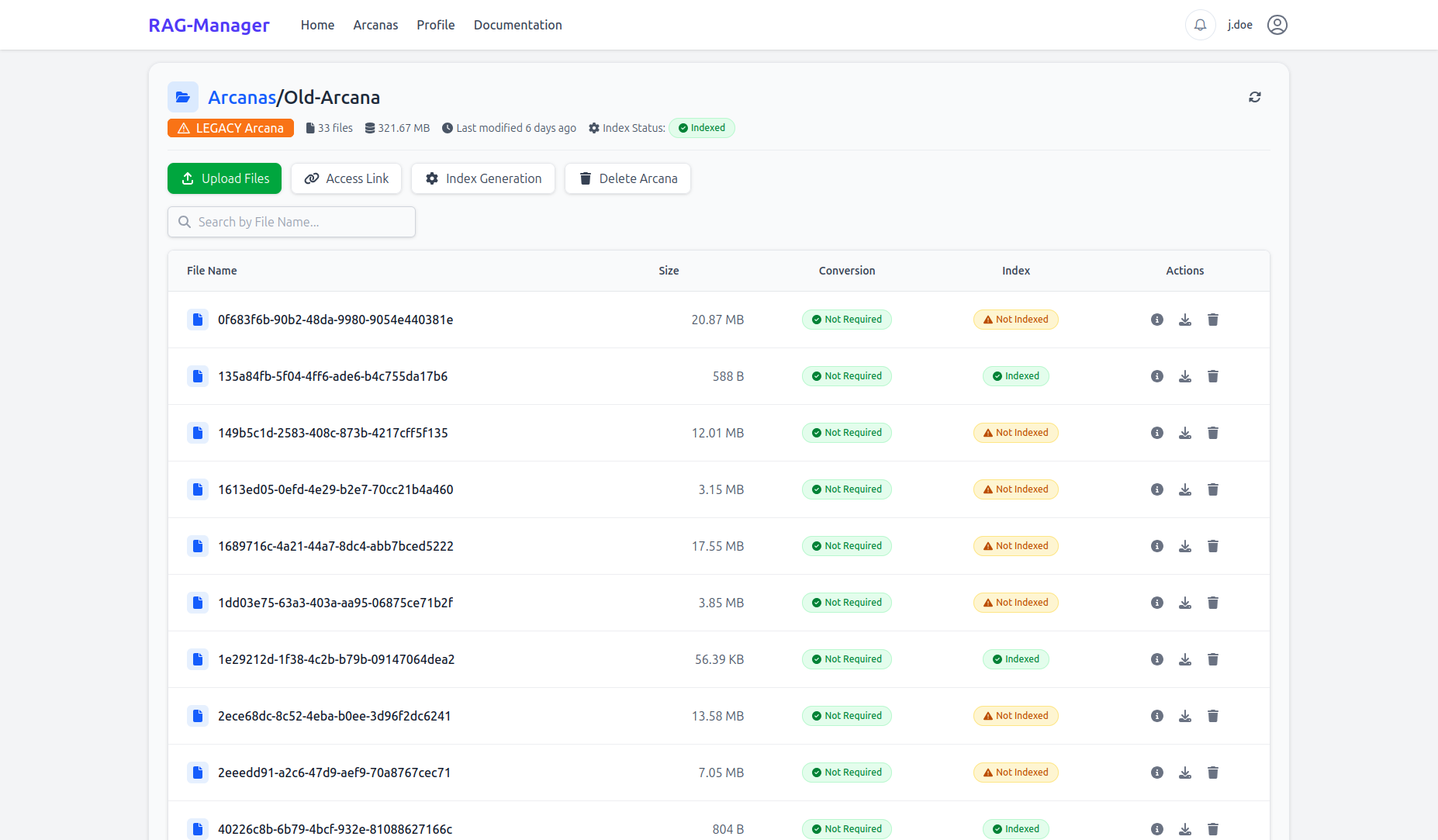
In the new interface, legacy Arcanas are marked with a “Legacy Arcana” tag in the Arcana details view.
Picture 1: Arcana Details View showing “Legacy Arcana” tag
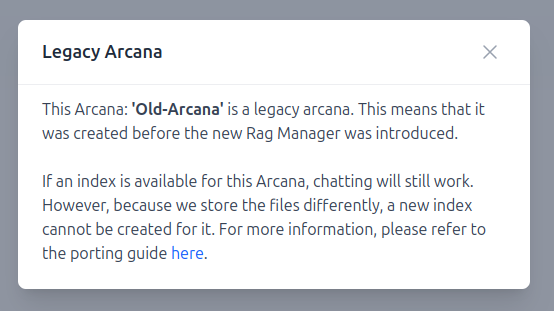
Clicking the tag will show you more information and provide a link to this migration guide (see Picture 2).
Picture 2: Pop-up after clicking the tag, with migration guidance
2. Choose Your Migration Approach
You have two options for migrating a legacy Arcana:
Option A: Re-create the Arcana
Delete the Arcana entirely.
Create a new Arcana in the new interface with the same name.
Upload your files again.
Click “Generate Index” and follow the usual steps.
Option B: Replace Files in Existing Arcana
Delete all files in the existing legacy Arcana.
Upload the files to the same Arcana using the new interface.
Click “Index Generation”, then click “Delete Index” and finally click “Generate Index”.
Details
This option preserves the original Arcana name and ID but removes all prior file content.
RAG Service
Warning
This service is currently in beta phase and is updated regularly.
The same applies to the documentation.
RAG (Retrieval-Augmented Generation) is an advanced AI technique designed to improve the accuracy, reliability, and contextual relevance of AI-generated responses.
Traditional AI models, such as large language models (LLMs), rely solely on pre-trained data to generate answers.
While these models can provide insightful responses, they are limited by the information they were trained on, which may become outdated or may not cover specific topics in detail.
RAG overcomes these limitations by integrating an external retrieval process before generating a response.
Instead of relying purely on static knowledge, RAG actively searches for relevant data from external sources, such as document databases, APIs, or knowledge repositories.
The retrieved data is then fed into the AI model along with the original user query, ensuring that the response is fact-based, up to date, and contextually relevant.
This approach is particularly valuable for applications requiring real-time information access, such as customer support, research, healthcare, legal advice, and financial services.
By leveraging external data, RAG enhances AI’s ability to provide more precise answers, reduces misinformation, and improves trust in AI-driven decision-making.
How the RAG Service Works
The RAG service follows a three-stage process: Retrieval, Augmentation, and Generation.
1. Retrieval Phase
The system maintains a structured external knowledge base, stored in Arcana-based ChromaDB.
This database contains documents, articles, technical manuals, and other relevant data sources.
When a user submits a query, the ChromaDB engine performs a search to find the most relevant documents.
The retrieval process is powered by vector-based similarity matching, which identifies information that closely matches the meaning and context of the user’s query.
This approach ensures that even if the exact wording of the query differs from stored data, the system can still locate relevant information.
2. Augmentation Phase
Once the system retrieves relevant documents, they are combined with the original user query to form an enriched input.
This augmented input helps the AI model understand specialized or proprietary information that may not have been part of its original training data.
The retrieved documents serve as a knowledge injection, ensuring that responses are grounded in verified, real-world data rather than relying on the model’s internal assumptions.
3. Generation Phase
The AI model processes the combined input (original query + retrieved documents).
It then generates a response that integrates both its pre-trained knowledge and the newly retrieved information.
This response is more accurate, relevant, and fact-based compared to responses generated by traditional AI models that lack external retrieval.
The system can also provide source references, increasing transparency and allowing users to verify the information provided.
Key Benefits of the RAG Service
Improved Accuracy
Since the AI retrieves real-world data before generating responses, it significantly reduces errors and outdated information.
This ensures that responses are more reliable, precise, and factually correct.
Reduction of AI Hallucinations
Traditional AI models sometimes generate responses that sound plausible but are actually incorrect or misleading.
RAG minimizes this risk by ensuring that responses are anchored in retrieved, verifiable data, rather than being purely speculative.
Domain-Specific Customization
Organizations can integrate proprietary databases, making the AI highly specialized for their industry or use case.
Whether for healthcare, legal, finance, engineering, research, or customer support, RAG can be tailored to provide highly relevant responses.
Enhanced Explainability and Transparency
Unlike traditional AI models, which provide answers without explaining their reasoning, RAG can cite sources for its responses.
Users can trace back the information to the retrieved documents, improving trust and accountability in AI-generated content.
Access to Real-Time and Dynamic Knowledge
Unlike static AI models that rely only on pre-trained knowledge, RAG can fetch and integrate the latest available information.
This is especially useful for industries where information changes frequently, such as market trends, regulatory compliance, technical troubleshooting, and scientific research.
Better User Experience
By retrieving and integrating the most relevant information, RAG allows AI to provide more complete and meaningful answers to user queries.
This leads to better decision-making, improved efficiency, and a more user-friendly AI interaction.
Setting up an Arcana
Warning
This service is currently in beta phase and is updated regularly.
The same applies to the documentation.
The process screenshots contain blank blocks.
These are in the positions that will be replaced with the username.
First Login
Go to the main Arcana page and click on register.
You will need to log in with your Academic Cloud account first.
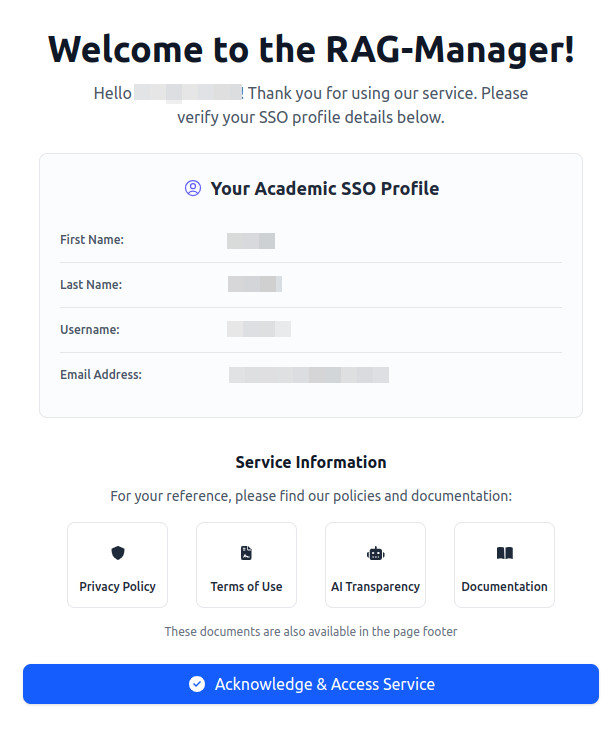
The register page of the RAG Manager welcomes the user, shows the Academic Cloud profile and shows a button for registering to the service by acknowledging the details.
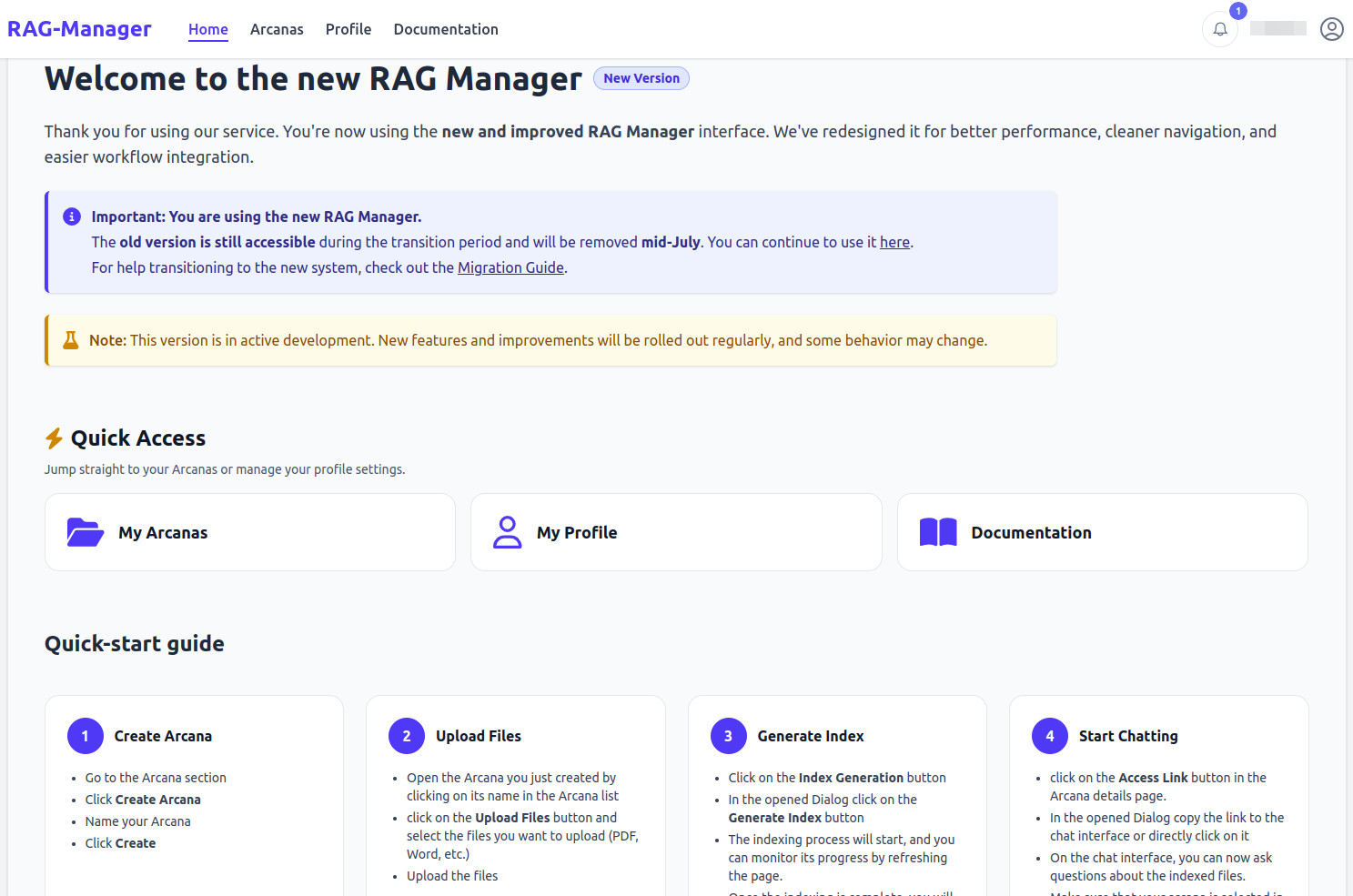
Once this is done, you are now able to go to the dashboard which looks like this:
The Arcana manager dashboard has a main part and a menu bar. The menu bar contains the Home tab, Arcanas tab, a Profile tab and a Documentation tab. The main part contains a ‘Quick Access’ section and the ‘Quick Start’ guide. The bottom of the page has links to the Data privacy and terms of use.
You can find an overview of your profile under the profile tab.
This is also the place, where you can delete your profile data.
The user profile tab shows the account information and a red box that reads danger zone and contains a button to delete the account.
Creating an Arcana
Once you have the dashboard open, you can navigate to the Arcanas section by either clicking on it in the navigation bar at the top or clicking on the “My Arcanas Box”.
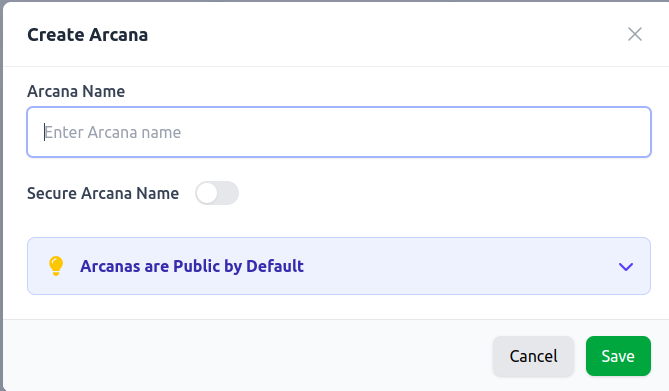
On the Arcanas section clicking on “+ Add New Arcana” will open the Create Popup.
First, you need to specify a name for this arcana.
The main Arcana manager, once pressed on the new Arcana button, displays a window in which a name can be set and a new Arcana created.
Enabling the “Secure Arcana Name” slider will append a random string to the Arcana’s name. This ensures that only users who know the exact name of the Arcana can chat with it.
Note: All of your Arcanas are public by default! This means that anyone who knows the exact Arcana name can chat with it. However, this does not mean that they can directly access your files.
Once created, it should appear in your Arcana list.
The Arcana manager now contains a new Arcana which is not indexed and has no files. The actions section contains a button for open folder, delete, and access link.
By clicking on an Arcana, you can open the view of that Arcana content.
The menu for this new Arcana has four buttons up top: upload a new file, access link, index generation, and delete Arcana. The table below does currently not contain any files.
Uploading Files
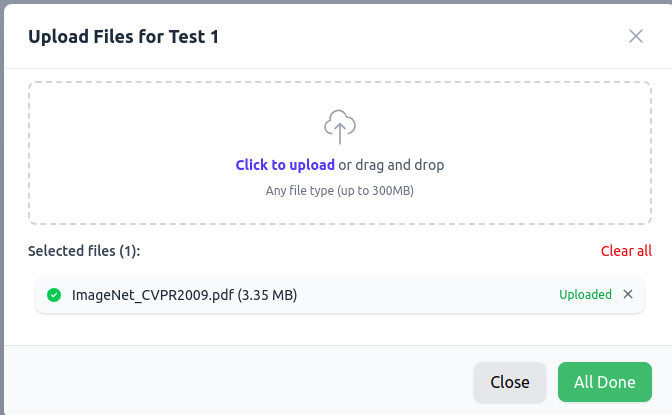
On the Arcana page click on “Upload Files” to start adding your files to the arcana
The upload a new file window has a button for choosing a file, as well as a cancel and done button.
Select one or multiple files to upload. You can upload files of various types.
The following file formats are supported:
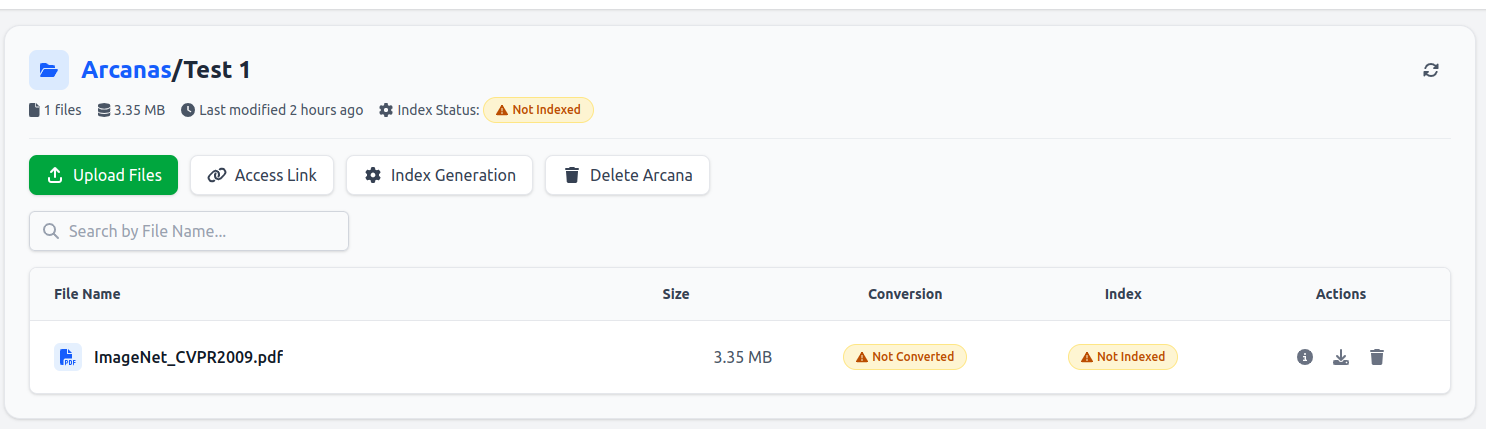
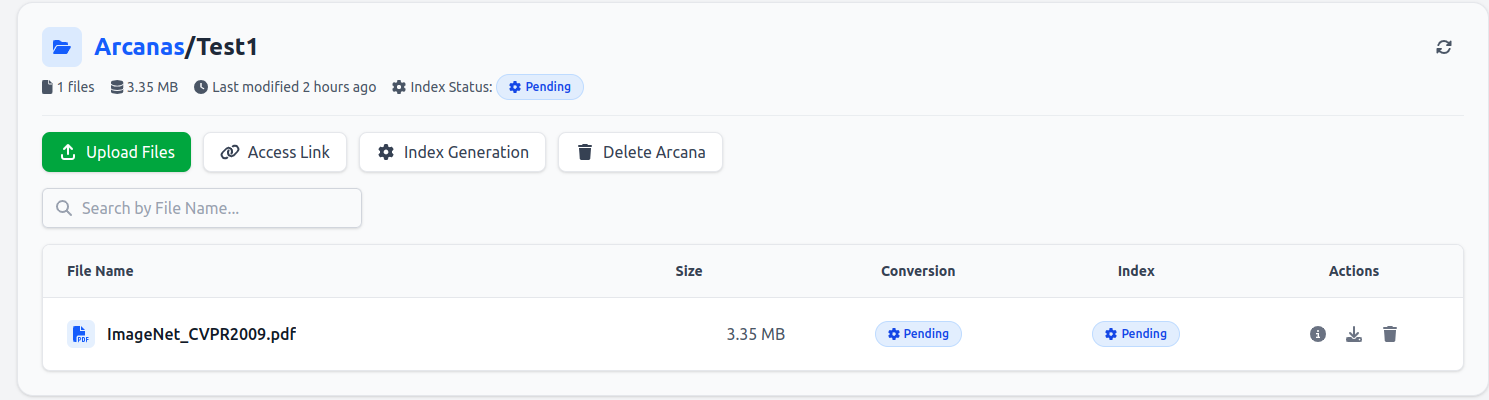
Once uploaded, the menu for this Arcana now shows the file, which is not indexed and not converted.
You can check the file details by clicking on the “File Info” icon next to each file.
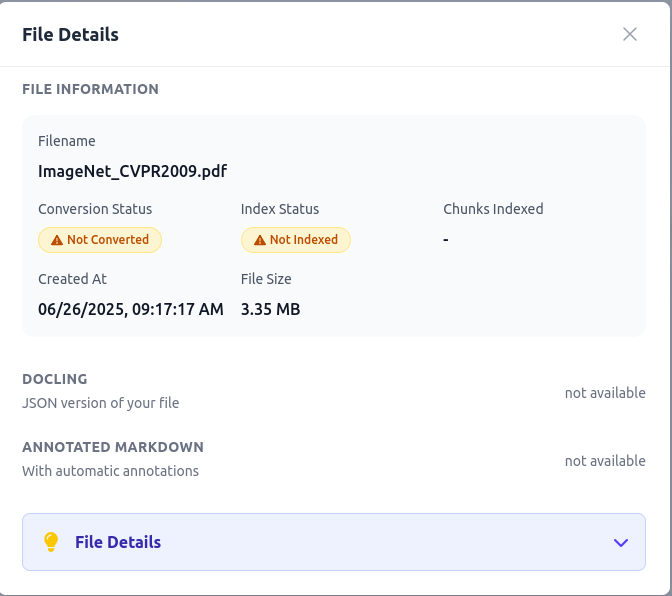
The File Details menu shows the file information as well as the status. Additionally, it gives the option to download the processed Markdown Plus file as well as a JSON file. Also, a new Markdown Plus file can be uploaded.
This is also the page, where after generating the index you can download the Docling JSON file or download the annotated Markdown file.
Also, you have the option to upload a new version of the file.
More importantly, you can download the Markdown file and update the markers mentioned in the Docling process.
This is very useful to fine tune the splitting and marking of the file for better indexing and retrieval.
Once these changes are made, uploading it will start a check process to make sure the content still matches the uploaded material.
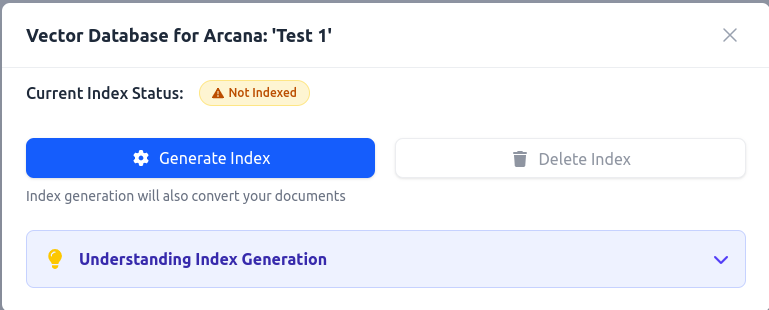
Now that the file or files are uploaded, you can start the index generation and file conversion by clicking on “Index Generation”.
Clicking on ‘Generate Index’ opens a new small window prompting the user to confirm that the index should be generated.
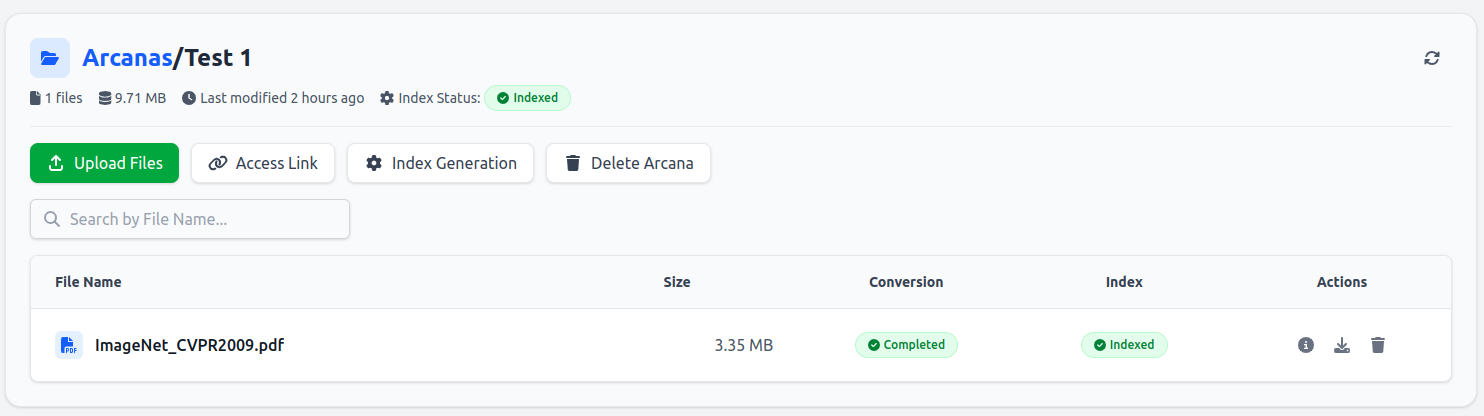
Which will change the status to a blue “pending” and finally a green “indexed”.
The index status has changed from not indexed to pending.
The index status has changed to Indexed.
Viewing your Access Link
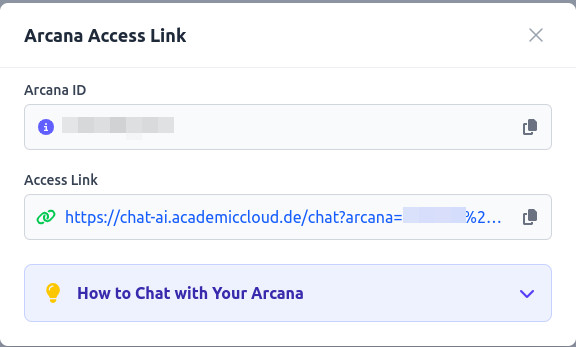
Once your Arcana is indexed, you will be able to generate the Access Link and get the ID for this Arcana.
Click on “Access Link” in the Actions tab of the respective Arcanas to generate it.
Once the access link is created, it shows the link, which can be copied, as well as the Arcana ID.
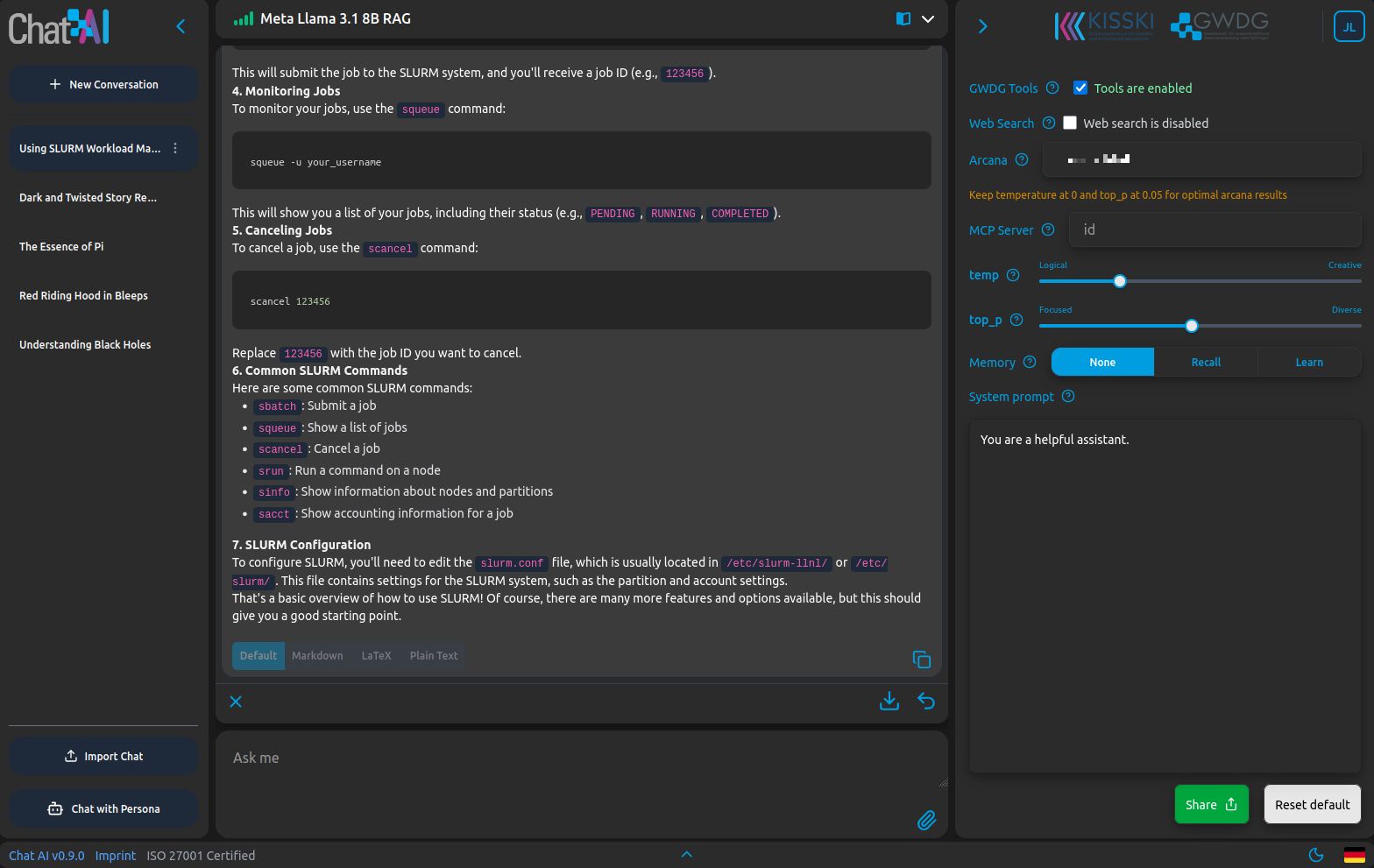
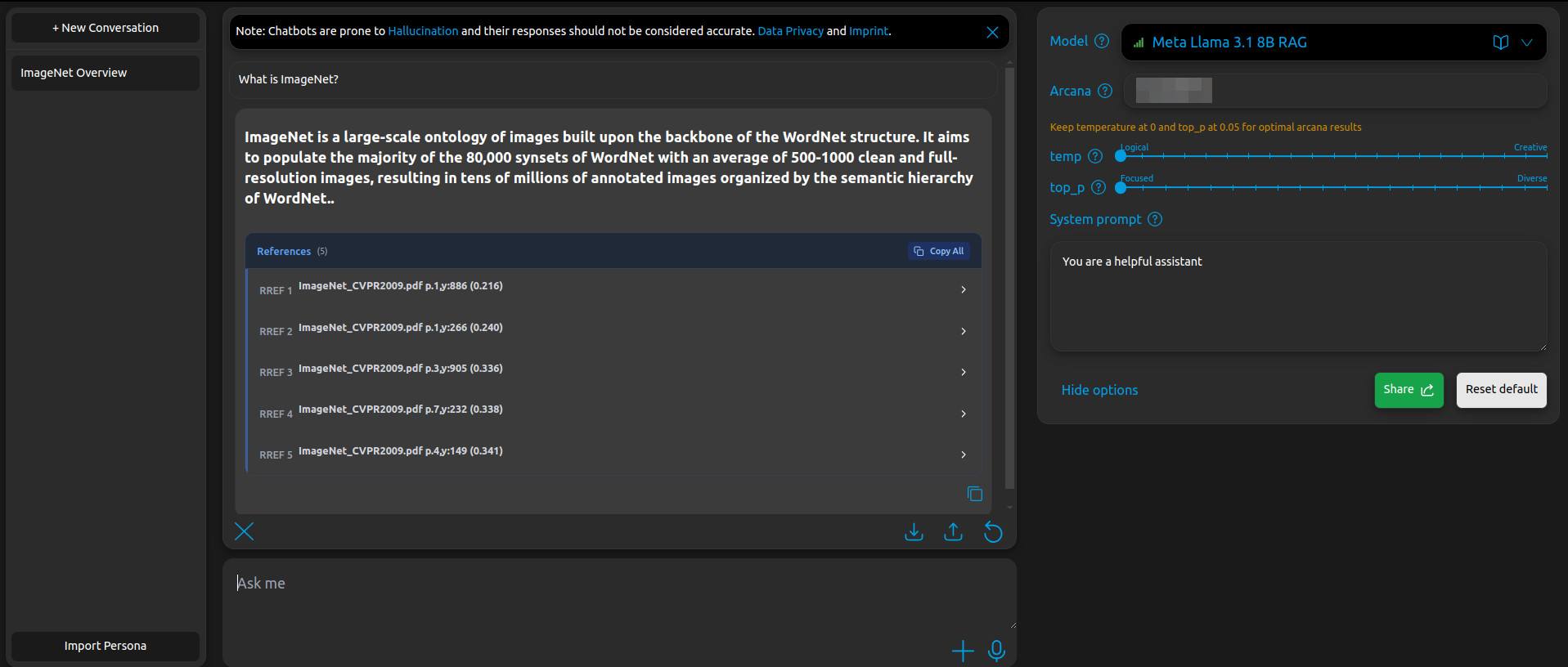
You can click on the link or copy it into a new tab, which will open Chat AI with the Arcana ID preset into the advanced options.
The Chat-AI window has Arcana ID filled in.
Now you are able to share the link as well as the IDs for this Arcana.
Updating files in an Arcana
There is an option to download and customize annotations for uploaded files, or modify previous manual or generated annotations.
After the file has been uploaded and processed, you can update its annotation if necessary.
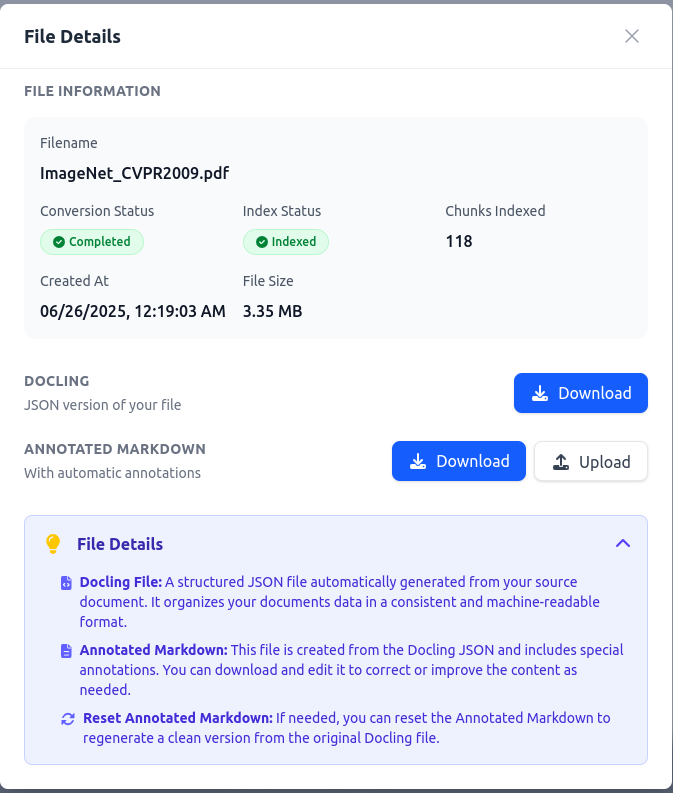
The details dialog for a PDF looks like this:
The File Details dialog for a PDF file lists information about the file as well as the index and conversion status. Below is the option to download the JSON output of the Docling process. At the bottom is the option to download the annotated Markdown file, upload an updated file, and an option to reset the annotated Markdown file.
For all file types, there is the option to download the annotated Text/Markdown file.
In case of a PDF, this annotated Markdown file - also called Markdown Plus - is automatically generated by the Docling process.
There is also the option to upload a manual annotated file (text or markdown).
This is very useful to manually set the annotations or to update them.
Additionally, many files have a JSON file from the Docling process that can be downloaded and viewed.
The available annotations are explained in the Docling process under the heading Markdown Plus Annotations.
Info
Partially annotated files do not work.
They either have to be fully annotated and not annotated at all.
How to use Arcana
Warning
This service is currently in beta phase and is updated regularly.
This also applies to the documentation.
Warning
Previously, RAG/Arcanas only worked with specific models. This is no longer the case, and Arcanas now work with every model.
The previous method of using Arcanas with models that have ‘RAG’ in their name (or the little book icon) will not be supported in future. Please use the GWDG Tools as described below!
This guide walks you through two primary ways to access an Arcana:
Quick Start: Using an Access Link (recommended for beginners)
Advanced: Manual Access via Arcana-ID (for power users and integration)
If you have been provided with an Access Link to an Arcana (e.g., for a research paper, course material, or institutional document) or if you have generated your own following the Getting Started Guide, this is the fastest and most straightforward way to begin.
Steps
Click the Access Link shared by the Arcana owner or yourself.
This opens a pre-configured Chat-AI interface, automatically configured for that Arcana.
Begin asking questions - the system will retrieve relevant content from the indexed material and generate responses grounded in the source.
Manual Access: Use the Arcana-ID
For greater control, you can manually connect to an Arcana using its unique Arcana-ID. The arcana ID is also needed when interacting with an Arcana via the Chat Completions API.
In the Settings menu (right side), enable GWDG-Tools.
In the Arcana field, enter the Arcana-ID (e.g., user1/arcana-123456).
Select the recommended model: Qwen 3 30B A3B Instruct 2507
Info
If you see the message “Could not use tools: tools possibly not supported”, while interacting with the RAG, switch to this model - it is optimized for tool-based retrieval.
Adjust temp and top_p to the lowest possible.
Start interacting with the Arcana through the chat interface.
Info
While Arcanas and GWGD-Tools can work with other models, Qwen 3 30B A3B Instruct 2507 delivers the most consistent performance with the RAG functionality.
Generating an Access Link for an Arcana
To generate an Access Link for your Arcana follow the getting started guide section Viewing your Access Link.
Best Practices for Effective Use
To ensure high-quality, accurate responses, follow these guidelines:
1. Adjust ’temp’ and ’top_p'
For Arcanas we recommend to set ’temp’ to 0.0 and ’top_p’ to 0.05 for optimal results. For more information on the influence of ’temp’ and ’top_p’ see this section in the Chat-AI Documentation.
2. Use Specific Keywords from the Source
Our RAG-System processes documents by converting PDFs into structured Markdown. The LLM response is then improved by extracting relevant information from those documents for your prompt.
For further information, see the Docling process.
Include terms, phrases, or concepts present in the original document in your prompt:
Vague: “Tell me about this dataset.”
Specific: “What evaluation metrics were used in the ImageNet benchmark?”
3. Customize the System Prompt
For important Arcanas (e.g., study guides, lab protocols or scientific papers), adjust the System Prompt to define the desired tone, format, and response style.
Example
You are a helpful assistant named Sandra working at the GWDG for many years. reply precisely to the question.
You will be provided with references at the beginning that might be helpful.
If you do not know the answer answer honestly that you do not know the details.
Please refer to context you use for your reply using the [REF NUMBER] Syntax close to its usage.
If the references provided are confusing, you may ask the user to provide the necessary details to identify which to use.
4. Review References in the Response
After each query, the system returns:
The response, enriched with context from the indexed material.
References below the answer, including:
Source file name (e.g., imagenet.pdf)
Page reference
References are rendered in Markdown, allowing you to trace each claim back to its original source. Originally, the information might have been in a PDF, which got converted into an annotated Markdown file as you can learn in the Docling process.
Example
Prompt: What is ImageNet?
Example Response: ImageNet is a large-scale ontology of images built upon the backbone of the WordNet structure. It aims to populate the majority of the 80,000 synsets of WordNet with an average of 500-1000 clean and full-resolution images, resulting in tens of millions of annotated images organized by the semantic hierarchy of WordNet.
Arcana Example
Response includes source references from the original ImageNet PDF.
API Usage
Warning
This service is currently in beta phase and is updated regularly.
The same applies to the documentation.
The Arcana Manager exposes and api endpoint for you to use.
With the api endpoint you can perform all the actions that the frontend Arcana Manager is capable of.
To use the API, you’ll first need an API key, which you can request on our website. This key works across all our services. If you’re already using the LLMs via the api, you can use the same key.
Otherwise you can request your key following this documentation.
Info
If you want to chat with an Arcana using the LLM Chat completions API refer to this section in the SAIA-Documentation
Base Route
All Routes for the RAG/Arcana-API start with
https://chat-ai.academiccloud.de/v1/arcanas/api/v1/
Note that every api request needs to start with https://chat-ai.academiccloud.de/v1/. Routes that start with https://chat-ai.academiccloud.de/arcanas/ are not compatible with API keys.
The response will be null with a status code of 200 if the upload worked
Index an Arcana
Index generation is synchronous i.e. the HTTP request only responds once the index has been created. If the request is canceled, the index generation will finish in the background.
Full List of Routes
The list of all available routes can be found under:
In Web-Browser: https://chat-ai.academiccloud.de/arcanas/api/v1/docs
Via API: https://chat-ai.academiccloud.de/v1/arcanas/api/v1/openapi.json
This service is currently in beta phase and is updated regularly.
The same applies to the documentation.
The RAG Service provides users with an efficient way to upload and process PDF documents using Docling.
The system converts uploaded PDFs into Markdown format while also automatically annotating them.
This enhanced Markdown output, referred to as Markdown Plus, includes metadata and structural annotations for improved document parsing and customization.
This service is using a fork of the Docling API with many modifications, which will be published in the future.
Process Flow
File Upload: Users upload their PDF documents through the RAG interface.
Conversion Process: Once the PDF file is uploaded, the user can convert into the Markdown Plus format by clicking on Index Generation -> Generate Index. This will also convert the files.
Annotation & Metadata: The Markdown Plus output is automatically annotated with structural markers.
By clicking the “File Info” icon on the right, users can download the annotated Markdown file, adjust split markers, and re-upload it for further processing.
The File Details window for a file is shown with all the file details as well as the option to download either the JSON format or the Markdown Plus file. Additionally, there is an option to upload an updated Markdown Plus file.
Validation: Upon re-upload, a validation process ensures that the paging structure remains intact.
Markdown Plus Annotations
Docling generates a structured and annotated Markdown file using the following markers:
1. Page Marker
Format: [Page (number)]: #
Purpose: Indicates the beginning of a new page in the original PDF document.
Example:
[Page 1]: #
2. Vertical Position Marker
Format: [Y: (number)]: #
Purpose: Represents the approximate vertical position of an item on the page (The height of the pages is scaled to 1000 lines).
Details:
Each page is divided into five sections.
If no continuous item (such as a table or image) exists in a given section, a Y marker is assigned.
Example:
[Y: 300]: #
3. Split Marker
Format: [Split]: #
Purpose: Defines segmentation points in the document for later processing.
Usage:
The split markers guide document chunking for downstream applications.
Users can manually adjust split markers in the Markdown Plus file before re-uploading.
Example:
[Split]: #
Metadata Header
Each annotated Markdown file contains a header section with metadata about the document, including:
Author
Title
Description
Filename
Extension
Number of Pages
Version
For example:
---
Author: jkunkel1
Title: Title of the file
Description: ''
Filename: file name
Extension: pdf
Number of Pages: 20
Version: 1.0
---
User Interaction with Annotated Markdown
Download Markdown Plus: Users can export the annotated Markdown file for review.
Modify Split Markers: If desired, users can manually edit [SPLIT]: # markers to customize segmentation.
Re-Upload Modified File: The system verifies that the paging structure remains undisturbed before processing the document further.
Public Arcana links
Warning
This service is currently in beta phase and is updated regularly.
The same applies to the documentation.
Here is a list of public links for Arcanas.
These are sorted in categories and contain public material.
Please refer to the How to use section of you need help working with these.
Contain knowledge about the computer science study track.
Example question: Wie funktioniert der Studiengang angewandte Informatik?
In case you find a broken link, please let us know via our support contacts.
Support and FAQ
Warning
This service is currently in beta phase and is updated regularly.
The same applies to the documentation.
If you run into problem using this service please contact our KISSKI support
We also need your help providing publicly available Arcana links.
If you have one that you think is relevant to a larger group of users, please also reach out to us so we can publish it.
FAQ
Which models support RAG (Retrieval-Augmented Generation)?
All internal models work with the GWDG-Tools and Arcanas.
But some models are better at using Tools then others!
We recommend using:Qwen 3 30B A3B Instruct 2507 for the best results with tool calling and document retrieval.
We do NOT recommend to use: Meta Llama 3.1 8B Instruct as its is not optimized for Tool-Calling!
Info
External models do not support Arcanas/RAG!
What is the maximum file size I can upload?
You can upload files up to 300 MB per file.
For optimal performance, we recommend keeping files under 50 MB - larger files may take longer to process.
All files are converted into a machine-readable (Markdown) format during indexing.
Is my data stored? Where is it stored?
Your documents and indexed data remain exclusively on GWDG systems at all times.
We do not store, share, or transmit your data to third parties.
Your privacy and data security are our top priorities.
Can I share my Arcana?
Yes - Arcanas can be freely shared with other users.
To share, simply provide the Arcana ID or the full Arcana name.
Info
By default, every Arcana is public. This means anyone who knows your username and the exact Arcana name can access it.
However, they cannot view or edit your uploaded files - they can only interact with the Arcana via the chat interface.
How do I create a private Arcana?
To keep your Arcana private, enable the “Secure Arcana Name” option when creating it.
This adds a random, unique security token to the Arcana name, making it accessible only to you or anyone who knows the full, exact name.
How does RAG (Retrieval-Augmented Generation) work?
RAG enhances large language models (LLMs) by combining document retrieval with generative AI.
Here’s how it works:
Your query is matched against a knowledge base (your uploaded documents).
The system retrieves the most relevant passages (5 Passages).
The LLM uses this context to generate accurate, informed, and contextually relevant responses.
This allows the model to draw from external knowledge beyond its training data, resulting in:
Higher factual accuracy
More coherent and relevant answers
Reduced hallucinations
How are my requests processed?
Every step of your request is handled entirely on GWDG infrastructure:
Document embedding generation
Retrieval of relevant content
Final inference and response generation
Your data and queries never leave GWDG systems, and are never shared with third parties.
Why is the indexing taking so long?
Indexing involves advanced machine learning algorithms to convert complex documents (like .docx, .pdf, .pptx) into a structured, machine-readable format (Markdown).
This process can take time, especially for:
Large files (>50 MB)
Documents with complex layouts, images, or tables
To speed up indexing, keep file sizes under 50 MB and avoid overly complex formatting.
Further Questions?
Let us know if you have any further questions!
Chat AI
Chat AI is a web service that provides access to a wide range of large language models (LLMs) through a feature-rich, user-friendly interface.
It offers a curated selection of popular open-weights models running in our own data center, alongside anonymized access to external models from commercial providers.
The web interface is hosted on GWDG’s cloud infrastructure and securely forwards your requests through our scalable SAIA backend to the selected model, routing either to local HPC hardware or, for models marked as external, to the commercial vendor’s service endpoint.
Our AI team updates the list of supported models regularly and is continuously developing new features.
Chat AI is our privacy-respecting, secure alternative to commercial LLM services: we guarantee that none of your chat histories or other user data is stored on our systems.1
The service can be reached via a it’s web interface.
To use the models via the API, refer to API Request, and to use the models via Visual Studio Code, refer to CoCo AI.
If all you need is a quick change of your persona, this is the page you are looking for.
Tip
You need an Academic Cloud account to access the AI Services.
Use the federated login or create a new account. Details are on this page.
Current Models
Chat AI currently hosts a large assortment of high-quality, open-source models. All models except ChatGPT are self-hosted with the guarantee of the highest standards of data protection. These models run completely on our hardware and don’t store any user data.
For more detailed information about all our models, please refer to available models.
Web interface and usage
If you have an Academic Cloud account, the web interface can also easily be reached via chat-ai.academiccloud.de.
All models of Chat AI are free to use, for free, for all users, with the exception of the models from OpenAI and Anthropic.
These are labeled “(External)” in the model selection list of the web interface.
Choose a model suitable to your needs from the available models.
After learning the basic usage, learn about ChatAI’s advanced features here
From the web interface, there are built-in actions that can make your prompts easier or better. These include:
Attach (+ button): Add files that the model use as context for your prompts.
Listen (microphone button): Speak to the model instead of typing.
Import/Export (upload/download button): If you have downloaded conversations from a previous ChatAI session or another service, you can import that session and continue it.
Footer (bottom arrow): Change the view to include the footer, which includes “Terms of use”, “FAQ”, etc. and the option to switch between English and German.
Light/Dark mode (sun/moon button): Toggle between light and dark mode.
Options: Further configuration options for tailoring your prompts and model more closely. These include :
System prompt, which can be considered the role that the model should assume for your prompts. The job interview prompt above is an example.
Share button, which generates a shareable URL for Chat AI that loads your current model, system prompt, and other settings. Note that this does not include your conversation.
Clear button, which deletes the entire data stored in your browser, removing your conversations and settings.
Memory Settings, the system supports three memory modes to control conversational context:
None: Disables memory—each conversation is treated independently.
Recall: Adds previous messages to the system prompt for contextual continuity.
Learn: Extends Recall by updating memory with relevant parts of the current conversation, enabling a more natural dialogue flow.
Note: Memory is stored locally in the browser and does not affect external (OpenAI) models.
We suggest to set a system prompt before starting your session in order to define the role the model should play. A more detailed system prompt is usually better. Examples include:
“I will ask questions about data science, to which I want detailed answers with example code if applicable and citations to at least 3 research papers discussing the main subject in each question.”
“I want the following text to be summarized with 40% compression. Provide an English and a German translation.”
“You are a difficult job interviewer at the Deutsch Bahn company and I am applying for a job as a conductor”.
Completion options
Two important concepts to understand among completion options are temperature and top_p sampling.
temperature is a slider from 0 to 2 adjusting the creativity, with closer to 0 being more predictable and closer to 2 being more creative. It does this by expanding or flattening the probabilities of the next token (response building block).
top_p is a slider from 0 to 1 which adjusts the total population of probabilities considered for the next token. A top_p of 0.1 would mean that only the top 10% of cumulative probabilities are considered. Varying top_p has a similar effect on predictability and creativity as temperature, with larger values considered to increase creativity.
Predictable results, for tasks such as coding, require low values for both parameters, and creative results, for tasks such as brainstorming, require high values. See the table in the available models section for value suggestions.
Features
More comprehensive documentation for all features is found here.
The settings window shows you an option to activate tools.
Once activated, these tools are available:
Web Search
Image generation
Image editing
text to speech (tts)
Also, if you want to use Toolbox, meaning the image, video, and audio features of the models, you need to activate the tools in the settings.
Info
These tools only work using the models hosted by GWDG and KISSKI. The external models from OpenAI do not work with the tools.
Web Search
This tool works by creating a search query that can be used with search engines.
The entire chat history is used and processed to create a short search query that generates a processable response.
Once the response is retrieved from the search engine it is used together with the model to write a reply to the prompt.
Most importantly, this allows the response to contain recent information instead of the outdated information present in the model that was selected.
We thank all colleagues and partners involved in this project.
Citation
If you use Chat AI in your research, services or publications, please cite us as follows:
@article{doosthosseini_saia_2026,
    title = {{SAIA}: a seamless {Slurm}-native solution for {HPC}-based services},
    volume = {82},
    issn = {1573-0484},
    url = {https://doi.org/10.1007/s11227-026-08508-3},
    doi = {10.1007/s11227-026-08508-3},
    number = {7},
    journal = {The Journal of Supercomputing},
    author = {Doosthosseini, Ali and Decker, Jonathan and Nolte, Hendrik and Kunkel, Julian},
    month = may,
    year = {2026},
    pages = {403},
}
Further services
If you have questions, please browse the FAQ first.
For more detail on how the service works, you can read our research paper here.
If you have more specific questions, feel free to contact us at kisski-support@gwdg.de.
Exceptions apply, see our Terms of Use.
For example, data you intentionally store using Arcana is retained by design in order to provide that feature. ↩︎
Subsections of Chat AI
Available Models
Chat AI provides a large assortment of state-of-the-art open-weight Large Language Models (LLMs) which are hosted on our platform with the highest standards of data protection. The data sent to these models, including the prompts and message contents, are never stored at any location on our systems. Additionally, Chat AI offers models hosted externally such as Anthropic Claude and OpenAI GPT-5.
Available models are regularly upgraded as newer, more capable ones are released. We select models to include in our services based on user demand, cost, and performance across various benchmarks, such as HumanEval, MATH, HellaSwag, MMLU, etc. Certain models are more capable at specific tasks and with specific settings, which are described below to the best of our knowledge.
List of external models, hosted by external providers
Organization
Model
Open
Release date
Context window in tokens
Advantages
Limitations
Recommended settings
🇺🇸 Anthropic
Claude Sonnet 5
no
Jun 2026
1M
Agentic tasks, great performance
-
default
🇺🇸 Anthropic
Claude Sonnet 4.6
no
Feb 2026
1M
Balanced performance, fast responses
-
default
🇺🇸 OpenAI
GPT-5.6 Sol
no
Jul 2026
1.05M
Frontier model for complex professional work
-
default
🇺🇸 OpenAI
GPT-5.6 Terra
no
Jul 2026
1.05M
GPT-5.6 model that balances intelligence and cost
-
default
🇺🇸 OpenAI
GPT-5.6 Luna
no
Jul 2026
1.05M
GPT-5.6 model optimized for cost-sensitive workloads
-
default
🇺🇸 OpenAI
GPT-5.5
no
Apr 2026
1M
General tasks, reasoning
-
default
🇺🇸 OpenAI
GPT-5.4
no
Mar 2026
272K
Professional knowledge work, coding, data analysis, agentic workflows
-
default
🇺🇸 OpenAI
GPT-5.4 Mini
no
Mar 2026
272K
Fast overall performance
-
default
🇺🇸 OpenAI
GPT-5.4 Nano
no
Mar 2026
272K
Fastest overall performance
-
default
🇺🇸 OpenAI
GPT-5.2
no
Dec 2025
400k
Great overall performance
-
default
🇺🇸 OpenAI
GPT-5.1
no
Nov 2025
400k
Great overall performance
-
default
🇺🇸 OpenAI
GPT-5
no
Aug 2025
400k
Good overall performance, reasoning
-
default
🇺🇸 OpenAI
GPT-5 Mini
no
Aug 2025
400k
Fast overall performance
-
default
🇺🇸 OpenAI
GPT-5 Nano
no
Aug 2025
400k
Fastest overall performance
-
default
🇺🇸 OpenAI
o3
no
Apr 2025
200k
-
outdated
default
🇺🇸 OpenAI
o3-mini
no
Jan 2025
200k
-
outdated
default
🇺🇸 OpenAI
GPT-4.1
no
Apr 2025
1M
-
outdated
default
🇺🇸 OpenAI
GPT-4.1 Mini
no
Jun 2024
1M
-
outdated
default
Open-weight models, hosted by GWDG
The models listed in this section are hosted on our platform with the highest standards of data protection. The data sent to these models, including the prompts and message contents, are never stored at any location on our systems.
Apertus 70B Instruct
Apertus is a fully open language model designed to push the boundaries of transparent and compliant AI. It supports over 1,800 languages and a context window size of up to 65,536 tokens, using only fully compliant and open training data. The model achieves comparable performance to closed-source models while respecting opt-out consent of data owners. It was pretrained on 15T tokens with a staged curriculum of web, code, and math data.
DeepSeek V4 Flash 0731
DeepSeek V4 Flash 0731 is a strong Mixture-of-Experts (MoE) model with 304B parameters and a context window size of one million tokens. It outperforms DeepSeek V4 Pro (Preview) on several benchmarks despite its smaller activated parameter count, and is suitable for complex agentic workflows.
Warning
DeepSeek models have been reported to produce politically biased responses, and censor certain topics that are sensitive for the Chinese government.
Devstral 2 123B Instruct 2512
Developed by mistralai, Devstral 2 is an agentic LLM designed for software engineering and coding tasks. It is capable of exploring codebases, working with multiple files, and powering software engineering agents.
Google Gemma 4 31B Instruct
Gemma 4 models offer frontier-level performance, well-suited for reasoning, agentic workflows, coding, and multimodal understanding.
GLM-4.7
GLM-4.7 is a coding-focused model that delivers significant improvements over its predecessor in multilingual agentic coding and terminal-based tasks. It achieves strong performance on SWE-bench, SWE-bench Multilingual, and Terminal Bench 2.0. GLM-4.7 also excels at tool use, web browsing, and mathematical reasoning, with notable gains on benchmarks like HLE and τ²-Bench.
GLM 5.3 Flash
GLM-5.3-Flash is the first natively multimodal model in the GLM-5 series. It is a hybrid-architecture MoE model with 320B total parameters and just 18B active, combining sparse and linear attention with Manifold-Constrained Hyper-Connections (mHC) to deliver precise long-context capabilities at significantly reduced serving cost. It outperforms GLM-5.2 across benchmarks and real-world workloads while approaching Claude Opus 4.8 on coding and agentic benchmarks.
Meta Llama 3.1 8B Instruct
The standard model we recommend. It is the most lightweight with the fastest performance and good results across all benchmarks. It is sufficient for general conversations and assistance.
Mistral Medium 3.5 128B
Mistral Medium 3.5 128B is a dense model with 128B parameters and a 256k context window, combining instruction-following, reasoning, and coding capabilities in a single model. Therefore, this model replaces its predecessors in Le Chat and the coding agent Vibe, and produces better results for a variety of tasks including instruct, reasoning, and coding, compared to previous models.
OpenAI GPT OSS 120B
In August 2025, OpenAI released the gpt-oss model series, consisting of two open-weight LLMs that are optimized for faster inference with state-of-the-art performance across many domains, including reasoning and tool use. According to OpenAI, the gpt-oss-120b model achieves near-parity with OpenAI o4-mini on core reasoning benchmarks.
Qwen 3 30B A3B Instruct 2507
This MoE model features 30.5B total parameters with 3.3B activated parameters for efficient inference. It delivers significant improvements in instruction following, logical reasoning, text comprehension, mathematics, science, coding, and tool usage, with better alignment for subjective and open-ended tasks. The model supports a 256K native context length and operates in non-thinking mode, achieving strong performance across knowledge, reasoning, coding, and multilingual benchmarks.
Qwen 3 Coder Next
Qwen 3 Coder Next has 80 billion total parameters and 3 billion activated parameters which makes it cost-effective, especially for agent deployment. With a context length of 256K and adaptability to various templates, it can also be integrated in CLI and IDE platforms.
Qwen 3 Omni 30B A3B Instruct
Qwen3 Omni is a natively multilingual omni-modal foundation model that processes text, images, audio, and video. It achieves state-of-the-art performance on many audio/video benchmarks with ASR, audio understanding, and voice conversation performance comparable to Gemini 2.5 Pro. The model features a novel MoE-based Thinker–Talker architecture with AuT pretraining, supports 119 text languages, 19 speech input languages, and enables low-latency interaction with flexible control via system prompts.
Qwen 3.5 122B A10B
Qwen 3.5 122B A10B is a powerful language model developed by Alibaba Cloud. With 122 billion parameters it delivers strong performance across reasoning, coding, and general tasks. The model supports vision capabilities for multimodal applications.
Qwen 3.5 397B A17B
Qwen 3.5 397B A17B is a MoE model with 397 billion total parameters and 17 billion activated parameters. It represents one of the most powerful open-weight models available, delivering exceptional performance across reasoning, coding, mathematics, and general tasks. The model supports vision capabilities, and provides state-of-the-art performance among open models.
Qwen 3.6 35B A3B
Qwen 3.6 35B A3B is an MoE model with 35 billion total parameters and 3 billion activated parameters for efficient inference. It is suitable for real-world tasks, including coding and agentic workflows.
Qwen 3.8 27B
Qwen 3.8 delivers substantial gains compared to its predecessors across research, coding, and large-scale agentic tasks. Qwen 3.8 is a native vision-language model that understands images and videos, with flexible thinking control, and is designed to complete complex tasks with greater reliability.
External models, hosted by external providers
Warning
These OpenAI and Anthropic models are hosted on external providers, and Chat AI only relays the contents of your messages to their servers. We therefore recommend the open-weight models, hosted by us, to ensure the highest security and data privacy.
Anthropic Claude Sonnet 5
Claude Sonnet 5 is built as an agentic model. It provides substantially improved cost efficiency at medium effort; its higher-effort performance can match Opus 4.8 on some tasks.
Anthropic Claude Sonnet 4.6
Claude Sonnet 4.6 provides an excellent balance between capability and speed. It is optimized for production workloads and delivers fast, reliable responses for coding, analysis, and conversational tasks.
OpenAI GPT-5, 5.1, 5.2, 5.3, 5.4, 5.5, and 5.6 Series
OpenAI’s GPT-5 series models achieve state-of-the-art performance across various benchmarks. The series consists of the following models along with their intended use cases:
OpenAI GPT-5.6 Sol: The frontier model of the GPT-5.6 family, built for complex professional work.
OpenAI GPT-5.6 Terra: The GPT-5.6 model that balances intelligence and cost.
OpenAI GPT-5.6 Luna: The GPT-5.6 model optimized for cost-sensitive workloads.
OpenAI GPT-5.5: Built for the most complex professional work, including coding use cases, tool-heavy agents, grounded assistants, and customer-facing workflows where execution quality and response polish are important.
OpenAI GPT-5.4: Built for professional knowledge work, including document and spreadsheet tasks, coding, data analysis, agentic workflows, and software automation.
OpenAI GPT-5.4 Mini: A lightweight variant of GPT-5.4 for cost-sensitive applications.
OpenAI GPT-5.4 Nano: A highly optimized variant of GPT-5.4. Ideal for applications requiring low latency.
OpenAI GPT-5/5.1/5.2: Designed for logic-heavy and multi-step tasks.
OpenAI GPT-5 Mini: A lightweight variant of GPT-5 for cost-sensitive applications.
OpenAI GPT-5 Nano: A highly optimized variant of GPT-5.
OpenAI GPT-4.1
OpenAI’s GPT-4.1-class models improve on the older GPT-4 series. These models also outperform GPT-4o and GPT-4o Mini, especially in coding and instruction following. They have a large context window size of 1M tokens, with improved long-context comprehension, and an updated knowledge cutoff of June 2024.
OpenAI GPT-4.1 Mini
This was developed as a more cost-effective and faster alternative to GPT-4.1.
OpenAI o1 and o1 Mini
OpenAI’s o1-class models were developed to perform complex reasoning tasks. These models have now been superceded by the o3-series, and are therefore no longer recommended.
OpenAI o3
Released in April 2025, OpenAI’s o3-class models were developed to perform complex reasoning tasks across the domains of coding, math, science, visual perception, and more. These models have an iterative thought process, and therefore take their time to process internally before responding to the user. The thought process for o3 models are not shown to the user.
OpenAI o3 Mini
This was developed as a more cost-effective and faster alternative to o3.
Chat AI FAQ
Data Privacy
Are my conversations or usage data used for AI training or similar purposes?
No, whether you use internal or external models, your conversations and data are not used to train any AI models.
When using internal models, are my messages and conversations stored on your servers at any stage?
No, user messages and AI responses are not stored at any stage on our servers. Once your message is sent and you receive the response, the conversation is only available in your browser.
What data does Chat AI keep when I access the service?
We do not keep any conversations or messages on our servers. We only record some usage stastistics, in order to monitor the load on our service and improve the user experience. This includes usernames, timestamps, and the models/services that were requested. Everything else the ChatBot remembers (like the history of your last conversation, etc.) is only stored locally in your browser.
When using external models, are my messages and conversations stored on Microsoft’s servers at any stage?
While we do not keep any conversations or messages on our servers, Microsoft retains the right to store messages/conversations for up to 30 days in order to prevent abuse. Since the request is sent directly from GWDG’s servers, no user information is included in the requests to Microsoft. For more information, see: learn.microsoft.com/en-us/legal/cognitive-services/openai/data-privacy
Availability
My institution is interested in using Chat AI. Can we advertise it to our users? Would you be able to handle an additional load for XXX users?
For large institutions, please contact us directly at info@kisski.de
Are all the models available with Chat-AI for free?
All models accessible to a user with an Academic Cloud account are for free, with the exception of the OpenAI GPT… (external) models. These models are only available to the Max Planck Society, members of the University of Göttingen, and via paid contract.
Usage
Why is model xxx taking longer than usual to respond?
There can be multiple reasons for this.
Most likely, your conversation history became larger over time and you didn’t clear it. Note that each time you send a message, the entire conversation history has to be processed by the model, which means a longer conversation history takes longer to process, and also uses more input tokens.
If the model responds slowly even when the conversation is empty, it could be due to high load, esp. during peak hours, or an issue with the hardware running the model on our infrastructure. You can wait a little or switch to a different model and see if the response time improves. Feel free to reach out to support if the problem persists.
Check your internet connection. It’s possible that this is caused by a slow or high-latency connection, esp. if you notice no difference when changing the model.
Can Chat AI process my images?
Yes, as long as the model supports it. Simply select a model that supports image input, as illustrated with the camera icon, then attach an image using the picture button in the prompt textbox. Note that some models may not support attaching more than one image at a time.
Can Chat AI process my PDF files?
Yes! Simply use the “attach text” button in the prompt textbox and select your PDF file. You will see the file in your attachments list as well as a “process” button. Note that PDF files must be processed before you can send a message to the model. Depending on the size and contents of your PDF file, this may take a while, or even fail if the file is too large. Once the file is processed, you can simply send a message to the model and its contents will be attached to your message.
OpenAI models
Can I use my own system prompts with the OpenAI (external) models?
No, sorry. The system prompt used by the OpenAI models can’t be changed by end users. Please use our internal models if you need to set custom system prompts.
Why is o1 and o1-mini slower / why can’t I get responses from o1 and o1-mini?
The o1 and o1-mini models have internal reasoning, meaning they need much more time to process a request. Furthermore, Microsoft’s API does not support streaming for these models yet, therefore Chat AI has to wait until the entire response is generated by the model before any data is received. In some cases, especially when there is a long conversation history, this can take so long that the connection times out and the request fails with a “Service Unavailable” error.
Are the OpenAI GPT… (external) models the real ChatGPT/GPT-4/… by OpenAI?
They are. We have signed a contract with Microsoft to be able to access the models running in their Azure cloud. Since the service costs money, it is only available to users from the Max Planck Society, members of the University of Göttingen (both GWDG shareholders), as well as organisations and groups with paid contract. Thank you for your understanding.
Why does GPT-4 refer to itself as GPT-3 when I ask what model it is?
This section collects all functionality that extends and customizes Chat AI beyond basic text generation.
Features let you shape the assistant’s personality, integrate external knowledge, and configure model behavior for different use cases.
The Version history is also tracked here, showing which features were added or updated in each release.
Available Features
Memory
Memories are pieces of information that the chatbot can learn from conversation to behave in a more personalized way.
Personas
Define roles and tones for the assistant (e.g., interviewer, tutor, casual style).
Personas make it easy to quickly switch the model’s behavior.
Tools
Chat AI models are given access to a variety of tools to accomplish non text-based tasks or improve responses.
Web search
Image Generation
Image Modification
Text to speech (tts)
MCP Support
You can add custom public Model Context Protocol (MCP) servers to Chat AI.
Subsections of Features
Personas
Chat AI supports loading preset personas from configurations in the form of JSON files. Each JSON file includes the system prompt, settings, and conversations, allowing you to easily load a persona into Chat AI. While these files can be imported using the import function, Chat AI also supports directly importing public JSON files from the web, by specifying it in the URL.
Example personas
If all you need is a quick link to load a specific persona, this is your chapter.
These are some of the interesting and useful personas the AI community came up with:
Check out our Chat AI Personas GitHub repository and help us creating highly versatile and useful personas. The best ones will be featured on this page.
You can create a link to Chat AI with the desired persona from the publicly-available preset personas in Chat AI. To do this, simply add the URL of the JSON file in the import parameter of the URL:
You can also create your own custom personas to load directly in the Chat AI interface. These must be saved as a JSON file.
{"title": "Sample Persona", #"model-name": "Qwen 3 30B A3B Instruct 2507", # The model name that is displayed in the UI"model": "qwen3-30b-a3b-instruct-2507", # model id in the API"temperature": 0.2, # Custom temperature setting"top_p": 0.2, # Custom top_p setting# This is where you can change your system prompt. Role: tells it what the role is in this case "system" other options are "user", "assistant", and "info". System should always be first and followed optionally by an info message. Content is where you enter your custom prompt."messages": [{"role": "system",
"content": "<Enter your custom prompt here>"},
{"role": "info",
"content": "< (Optional) Enter an info message to be displayed at the top of the conversation >"}]}
The latest models are listed here.
The API model name is listed here
Info
Note that by clicking on these links the persona’s configuration, i.e., system prompt, model, and other settings will be loaded.
Model Context Protocol (MCP)
Chat AI supports adding public Model Context Protocol (MCP) servers as tool providers to your Chat AI experience.
This tool requires a model context protocol server URL, which should be a simple HTTPS address.
In general this allows Chat AI to interact with additional tools, data sources, or further processing capabilities beyond what is built into Chat AI.
Any data from your Chat AI context may be sent to the server you entered.
Interacting with up-to-date information is particularly useful for processing, as it provides more targeted results compared to web searches and is less static than RAG systems like Arcana.
Furthermore, additional tools can be used like this example:
MCP Server: https://mcp.deepwiki.com/mcp
Prompt: Explain what this Github Repo: https://github.com/gwdg/chat-ai is about
Adding MCP servers running on your computer, i.e. http://localhost is not supported.
Tools
Overview
This document describes a custom multimodal tool server hosted on GWDG infrastructure. It provides core AI capabilities: image generation, image editing, text-to-speech (TTS), and web search, accessible directly through the Chat AI UI. These tools are designed to enrich user interaction by enabling dynamic media creation and transformation within conversational workflows.
Prerequisites
To use the tool server, the following conditions must be met:
Default LLM: The system should ideally run Qwen3-30B-A3B-Instruct-2507 as the active language model for optimal performance.
Tool Activation: Tools must be enabled in the Chat AI UI by checking the “Enable Tools” box in the settings panel.
Web Search is enabled separately, because it can result in data being sent to external service providers.
To enable it, check the “GWDG Tools” and “Web Search” checkboxes in the sidebar as shown below.
Once activated, the agent can discover and invoke tools based on user intent.
Available Tools
Tool Name
Description
generate_image
Generates images from text prompts using the FLUX.1-schnell model
edit_image
Applies edits to existing images (e.g., inpainting, masking, style transfer) using Qwen-Image-Edit-2511
Uses a web search provider, such as Google, to provide additional information on an LLM provided query
Web Search
The web search tool allows the AI to look up the latest information from the internet to improve its responses. When enabled, the AI can generate search queries based on your question and the full conversation history, send them to a search engine (such as Google), and use the retrieved results to provide more accurate and up-to-date answers. This is especially useful for topics where current or rapidly changing information is important.
Web Search is not available for externally hosted models. You may need to explicitly ask the model to search the web for it to make such a tool call.
Usage Flow
Once tools are enabled, the agent follows a structured flow to interpret user input and invoke the appropriate tool:
Tool Discovery
The agent lists available tools and their capabilities.
Example: “What tools can I use?” → Agent responds with generate_image, edit_image, speak_text.
Tool Selection
Based on user intent, the agent selects the relevant tool.
Example: “Make an image of a glowing jellyfish in deep space” → Agent selects generate_image.
Invocation
The agent sends a structured input payload to the tool server.
Example:
{
"prompt": "a glowing jellyfish floating in deep space",
"size": "1024x1024"}
Response Handling
The agent receives the output and renders it in the UI or stores it for further use.
More Example
“Change this image to Van Gogh style” → edit_image → applies style transfer
“Make audio from this text: ‘Welcome to GWDG. Your research matters.’” → speak_text → plays audio
Versions
This page lists all Chat AI releases, starting with the newest.
Each entry describes new features, improvements, and fixes, with short explanations for how to use them.
v0.9.0 — September 2025
New Features
Redesigned UI
A fresh interface with collapsible left and right sidebars for maximum chatting space.
Optimized for handling arbitrarily large conversations and attachments smoothly.
New Model Selector
Now located in the top center. Displays many more models compared to before.
Default model switched to Qwen 3 30B A3B Instruct 2507, chosen for speed, tool compatibility, and strong performance.
GWDG Tools Integration
Enable GWDG tools in the settings panel to unlock new capabilities:
Web search with Google
Image generation and modification
Speech generation (e.g., text-to-speech)
Arcana/RAG with any model
Custom MCP Server: specify the URL of any MCP server to access its tools in addition to GWDG tools.
Chat AI displays real-time updates as tools are used.
⚠️ Tools are a new feature and may not yet work with all models. Recommended with Qwen 3 30B A3B Instruct 2507.
Export Data
From your profile → settings, you can now backup all your data and save it as a single JSON file.
Improvements
Better code sanitization to prevent cross-site styling.
Smoother auto-scrolling in long conversations.
New navigation menu to other AI services.
Unified attach button for consistency.
Numerous small UI/UX fixes and optimizations.
v0.8.1 — July 3, 2025
New Features
Memory
Chat AI can now remember relevant details across all conversations.
⚠️ Memory is stored locally in the browser only (not on servers).
This allows more natural ongoing conversations, but clearing browser storage resets it.
Model search in selection menu
Quickly find models by typing their name.
Configurable global timeout
Prevents endless-loop responses by setting a max time per response.
LaTeX rendering option
In addition to Markdown and Plaintext, responses can now render LaTeX properly.
Default settings in config file
Define startup defaults (e.g., temperature, theme) in configuration.
Fixes
Fixed rendering bug in last line of text before references.
Generated arcana links now open in a new conversation.
v0.8.0 — June 4, 2025
New Features
Selectable Personas in UI
Load personas directly in the interface from chat-ai-personas.
Personas let you quickly change the assistant’s role.
Info messages in imported conversations/personas are now supported.
Standalone UI mode
Simplified setup compatible with SAIA API key.
Improvements
Better import/export of conversations.
v0.7.4 — May 19, 2025
Fixes
Fixed syncing issues when multiple tabs are open.
Updated URL parsing for arcanas.
Improvements
References can now be rendered as links.
v0.7.3 — April 24, 2025
New Features
Sidebar settings panel replaces old settings popup.
Attachments as boxes with thumbnails in prompts.
Expanded attachment support for more file types.
Version number displayed in footer.
Changes
Removed key field from arcana settings.
v0.7.2 — April 15, 2025
New Features
Improved attachments display with resend, edit, undo support.
Added support for more file types.
Updated references format to align with RAG requirements.
Temporary model execution – run inactive models briefly.
Model status indicators (active, loading, etc.).
v0.6.2 — Feb 26, 2025
Updated models API endpoint to /models.
v0.6.1 — Feb 26, 2025
New Features
Share model & settings via base64-encoded URL.
Import external settings (e.g., personas).
UI Updates
More visible scrollbar in model selection.
Fixed header on tablets.
Cleaner design in options section.
CoCo AI (Coding Assistant)
CoCo AI is our AI-assisted coding service, utilizing Chat AI and is accessible via your SAIA API key.
It brings large language models directly into your development environment for code suggestions, chat-based assistance, and autonomous multi-step coding tasks.
A supported editor or terminal. See the sections below.
A model to use. Browse the available models. We recommend starting with qwen3-coder-30b-a3b-instruct or devstral-2-123b-instruct-2512 for coding tasks.
Info
Only models hosted on GWDG’s HPC infrastructure (internal models) are available via the API.
External models (e.g., GPT-4, Claude) are accessible through the Chat AI web interface only and cannot be used with CoCo AI.
Code Completion vs. Agentic Coding
CoCo AI supports two categories of AI-assisted development:
Refactoring across files, generating tests, scaffolding projects
Not sure which to start with?
Code completion is the simpler entry point.
If you find yourself describing multi-step plans in the chat, consider switching to an agentic tool.
Many code editors feature LLM integration these days.
Code completion tools provide inline suggestions as you type, helping you write code faster by predicting the next line.
They help by completing function signatures and suggesting entire code blocks based on context.
They also offer a chat interface for explaining, generating, and editing code directly in your editor.
Info
To use the internal models hosted on our platform with the below mentioned tools, you need a SAIA API key.
If you don’t have one yet, refer to SAIA API keys to request one.
The external models are not available via the API.
Visual Studio Code (or Jetbrains) is required as your IDE (Integrated Development Environment) to use CoCo AI.
Install the Continue extension from the VS Code Extension Marketplace.
Continue is an open-source AI code assistant plugin that can query code snippets or even entire repositories using a selected model.
Upon installation, Continue provides a short and easy-to-follow introduction to its features.
To use this service, you need to follow a few setup steps.
After installing the Continue extension, click on its icon in the left sidebar of VS Code.
This will open a new window. In the top-right corner of the chat box, you will see a “Local config” dropdown list.
Click on it, and you should see a list of configuration files in YAML format (by default, there is only one file named “Local config”).
Open the config.yaml file and paste the following configuration:
Then, reload the window.
After that, you should see a list of available models at the bottom bar of the chat box.
By selecting a model, you can start using the code completion service.
Please note the following points when editing the config.yaml file:
The “provider”, regardless of the actual provider, must be one that is supported by Continue (such as OpenAI or Ollama).
The “model” name should be written entirely in lowercase letters.
The “apiKey” should be written without any parentheses or quotation marks.
The “roles” tells Continue what each model may be used for (chat, autocomplete, edit, etc.). At least one model must advertise autocomplete if you want the Tab-completion feature later.
For more detailed information about configuration in the Continue AI code agent, you can refer to their official documentation: docs.continue.dev
Note
Note that only a subset of all models available are included above.
Furthermore, the openAI GPT 3.5 and 4 models are not available for API usage, and thus not available for CoCo AI. Other available models can also be included as above.
Make sure to replace <api_key> with your own API key (see here for API key request).
We recommend fine tuned coding models for code completion tasks: devstral-2-123b-instruct-2512, glm-4.7, qwen3-coder-30b-a3b-instruct.
A full list of available models can be found here: Available Models / API names.
To access your data stored on the cluster from VSCode, see our Configuring SSH. This is not required for local code.
Basic configuration
Two important concepts to understand among completion options is temperature and top_P sampling.
temperature is a slider from 0 to 2 adjusting the creativity, with closer to 0 being more predictable and closer to 2 being more creative.
It does this by expanding or flattening the probabilities of the next token (response building block).
top_p is a slider from 0 to 1 which adjusts the total population of probabilities considered for the next token.
A top_p of 0.1 would only mean the top 10 percent of cumulative probabilities is considered.
Variating top_p has a similar effect on predictability and creativity as temperature, with larger values considered to increase creativity.
Predictable results, such as for coding, require low values for both parameters, and creative results, such as for brainstorming, require high values.
See the table in the current models section for value suggestions.
Our suggestion is to set the above completion options for each model according to the table in Chat AI and switch between the models based on your needs.
You can also store the model multiple times with different completion options and different names to refer to, such as below.
Another completion option to consider setting, particularly for long responses, is max_tokens.
It is a value less than the context-window that specifies how many tokens may be considered per prompt, plus generated for the response to that prompt.
Each model has a different context-window size (see the table in current models for sizes).
Similarly, each model has a default max_tokens length.
This length is optimal for most tasks, but could be changed for longer tasks, such as “Name the capital of each country in the world and one interesting aspect about it”.
The context-window wants to look at system info, chat history, its training memory, the last prompt and the previous tokens from the current response.
Therefore max_tokens limits the response generation in order not to risk degenerating the quality of the response by allocating context away from the other context sources.
This is why it is recommended to split a large task into smaller tasks for the requirement of smaller response generation.
It could be that this is difficult or unachievable however, in which case the max_tokens would be preferred to be increased (with the risk of degradation).
See API Use Cases for an example of how to change max_tokens.
The three main abilities of the Continue plugin is to analyse code, generate code and resolve errors.
A new useful ability is a tab autocomplete key shortcut that is still in Beta.
Analyse code
For all below commands,
Ctrl
can be substituted with
Cmd
for Mac users.
Highlight a code snippet and press the command
Ctrl
+
L
.
This will open the Continue side bar with the snippet as context for the question of your choice.
From this side bar you can also access any file in your repository, as well as provide different types of context, such as entire package or language documentations, problems, git, terminal, or even your entire codebase in your chosen repository.
This can be done either by pressing @ or clicking the + Add Context button.
Typical functionality is provided, such as opening multiple sessions, retrieving previous sessions and toggling full screen.
Models can be changed easily to, say, a model with a creative configuration, to which prompts without context can be sent, the same way the web interface of Chat AI works.
Generating code
Highlight a code snippet and press the command
Ctrl
+
I
.
This will open a dropdown bar where your prompt of choice about this code can entered. When entered, this will generate further code based on the code snippet, or edit the code snippet itself.
These edits can range from correcting faulty code, generating in-line documentation, renaming functions, etc.
The generated code and potentially deleted code will show in a format reminiscent of a git merge conflict with Accept and Reject options.
Bear in mind that there is no clear indication within VSCode whether cluster resources are available for code generation or whether code generation is not being performed actually for some other reason. We suggest to wait a short moment before trying again.
Before code generation with prompt
After code generation
Notice from the example that the code completion model is capable of more than just generating what seems like functional code.
It also has all the benefits and knowledge that is expected from an LLM: semantics, grouping and linguistic reasoning.
There are still limitations to this knowledge based on the date until which model training was performed.
Resolve errors
If errors have been encountered in your VS Code Problems, Output or Terminal, press
Ctrl
+
Shift
+
R
to place the errors in-context in the Continue side bar and prompt a solution for them.
The results of this would explain the errors in great detail and possibly provide solution code for the identified faulty code.
The same could be done manually from the Continue sidebar by providing the error as context and requesting it to be fixed.
Tab Autocomplete
Continue repetitively analyses the other code in your current file, regardless of programming language, and provides suggestions for code to fill in.
To enable this function, ensure that at least one model in config.yaml includes roles: [autocomplete]. A common pattern is to duplicate the GLM4.7 entry:
If the model selected is not a model particularly well-trained for code completion, Continue will prompt you accordingly.
Now you should receive code suggestions from the selected model and be able to insert the suggested code simply by pressing
Tab
, much like the functionality of the default code suggestions VS Code provides when inspecting the packages loaded.
Both suggestions could appear simultaneously, for which pressing Tab would prioritise the VS Code functionality over Continue.
It may happen also that there is a conflict of hotkeys between tabAutocomplete and tab spacing, in which case the tab spacing hotkey needs to be disabled or remapped in your VS Code settings.
In Settings, go to Keyboard Shortcuts and search ’tab’, then disable or replace the keybinding of the tab command.
You can disable tabAutocomplete with the commands
Ctrl
+
KCtrl
+
A
.
Unfortunately there is no way to change the keybind of tabAutocomplete.
It is also possible to step through an autocompletion suggestion word-by-word by typing
Ctrl
+
Right
. Note that
Ctrl
+
Left
does NOT undo any steps.
The below code example was almost entirely generated with tabAutocomplete only from initially typing def plus, beside the need for correcting some indentation.
Partial Tab Autocompletion
Full Tab Autocompletion
More information about tabAutocomplete, including further configuration options, can be found at the Continue documentation.
Zed
Zed is a popular VSCode competitor with builtin AI integration.
Since the Chat AI API is OpenAI compatible, we follow Zed’s documentation on that.
Your settings.json should look similar to the following:
The model names are taken from here, the context sizes from here.
Your API Key is configured via the UI. In the command palette open agent: open settings.
Set your API Key in the dialog for “OpenAI”.
For Zed’s AI editing functionality, check out their documentation.
MCP
The Model Context Protocol (MCP) is a common interface for LLM interfaces to call tools and receive additional context.
Zed has builtin support for running MCP servers and letting LLMs call the exposed tools via the OpenAI API tool call requests automatically.
Here is an example configuration to add a local MCP server to get you started:
Emacs is an extensible, customizable, free/libre text editor and more.
With the help of gptel, a simple Large Language Model client, we make use of LLMs from within Emacs.
gptel is available on MELPA and NonGNU-devel ELPA.
As SAIA implements the OpenAI API standard, the configuration is straight forward.
Agentic coding goes beyond chat and inline suggestions.
These tools leverage the model’s ability to autonomously complete multi-step tasks.
It’s able to read your codebase, edit files, and run terminal commands.
Info
Comparison with commercial models: The Commercial Models - Agentic coding page covers agentic coding workflows using external providers such as Codex and Claude Code.
OpenCode and Claude Code support both commercial-provider API keys and a SAIA API key;
the sections below describe the SAIA setup for both.
The tools described below provide comparable agentic coding capabilities using your SAIA API key and models hosted on GWDG’s HPC infrastructure.
This allows users to benefit from modern coding assistants while keeping data processing within the institute’s infrastructure, helping to meet data protection, compliance, and confidentiality requirements.
For many research and administrative use cases, this provides a practical alternative to external AI services without sacrificing core agentic coding functionality.
To use the internal models hosted on our platform with the below mentioned tools, you need a SAIA API key.
If you don’t have one yet, refer to SAIA API keys to request one.
The external models are not available via the API.
Tool use: Terminal commands, web browsing, API interactions
Reasoning: Complex problem-solving and planning
When selecting a model, check that it mentions agentic tasks or overall performance in its advantages section or in description.
For complex agentic workflows, consider models with larger context windows (200K+ tokens) to handle extensive codebases and longer prompts effectively.
Tip
For agentic coding workloads, we suggest starting with devstral-2-123b-instruct-2512 or qwen3-coder-30b-a3b-instruct.
Both are specialized coding-agent models.
glm-4.7 is a general-purpose agentic model with strong coding, tool-use, terminal, and web-browsing capabilities.
Continue (Agent Mode)
Continue is primarily a code completion and chat tool, see the Code Completion section for full setup and installation.
In addition to code completion, Continue also supports agentic workflows via its built-in Agent mode, where the model can autonomously read files, apply edits, and complete multi-step tasks.
To use Continue for agentic tasks:
Open the Continue panel in VS Code
Switch the mode dropdown in the continue panel from Chat to Agent
Send a task, for example, ask it to refactor a function or add error handling.
Continue will propose the changes and ask you to accept or reject them.
Note
For fully autonomous agentic workflows with more advanced tool use, OpenCode works particularly well with SAIA API keys.
OpenCode
OpenCode is an open-source, terminal-first AI coding agent that enables developers to generate code, modify files, execute commands, and automate development tasks directly from the terminal.
OpenCode supports both self-hosted and commercial AI models through provider API keys, making it suitable for teams and developers who want to leverage state-of-the-art models while maintaining a terminal-centric workflow.
Its design is particularly well suited for SSH sessions, remote HPC environments, CI/CD pipelines, and keyboard-driven development workflows.
This section explains how to configure OpenCode with your SAIA API key.
For commercial models, see the commercial models guide.
Tip
For local development we recommend running OpenCode in a sandboxed container, so the agent can only affect your current project and nothing else on your system.
The steps below install OpenCode directly on your machine; for the sandboxed setup, see OpenCode in a sandboxed container at the end of this section.
Install
# npmnpm install -g opencode-ai
# or with curlcurl -fsSL https://opencode.ai/install | bash
You can modify the opencode.json to choose any model of your choice and ensure the model id matches exactly with the SAIA available models.
Launch
# Interactive TUIopencode
# One-off task exampleopencode run "Write unit tests for all functions in src/utils.py"
Models
Command
Action
/models
Open model selector to switch between SAIA models
Tip
If models don’t show up, open a new terminal so SAIA_API_KEY is loaded, and check that it’s set (echo $SAIA_API_KEY).
If you’re running OpenCode inside VS Code terminal, reload the window (or restart VS Code) so it picks up the variable.
Modes
Plan mode: Create structured plans for complex multi-step tasks, review and adjust steps before execution
Build mode: Execute approved plans, run automation, and build workflows
If you prefer to stay in your editor, the OpenCode VS Code extension runs the same OpenCode agent.
It uses the same opencode.json and SAIA configuration from the steps above, so there’s nothing extra to set up.
Open the Extensions view (
Ctrl
+
Shift
+
X
on Linux,
Command
+
Shift
+
X
on macOS).
Search for OpenCode and install it.
Reload VS Code. OpenCode opens in a panel alongside your editor, where you can run tasks the same way as in the terminal.
Optional: SAIA model plugin
Instead of listing models by hand in opencode.json, you can install a plugin that keeps your SAIA model list up to date automatically.
On every OpenCode launch, it fetches the current model list from the SAIA API in the background and merges it into your global config, so new models appear without you editing anything.
Make sure SAIA_API_KEY is set (see Set your API key), then follow the setup steps in the repository. It will fetch the live model list from the SAIA API and generate an opencode.json with all available models, categorized (reasoning, coder, vision, agentic, etc.)
Note
This plugin is developed by a GWDG team member as a side project, not an officially supported service. We can’t guarantee its behaviour in the future or provide support for it.
OpenCode in a sandboxed container (recommended)
For local development we recommend running OpenCode inside a container.
The container mounts only your current project directory, so the agent can read and edit your project but cannot run commands that affect files anywhere else on your system.
This is the recommended, secure way to use OpenCode locally.
You build an image once, then reuse it from any project.
The image is generic.
It is not tied to a specific project, and it won’t interfere with a Dockerfile your project may already have.
Prerequisites: Docker or Podman installed on your system.
One-time setup
You only do these four steps once.
1. Create a file named Dockerfile (capital D, no extension) in a dedicated folder of your choice (create one with mkdir opencode-sandbox).
This is the standard name that docker build uses by default.
Using a different name like dockerfile (lowercase) or Dockerfile.txt can cause the build to not find it, so stick with Dockerfile.
Paste the following code to your Dockerfile.
If your projects need a particular language runtime (for example Python, or Python with uv), add it to this Dockerfile before building.
The container only has what you install here.
2. Build the image. From inside the folder that contains the Dockerfile, run:
cd opencode-sandbox # the folder where you saved the Dockerfiledocker build -t opencode-sandbox .
The . means “build using the Dockerfile in the current folder”, so you don’t have to type the path. (Replace docker with podman if you use Podman.) You only repeat this step if you change the Dockerfile.
Confirm the image was created:
docker images | grep opencode-sandbox
3. Add the run-opencode alias. The alias must be written into your shell config file (typing it once at the prompt only lasts for that terminal).
Here’s the one-step version that removes any old copies of aliases and adds the clean alias to ~/.bashrc in a single command:
sed -i '/alias run-opencode=/d' ~/.bashrc && cat >> ~/.bashrc << 'EOF'
alias run-opencode='docker run -it --rm --user "$(id -u):$(id -g)" -e HOME=/tmp -e SAIA_API_KEY="$SAIA_API_KEY" -v "$PWD":/workspace -w /workspace opencode-sandbox'
EOF
Note
If you use zsh instead of bash (check with echo $SHELL if it ends in /zsh), add the alias to ~/.zshrc instead of ~/.bashrc, and source ~/.zshrc in the next step.
Adding it to ~/.bashrc will have no effect under zsh.
4. Reload your shell so the alias becomes available:
source ~/.bashrc # or: source ~/.zshrc
Verify the alias is registered:
alias run-opencode
This should print the alias definition back to you. If it does, the setup is complete.
Using it in a project
This is what you do every time you want to work on a project.
Note that you run run-opencode from inside the project you want to work on not from the sandbox folder where you built the image.
1. Make sure your API key is set in the current shell (see Set your API key):
echo $SAIA_API_KEY # should print your key, not be empty
2. Go to the project you want to work on, and make sure it contains an opencode.json (the SAIA config from Create the project config):
cd ~/path/to/your/project
Place opencode.json in the root of the project (the folder you run run-opencode from).
The container mounts this folder as its working directory, so OpenCode picks the config up automatically.
A global/home config on your host is not visible inside the sandbox, so each project needs its own.
3. Start the sandbox:
run-opencode
This launches the container with the current folder mounted and starts OpenCode.
The agent can read and edit the files in this folder, but nothing outside it.
Note
Because the container mounts only the current project directory, OpenCode cannot modify files outside it. This is what makes the setup a safe sandbox for agentic use.
The project directory itself remains editable by the agent, which is intended.
Troubleshooting
run-opencode: command not found : the alias isn’t loaded in your shell. Check whether it made it into your config file:
grep -n run-opencode ~/.bashrc # or ~/.zshrc
If it prints nothing, the alias was never added to the file (it was probably only typed at the prompt). Repeat step 3 of the one-time setup, then source the file again.
If it prints the alias but the command still isn’t found, confirm you are editing the file your shell actually reads: run echo $SHELL, and use ~/.zshrc for zsh or ~/.bashrc for bash.
If OpenCode starts but can’t reach a model: then the key isn’t reaching the container, or the project has no valid config. Confirm echo $SAIA_API_KEY prints your key, and that the project directory contains a valid opencode.json.
Tip
Keeping it alongside an existing Dockerfile: if you prefer to keep the sandbox Dockerfile inside a project that already has its own, give it a different name (for example Dockerfile.opencode) and build with docker build -f Dockerfile.opencode -t opencode-sandbox ..
Dependencies: the container only has what you put in the Dockerfile. If a project needs additional tools or system packages, add them to the Dockerfile and rebuild the image.
Claude Code (Secure Setup)
Claude Code is Anthropic’s terminal-first coding agent, also available as a VS Code extension.
This setup runs it on the models in our cluster with just a SAIA API key, so your code and prompts stay on GWDG infrastructure.
Only the configuration differs, and that is what the next section covers.
Configuration
Create or update ~/.claude/settings.json (Windows: %USERPROFILE%\.claude\settings.json), paste the block below, and replace <your SAIA API key> with your own key:
Start a session with the claude command, or open the Claude sidebar in VS Code.
Because the settings file lives in your user profile, these values apply to every Claude Code session regardless of the shell it is started from.
Verifying the configuration works.
If you use the VS Code extension, additionally enable the user setting Claude Code: Disable Login Prompt so the extension does not ask for an Anthropic login.
You can also set it directly in your VS Code user settings.json:
{
"claudeCode.disableLoginPrompt": true}
Tip
The configuration above is all most people need.
Everything below is reference material: what each setting does, how to switch models, and how the permission rules work.
Come back to it when you need it.
Note
ANTHROPIC_MODEL and ANTHROPIC_DEFAULT_HAIKU_MODEL are both required.
Without them, Claude Code requests Anthropic model names, which are not available through SAIA, and every request fails.
What the variables do
Variable
Meaning
ANTHROPIC_BASE_URL
Routes all requests to SAIA instead of Anthropic (without /v1)
ANTHROPIC_AUTH_TOKEN
Your SAIA API key (sent as Authorization: Bearer)
ANTHROPIC_MODEL
Main model used for the work
ANTHROPIC_DEFAULT_HAIKU_MODEL
Model for background tasks such as titles and summaries
ANTHROPIC_DEFAULT_OPUS_MODEL
Fills the “opus” slot in the /model list
ANTHROPIC_DEFAULT_SONNET_MODEL
Fills the “sonnet” slot in the /model list
CLAUDE_CODE_MAX_CONTEXT_TOKENS
Context window of the model. The example value is a placeholder, adjust it to the model set in ANTHROPIC_MODEL. The value per model is in the “Context window in tokens” column of the model list. Without it, Claude Code assumes 200,000 tokens
CLAUDE_CODE_DISABLE_ADAPTIVE_THINKING
Not all internal models are reasoning models; for those the parameter has no effect and can cause errors
CLAUDE_CODE_DISABLE_EXPERIMENTAL_BETAS
Prevents sending fields the backend does not evaluate
CLAUDE_CODE_DISABLE_NONESSENTIAL_TRAFFIC
Switches off the remaining connections to Anthropic services. Changing the base URL only redirects model requests; telemetry, error reporting, and the auto-updater otherwise keep talking to Anthropic. This single variable covers most of it; the DISABLE_* variables below are set in addition and document the intent explicitly. It is also the prerequisite for a custom model list to survive (see way 3)
DISABLE_TELEMETRY
No telemetry data to Anthropic
DISABLE_ERROR_REPORTING
No error reports to Anthropic
DISABLE_BUG_COMMAND
Disables the /bug command
DISABLE_AUTOUPDATER
No automatic updates. Updating goes through your package or image process
Deliberately set a small model for background tasks.
This noticeably reduces token consumption without affecting result quality.
Optionally, CLAUDE_CODE_SUBAGENT_MODEL in the same env block sets the model used for subagents.
Setting the reasoning level (“effort”) has no effect with the internal models.
A project-level .claude/settings.json in the repository applies in addition and is a convenient way to ship a preconfigured setup to a team.
The API key does not belong in that file, since it gets committed.
Put only the remaining variables there.
Switching models
There are three ways to choose a model.
Way 1 is enough in most cases.
Way 1: type the model name directly (no configuration)
Typed in the running session, nothing is written to a file:
/model qwen3.5-397b-a17b
At startup, correspondingly:
claude --model qwen3.5-397b-a17b
Every model on the cluster is reachable this way, even when it does not appear in the picker list.
You only need to know the model name.
Way 2: put three models into the picker list
The /model command opens a list containing three fixed slots labelled “opus”, “sonnet”, and “haiku”.
These three slots can be filled with SAIA models by adding the following to the env block in ~/.claude/settings.json:
The list then offers three SAIA models.
The labels “opus”, “sonnet”, and “haiku” stay as they are; the models behind them are the ones you entered.
This way offers no more than these three slots.
Way 3: put all models into the picker list.
This is optional and not officially supported.
Two different files are involved:
Prerequisite:"CLAUDE_CODE_DISABLE_NONESSENTIAL_TRAFFIC": "1" in the env block in ~/.claude/settings.json. Without it, Claude Code overwrites the model list on every start.
Model list: at the top level of ~/.claude.json, a different file. Extend it with the key below while no session is running, do not replace the file:
value is the model ID; label and description are free display text.
The built-in entries (Default, Opus, Sonnet) stay visible but are not usable through SAIA.
The embedding models are deliberately omitted, as is devstral-2-123b-instruct-2512, which rejects requests from Claude Code.
Running /logout deletes the entry.
Permissions and sandboxing
Claude Code has file access and executes commands, so the same recommendation as for OpenCode applies: run it in a sandboxed container that mounts only your current project directory.
The container is the outer security boundary; the permission system is the second layer, and it should be used rather than bypassed.
Keep the permission prompt enabled. Avoid --dangerously-skip-permissions outside a container sandbox, and even inside one it only makes sense for tasks with no network and no access to secrets.
Exclude access to secrets and unrelated directories with deny rules.
Deny rules can also enforce that merges and deployments stay manual.
The deny rules go into ~/.claude/settings.json as a second block next to env, as shown in the configuration above.
That block can be extended, for example to cut off outbound web access:
WebFetch and WebSearch can be omitted where your network rules already block outbound traffic; the deny rules make the restriction effective independently of the container configuration.
See permission modes for the full permission model.
Verifying the configuration
Before starting, check the URL and key independently of the tool:
curl -X POST "https://chat-ai.academiccloud.de/v1/messages"\
-H "Authorization: Bearer <your SAIA API key>"\
-H "anthropic-version: 2023-06-01"\
-H "content-type: application/json"\
-d '{"model":"qwen3-coder-next","max_tokens":10,
"messages":[{"role":"user","content":"Test"}]}'
A response containing "type":"message" confirms access.
Inside the session, run /status and check two lines:
Anthropic base URL must show https://chat-ai.academiccloud.de. If the line is missing, the variable did not reach the session and the Anthropic API is still being used.
Auth token must name ANTHROPIC_AUTH_TOKEN. If a Login method line with a personal account appears instead, the SAIA key is not active.
Limitations
Claude Code is designed for Anthropic models, and the vendor explicitly does not support operation with other models.
On larger tasks, expect weaker results than with the native models, particularly for tool use such as reading and editing files or running commands.
OpenCode is provider-agnostic by design and is the better starting point if you run into such issues.
Cline
Cline is an open-source coding agent that combines large-language-model reasoning with practical developer workflows.
This section outlines Cline’s main benefits, explains its Plan → Act interface, and walks through an installation that connects Cline to SAIA models.
The Plan → Act Loop
Plan mode:
You can describe a goal, such as “add OAuth2 login”.
Cline replies with a numbered plan outlining file edits and commands.
Review:
Edit the checklist or ask Cline to refine it.
Nothing changes in the workspace until you approve.
Act mode:
Cline executes each step: editing files, running commands, and showing differences.
You confirm or reject actions in real time.
This separation gives the agent autonomy without removing human oversight.
Installation Guide (VS Code)
Please find the installation steps below:
Prerequisites
Visual Studio Code (v1.93 or newer)
SAIA API key
Node 18+ for optional CLI use
Extension installation
Search Cline in VScode marketplace and install it.
Connecting to CoCo AI
Open Cline (Command Palette → “Cline: Open in New Tab”).
Click the Setup with own API Key and choose “OpenAI Compatible”.
Fill the fields:
Field
Value
Base URL
https://chat-ai.academiccloud.de/v1
API Key
your SAIA API key
Model ID
glm-4.7 (add others as needed)
Add additional models (e.g., qwen3-30b-a3b-instruct-2507) with the same URL and key if required.
Assign roles (if you want a different model for plan and act): For example, set glm-4.7 for Act; set qwen3-30b-a3b-instruct-2507 for Plan.
Daily Workflow
Here is the daily workflow:
Plan → Approve plan → Act → Review differences → Iterate
Cline bridges the gap between chat-based assistants and full IDE automation.
With a short setup that points to CoCo AI, it becomes a flexible co-developer for complex codebases while preserving developer’s control.
Commercial Models
GWDG offers access to selected commercial foundation models (e.g. OpenAI GPT, Anthropic Claude) via Microsoft Azure or directly via Anthropic Enterprise Licenses.
For AI model access via SAIA, including locally hosted and external models, see SAIA.
This section documents access to the commercial offering and related Agentic Coding Tools.
Warning
Commercial models are external cloud services.
Do not assume the same data locality guarantees as for locally hosted services such as SAIA.
AI systems can hallucinate, and sensitive or confidential data should only be processed if that is permitted for your use case.
Info
Commercial access is billed usage.
For A1 and A2, the initial monthly budget communicated during onboarding is not a hard spending limit - there are currently no technical safeguards that prevent costs from exceeding that amount, so users are responsible for monitoring their own usage.
For A3 (Anthropic Claude Enterprise), a per-person, hard monthly budget limit is set by GWDG.
For institutional contracts, optional access to external models, and limiting access, see Institutional Access to AI Services.
Access Options
The commercial model offering consists of three complementary access options.
A1 has two variants: locally hosted open-weight models and externally hosted models through the Chat AI and SAIA service layer.
OpenAI-compatible v1 APIs, including Chat Completions
A1.OS for locally hosted open-weight models; A1.EM for external commercial models through the GWDG-controlled service layer
A2 - direct Microsoft Foundry endpoint
Direct commercial endpoint provisioned for the user, project, or institution
Responses API
API-based tools that require Responses API support, especially Agentic Coding; not recommended for sensitive data
A3 - license management (Anthropic Claude Enterprise)
Enterprise licenses procured through GWDG
Native vendor access
Native vendor applications, including desktop or mobile apps
SAIA provides OpenAI-compatible v1 endpoints such as /v1/chat/completions.
It does not provide the Responses API.
Tools that require the Responses API need A2 access instead.
Current Models
The current commercial portfolio includes the following model families:
OpenAI GPT-5.5
Anthropic Claude Sonnet 5
Anthropic Claude Opus 4.8
Anthropic Claude Fable 5
For models available through Chat AI and SAIA, including locally hosted open-weight models and external models, see Available Models.
Requesting Access
A2 (Commercial Models via Microsoft Foundry)
To request access to commercially hosted models (A2: direct Microsoft Foundry endpoint), please book the Commercial Models service.
A3 (Anthropic Claude Enterprise License)
To request an enterprise license for Anthropic Claude Enterprise (A3: native vendor access), book the Claude Enterprise service.
This option provides native Anthropic Claude Enterprise access with direct vendor integration, including the Claude desktop and mobile apps as well as Claude Code.
We (the GWDG) will handle license management, central user account management, and billing.
We also enforce a per-person spending limit, that acts as a technically enforced, hard monthly budget cap.
Billing is usage-based and combines fixed and variable components.
To request access, please submit your request through the booking form, specifying your institution, the user email addresses, and the usage limit per person.
GWDG will prepare an offer, your procurement office places the order and pays for the first period, while GWDG creates the user accounts and sets the spending limits.
Data Protection Profile
For A1.OS, requests are processed with locally hosted open-weight models in GWDG infrastructure.
For A1.EM, requests are routed through the GWDG-controlled Chat AI and SAIA service layer to external providers.
SAIA itself does not provide persistent storage of request contents through the Responses API.
For A2, requests go directly to the Microsoft Foundry endpoint.
The Responses API can keep conversation state server-side for a limited time.
Azure OpenAI Responses API response data is retained for 30 days by default.
Extended prompt cache retention can keep cached prefixes active for up to 24 hours.
See the Microsoft references on Responses API conversation storage and prompt caching.
Because of the Cloud Act, it cannot be excluded that the manufacturers may use the data or be required to provide it to the US government.
This access path is therefore intended for use cases where this trade-off is accepted, for example agentic coding on non-sensitive code bases.
The GWDG has a Data Processing Agreement (DPA) with Microsoft, stating that your data may not be used for model training.
For A3, the data protection profile depends entirely on the selected vendor license and the vendor’s product terms (Anthropic Claude Enterprise).
Warning
The GWDG has no Data Processing Agreement (DPA) similar to A2 for the A3 offering.
This means, in contrast to A2, the contract Athropic offers does not include a provision that binds them to not use your input for training future models, nor does it prevent Anthropic from storing and processing your data for any other purposes.
Administration and Activation for A1
The administration of A1 is based on the GWDG Identity Management (IdM).
Both access permissions and token limits are controlled through the IdM.
Because the IdM is multi-tenant, institutes can manage their own users, groups, and quotas independently.
Roles
Users consume their assigned quotas and request top-ups when needed.
Users can review their own consumption.
Users can create API keys with their own sub-limits via self-service.
Institute administrators set and adjust limits via the IdM, review and approve top-up requests, assign consumption to cost centres, and see the consumption of their own tenant group.
GWDG operates the platform.
Quotas and Budgeting For A1
Users receive a base quota that can be tied to a group (an institution or working group for example) in our central user- and identity management system.
The quota is not free of charge - it is procured at the institute level and made available to users.
The granularity defaults to monthly budgets, but other intervals or one-off quotas can be configured at the institute’s discretion.
When a user reaches their hard or soft limit, additional quota can be assigned by an institute administrator without immediately triggering a formal top-up.
Justifications for over-limit requests can be reviewed by administrators to track which use cases are driving demand.
Users can create multiple API keys.
Each key can carry its own sub-limit up to the user’s assigned quota.
This separates tools cleanly - for example one key for a production script and one for an experiment - and protects against runaway consumption from a single application.
It also makes per-project cost attribution possible.
Delegation and Multi-Tenancy For A2
The multi-tenant design lets institutes pass resources on to individuals or projects and request additional resources when needed - for example, for a specific project.
Top-ups can be performed by authorised administrators.
Administration and Activation for A2
Administration of A2 follows the same model as A1, with the following differences:
A2 uses soft limits that, for example, trigger an email to the user at 50 % or 100 % consumption. The reason is that hard cost limits per request are not always available from the providers (see Quotas and Budgeting).
Self-service for creating API keys with sub-limits is not yet available for A2; this feature is currently restricted to A1. A web portal for self-service is planned.
A2 is not enabled by default but is unlocked for specific use cases where the data-protection trade-off of the Responses API (see Data Protection Profile) is consciously accepted.
Administration and Activation for A3 (Anthropic Claude Enterprise)
A3 follows a different administration model focused on enterprise license management:
Roles
The requester submits the required information - the institution, the user email addresses, and the usage limit per person - through the booking form.
The procurement office receives the offer, places the order, and handles billing.
GWDG creates the user accounts, sets the per-person spend limits, manages activation, and collects and submits billing information to the procurement office.
Process Flow
The request is submitted through the service booking form, after which GWDG prepares an offer that includes the service description and terms.
The procurement office then places the order and transfers the fees for the first billing period.
Once payment is received, GWDG activates the service by creating the user accounts and setting the budget limits.
Payment Models
The payment model is intentionally flexible to cover both project-funded usage and small-scale needs.
For A1 and A2
By default, A1 and A2 are billed on a pay-per-use basis, where billing is based on consumed API tokens and maps the acctual provider costs directly to usage.
Institutes or users top up an account from which consumption is debited, and once the credit is used up it can be topped up again, which works analogously to the familiar print credit model at universities.
Alternatively, a budget limit can be set as a fixed monthly or yearly quota, which is suitable for working groups with regular and stable usage.
Through the IdM’s multi-tenancy, consumption can also be booked to cost centres, including arrangements where an institute settles consumption first and bills internally afterwards.
For users with small budgets, especially students, micro-payments allow small top-ups on demand without administrative overhead.
For A3 (Anthropic Claude Enterprise)
A3 requires advance payment, because GWDG cannot provide financing.
The procurement office must cover the expected costs before the service can be activated.
A technically enforced, per-person monthly budget limit protects against unexpectedly high bills.
The costs are determined by combining fixed seat costs with usage-based charges.
If your balance is used up, please contact support@gwdg.de to top up or increase your monthly allotment.
During onboarding, you may receive ready-to-use config.toml and .env files from GWDG.
If not, create the files manually with the same structure shown below.
Save both files in the Codex config directory:
Windows: %USERPROFILE%\.codex\
macOS: ~/.codex/
Linux: ~/.codex/
Target paths:
Windows: %USERPROFILE%\.codex\config.toml and %USERPROFILE%\.codex\.env
macOS: ~/.codex/config.toml and ~/.codex/.env
Linux: ~/.codex/config.toml and ~/.codex/.env
Use the exact base URL, API key, and deployment name that you received from GWDG.
The default configuration should point to your provisioned Azure deployment.
model = "<your-gwdg-deployment-name>"model_provider = "azure"approval_policy = "on-request"sandbox_mode = "workspace-write"[model_providers.azure]
name = "Azure"base_url = "https://<your-resource>.openai.azure.com/openai"wire_api = "responses"query_params = { api-version = "2025-04-01-preview" }
env_key = "AZURE_OPENAI_API_KEY"env_key_instructions = "Set AZURE_OPENAI_API_KEY in ~/.codex/.env"
4. Example .env
AZURE_OPENAI_API_KEY=<your-api-key>
Replace the placeholders with the values from your GWDG onboarding.
5. Sandboxing
For local work, the recommended setup is workspace-write with approvals enabled.
Codex uses local sandbox controls to restrict filesystem and network access.
Codex CLI uses the .codex configuration directory in your home folder.
Create config.toml and .env in the following location:
Windows: %USERPROFILE%\.codex\
macOS: ~/.codex/
Linux: ~/.codex/
Target paths:
Windows: %USERPROFILE%\.codex\config.toml and %USERPROFILE%\.codex\.env
macOS: ~/.codex/config.toml and ~/.codex/.env
Linux: ~/.codex/config.toml and ~/.codex/.env
Use the exact base URL, API key, and deployment name that you received from GWDG.
3. Example config.toml
model = "<your-gwdg-deployment-name>"model_provider = "azure"approval_policy = "on-request"sandbox_mode = "workspace-write"[model_providers.azure]
name = "Azure"base_url = "https://<your-resource>.openai.azure.com/openai"wire_api = "responses"query_params = { api-version = "2025-04-01-preview" }
env_key = "AZURE_OPENAI_API_KEY"env_key_instructions = "Set AZURE_OPENAI_API_KEY in ~/.codex/.env"
4. Example .env
AZURE_OPENAI_API_KEY=<your-api-key>
Replace the placeholders with the values from your GWDG onboarding.
5. Start the CLI
Open a terminal in your project directory and run:
codex
Codex can inspect your repository, edit files, and run commands in the current directory.
If no provider is configured yet, Codex prompts for sign-in on first launch.
For the GWDG commercial setup, configure the Azure provider first and then start the CLI.
6. Update the CLI
To update Codex CLI:
npm i -g @openai/codex@latest
7. Sandboxing
Use workspace-write with approvals enabled unless you have a specific reason to allow more.
Claude Code can be used with the GWDG commercial model offering via Microsoft Foundry.
Info
Claude Code can also be pointed at the models hosted on GWDG’s HPC infrastructure using only a SAIA API key, without an Anthropic account or a commercial endpoint.
See CoCo AI - Claude Code for that setup.
Choose a setup:
What You Need for VS Code
a commercial endpoint or resource name and API key from support@gwdg.de
the Claude deployment name that should be used by default
Visual Studio Code 1.98 or newer
the Claude Code extension from the VS Code Marketplace
Claude For Visual Studio Code
1. Install the VS Code extension
In the VS Code Marketplace, install Claude Code by Anthropic.
During onboarding, you may receive a prepared settings.json from GWDG.
If not, create the file manually with the same structure shown below.
Save it to:
Windows: %USERPROFILE%\.claude\settings.json
macOS: ~/.claude/settings.json
Linux: ~/.claude/settings.json
The file is stored in your home profile so the CLI and the VS Code extension use the same Claude configuration.
The file configures the required Foundry variables:
CLAUDE_CODE_USE_FOUNDRY
ANTHROPIC_FOUNDRY_RESOURCE
ANTHROPIC_FOUNDRY_API_KEY
ANTHROPIC_MODEL
If deployments are available, the file can also pin the Opus, Sonnet, and Haiku aliases through:
ANTHROPIC_DEFAULT_SONNET_MODEL
ANTHROPIC_DEFAULT_HAIKU_MODEL
ANTHROPIC_DEFAULT_OPUS_MODEL
Use the exact values that you received from GWDG.
If you received a resource name, use ANTHROPIC_FOUNDRY_RESOURCE.
If you received a full base URL instead, use ANTHROPIC_FOUNDRY_BASE_URL.
Open a terminal in your project directory and run:
claude
Claude Code then starts an interactive terminal session with access to your configured Foundry deployment.
Useful commands:
claude
claude "explain this repository"claude -c
5. Windows notes
On Windows, Git Bash or WSL2 is the recommended runtime for Claude Code.
PowerShell and cmd.exe are not the preferred default environments for day-to-day Claude Code usage.
6. Permissions and security
Claude Code CLI prompts for approvals depending on the selected permission mode.
Grant only the permissions required for the current task.
Thank you to everyone who helps make this community better by contributing code, tips, or helping out in the AI Community chat.
The following is a collection of learning materials and tools graciously offered to us by community members for everyone to use.
Note
Please note that as we cannot review all contributions in detail, we cannot guarantee their functionality or that they will be kept up to date.
Available Contributions
Below is a comprehensive table of community contributions with key information about each project, a detailed description can be found below:
Lightweight FastAPI service (Docker Compose ready); translates Open WebUI’s docling-serve multipart API format to GWDG’s docling API; returns markdown, JSON, HTML, plain text, and doctags output; configured via env vars (GWDG_API_KEY, GWDG_API_URL); includes health check endpoint;
Open WebUI users who want to use GWDG’s document conversion backend instead of a local docling-serve instance
Step by step blog post (German) covering the complete workflow for building a chatbot with custom document sources using GWDG’s ARCANA service in Chat AI; covers Arcana configuration, document indexing, and querying aimed at users with no prior RAG experience
Learning to create cost-free, privacy friendly custom chatbots with your own sources using Chat AI
Bash script that fetches latest SAIA model list from the API and generates an opencode.json with all models properly categorized (reasoning, coder, vision, medical, research, agentic, large context, general); supports LiteLLM proxy integration; requires only curl and jq
Developers using OpenCode who want to use SAIA models directly in their coding assistant
SAIA provides self hosted, OpenAI-compatible AI services at GWDG, including chat completions, voice transcription/translation, document conversion, and RAG (ARCANA).
This Python wrapper library around the GWDG’s SAIA REST API was developed by Friedrich Schwarz from Uni Göttingen to build a clean, maintainable connection between Python workflows and these services.
Friedrich shared the project with GWDG as a potential starting point for collaboration, and has expressed willingness to maintain the package for other users depending on his future position.
The library provides both an object-oriented SAIAClient and equivalent standalone functions for users who prefer a functional style.
Streaming responses and OpenAI SDK compatibility are supported.
API credentials are auto discovered from the SAIA environment variable, a .saia_api file, or a .env file.
Full Sphinx documentation is available online; an interactive demo notebook is included in the repository.
A simple, minimal dependency Bash CLI client for the SAIA API.
This client provides a minimalistic way to interact with all SAIA service and inference endpoints directly from your terminal, making it ideal for quick testing, shell pipelines, and lightweight automation.
Contributed by Egor Kotov from the Max Planck Institute for Demographic Research as a lightweight alternative for users who do not need a full Python environment.
The project was shared with GWDG.
The client is a single file Bash script that requires no installation beyond curl, jq, and base64.
Download the script directly to ~/.local/bin and it is immediately usable.
Supports all major SAIA endpoints: model listing, rate limit checks, Docling PDF to Markdown conversion, embeddings, audio transcription/translation, chat completions with custom system prompts, text generation, image generation, and ARCANA RAG queries.
Accepts prompts via stdin, making it easy to chain into shell pipelines.
A FastAPI based proxy service deployable with Docker Compose.
Open WebUI expects a docling-serve-compatible API, while GWDG exposes its own docling endpoint with a different request/response format.
This proxy bridges the gap by receiving Open WebUI’s multipart file upload, forwarding it to GWDG’s docling API with Bearer authentication, and transforms the response into the docling-serve format Open WebUI expects (returning markdown, JSON, HTML, plain text, and doctags).
Configure via a .env file with your GWDG_API_KEY(SAIA API key).
A German language blog post from Universität Hamburg walking through the entire process of setting up a retrieval-augmented chatbot using GWDG’s ARCANA service within Chat AI.
Covers everything from initial Arcana configuration and uploading your own documents to querying the resulting chatbot, with a focus on keeping costs low and data handling privacy friendly.
An OpenCode plugin developed by Tobias Weiß (graphwiz-ai), based on an original side project by Jaison Lewis at GWDG.
It integrates all SAIA (GWDG Chat AI) models directly into OpenCode configurations.
The plugin fetches the latest SAIA model list from the API and automatically generates a properly categorized opencode.json configuration file with models organized by use case: reasoning, coder, vision, medical, research, agentic, large context, and general purpose.
Models are enriched with rich metadata including context window sizes, output limits, reasoning flags, and vision capabilities.
The plugin generates convenient aliases (e.g., saia/best-for-coding, saia/best-for-reasoning) and supports LiteLLM proxy integration for caching and rate limiting.
Installation is cross-platform (Linux/macOS/Windows) and requires only curl and jq.
The plugin is maintained on Codeberg with a mirror on GitLab, and includes JSON schema validation, comprehensive documentation, and troubleshooting guides.
Image AI
Image AI is a generative AI tool for creating visual content. It supports text-to-image generation, where a natural-language prompt is transformed into a new image, and image-to-image transformation, where an existing image is modified or restyled according to a prompt or style reference. As with other GWDG services, users’ data is kept secure and is not stored or used to train AI models. The simple, user-friendly web interface makes generating and saving images easy.
Current Models
Image AI provides state-of-the-art open-weight models which are hosted on our platform with high standards of data protection. The data sent to these models, including the prompts and images, are never stored at any location on our systems.
Available models are regularly upgraded as newer, more capable ones are released. We select models to include in our services based on user demand, cost, and performance across various benchmarks.
Certain models are more capable at specific tasks, which are described below to the best of our knowledge.
Here is a brief description of the components of the web interface:
Model selection: Choose the model you want to use.
Prompt: Enter your text description to generate an image.
Upload: Upload an image to use with the image-to-image model.
Advanced options: Set the width, height, and number of output images.
Open-weight models, hosted by GWDG
FLUX.1-schnell
FLUX.1-schnell is a fast, high-performance text-to-image generation model optimized for speed while maintaining strong visual quality. This model is developed by Black Forest Labs.
Key capabilities:
Rapid generation of images from text prompts.
Maintains coherent composition and style despite the speed focus.
Supports diverse artistic and photorealistic outputs.
Good at rendering complex scenes with reasonable fidelity.
You can find more details about this model on this page.
Qwen-Image-Edit-2511
The Qwen-Image-Edit-2511 model takes images and a text prompt as input. You can upload an image and edit it by providing a text description as a prompt. Its capabilities for both semantic and appearance editing make this model a powerful tool for image modification. Another key feature is the ability to add, delete, or modify text within your uploaded image. You can find more details about this model on this page.
Data Privacy
With user authentication via SSO and by running the service on GWDG’s HPC infrastructure, we ensure the privacy and security of user data.
Subsections of Image AI
Image-AI FAQ
Data Privacy
Are my prompts or usage data used for AI training or similar purposes?
No, your prompts and data are not used to train any AI models.
Are my prompts and generated images stored on your servers at any stage?
The user prompt is only stored on the GWDG server during the inference process itself. After the end of a session in the browser, the user’s entries are no longer available. The generated images are not stored.
What data does Image AI keep when I use the service?
A log is kept which contains the number of requests per user and the respective time stamps. The logs are stored for one year in accordance with GWDG guidelines.
The collection of data for the provision of the website and the storage of the data in log files is absolutely necessary for the operation of the website. Consequently, there is no possibility for the user to object.
Availability
My institution is interested in using Image AI. Can we advertise it to our users? Would you be able to handle an additional load for XXX users?
For large institutions, please contact us directly at info@kisski.de.
Are Image AI services for free?
Image AI services that are accessible to a user with an Academic Cloud account are for free.
Protein AI
Experience cutting-edge protein structure prediction with our AI-powered service.
Utilizing High-Performance Computing (HPC) and AlphaFold2/Boltz models, our platform offers swift, accurate, and reliable automatic structure predictions for diverse proteins.
Enhanced with MMseqs2, the service rivals traditional methods.
Accessible for free via the KISSKI platform, it caters to various prediction tasks, making advanced protein structure prediction available to all researchers and scientists.
Key Features of Protein AI
Speed: Uses MMseqs2 for rapid MSA generation
Accuracy Accurate structure prediction for single protein sequences
User-Friendly: Simple web-based interface
Users need to:
Input the protein sequence in FASTA format.
The predicted structure will be displayed in the result box and available for download.
This service will transform structural biology research, making protein structure prediction more accessible and efficient for researchers across various fields.
Ensuring Privacy and Flexibility
Security is essential when dealing with potentially sensitive biological data, as it provides reliability, demonstrates compliance during audits or regulatory inspections, and ensures research integrity. User privacy is a cornerstone of this service. We record the number of requests per user and the associated timestamps, as well as the predicted results, which are automatically deleted after 30 days. We do not record user input, chat conversations, or descriptions.
Web interface and usage
If you have an Academic Cloud account, the Protein AI web interface can be easily accessed here.
From the web interface, there are built-in actions that need to be filled for the service to be functional. These include:
Single Protein Structure Prediction
Input sequence: Paste your protein sequence in FASTA format.
Run submit: Click to start the prediction process.
Download results: Download the output files.
Show results: View the predicted structure.
Light/Dark mode (sun/moon button): Toggle between light and dark mode.
Footer: Includes “Privacy Policy”, “Terms of use”, “FAQ”, Contact, and the option to switch between English and German.
Subsections of Protein AI
Protein-AI FAQ
Data Privacy
Are my protein sequences or usage data used for AI training or similar purposes?
No, your protein sequences and prediction data are not used to train any AI models.
Are my sequences and predicted structures stored on your servers at any stage?
User protein sequences and predicted structures are stored temporarily (for 30 days) on the GWDG server. During this period, only the respective user has access to their data. At no point do we access it on our servers without user permission.
What data does Protein AI keep when I use the service?
We do keep protein sequences and predicted structures on our GWDG server for 30 days. We record some usage statistics to monitor the load on our service and improve the user experience. This includes usernames, timestamps, and the services that were requested.
Availability
My institution is interested in using Protein AI. Can we advertise it to our users? Would you be able to handle an additional load for XXX users?
For large institutions, please contact us directly at info@kisski.de.
Are Protein AI services free?
Protein AI services that are accessible to a user with an Academic Cloud account are for free.
Voice AI
One of KISSKI’s standout offerings is its AI-based transcription and captioning service, Voice-AI. Utilizing High-Performance Computing (HPC) infrastructure, Voice-AI leverages the Whisper (large-v2) to transcribe audio and generate video captions swiftly. Trained on 680,000 hours of labeled data, Whisper rivals professional human transcribers in performance, offering reliable automatic speech recognition (ASR) and speech translation across various datasets and domains. Users can choose between tasks such as transcription and translation to suit their needs, and notably, this KISSKI service will be available for free.
Tip
You need an Academic Cloud account to access the AI Services.
Use the federated login or create a new account. Details are on this page.
Handling Streaming Audio: Captures and processes streaming audio from browser (This part will be available in the future).
Audio File Transcription/Translation Service
If you have an Academic Cloud account, the web interface can also easily be reached here.
The platform offers intuitive, built-in features designed for seamless audio processing:
Input language: Choose the language of the uploaded audio for transcription.
Text format: Choose the format of the output, which can be text, SRT, or VTT.
Speaker Diarization: Enable WhisperX diarization to identify and label speakers in the transcript.
Choose file: Upload your audio file, which can be wav, mp3, or mp4.
AI‑Generated Summary: Provides a concise summary of your transcription or translation using Chat AI. The output is stored exclusively in the user’s browser IndexedDB.
Delete Output: Instantly and permanently remove the transcription result.
Light/Dark mode (sun/moon button): Toggle between light and dark mode.
Footer: Includes “Privacy Policy”, “Terms of use”, “FAQ”, Contact, and the option to switch between English and German.
Core Capabilities
English audio transcription with attached timestamps (depending on the chosen output format).
Non-English audio transcription, supporting multiple languages, including German.
Audio translation from various languages to English.
Speaker diarization with WhisperX
Summarization
How to Use the Service
Choose the input audio language.
Select the output format (Normal text/SRT/VTT).
Enable diarization if you want speaker labels.
Upload audio files in various formats such as mp3, mp4, flac, or wav.
Choose between transcription or translation action.
The output can be downloaded when the transcription is ready.
Summary of the transcription/translation can be created upon request.
Streaming Audio Transcription Service (beta)
This browser-based tool provides real-time transcription or English translation during meetings and lectures, enhancing clarity, accessibility, and engagement—especially in noisy or multilingual environments. It supports deaf and hard-of-hearing participants, language learners, and anyone needing better note-taking or content review. No installation is required, and it works in any browser. Transcriptions and summaries are written to a shared Etherpad Lite URL generated at session start, enabling collaborative editing and review. Etherpad Lite is an open-source editor that allows multiple users to work on the same document simultaneously, making communication more inclusive and efficient.
(Future service)
Intuitive, built-in features includes:
Start Session: Begins transcription and generates a pad URL.
Stop Session: Ends the current session.
Mode: Choose between transcription or translation to English.
Spoken Language: Defaults to auto-detect, or manually select a language.
Subtitle Overlay: Opens a detached window to display subtitles over any webpage.
Finalize & Summarize: Generates a summary directly in the pad.
Light/Dark Mode: Toggle between light and dark themes (sun/moon icon).
Footer: Includes links to Privacy Policy, Terms of Use, Imprint, FAQ, Help, Contact, and language switch (English/German).
Ensuring Privacy and Flexibility
We prioritize security to ensure reliability, regulatory compliance, and business continuity. User privacy is central to our design. Audio and conversation inputs are deleted immediately after transcription or translation.
Exceptions:
Audio transcription results: stored on our data mover node, erased after 30 days. Voice AI outputs can also be deleted instantly and permenantly via a dedicated delete button.
Live transcription results (future feature): stored in MySQL, auto-deleted after 24 hours.
Usage Logging: We record request counts and timestamps per user for system monitoring and accounting.
Acknowledgement
Jakob Hördt for writing the proxy.
Marcel Hellkamp for writing the bbb audio captioning code.
Ali Doost Hosseini for Kong gateway.
Johannes Biermann for technical support.
Author
Narges Lux
Further services
If you have questions, please browse the FAQ first.
If you have more specific questions, feel free to contact us at support@gwdg.de.
Subsections of Voice AI
Voice-AI FAQ
How to use Voice-live tool effectively?
For Best Accuracy, Select Your input Language!
While the Auto Detect feature is powerful, the transcription model achieves the highest accuracy and speed when you specify the spoken language beforehand. If you know what language will be spoken, selecting it from the dropdown is highly recommended.
How to do transcription/translation in an online meeting or generally from a system audio?
For security and privacy reasons, web browsers cannot directly “listen” to your computer’s speaker output. To transcribe a meeting (from Zoom, Teams, etc.) or any other audio playing on your computer, you need to use a Virtual Audio Cable.
This free software creates a virtual “loopback” device that routes your speaker audio to a virtual microphone, which you can then select in this web app.
Setup Instructions:
Windows: Download and install VB-CABLE. In your meeting app’s audio settings, set the Speaker to CABLE Input. In this browser window, select CABLE Output as your microphone.
macOS: Download and install BlackHole. In your Mac’s “Audio MIDI Setup,” create a “Multi-Output Device” that includes both your normal speakers and BlackHole. Set this as your system’s default output. In your meeting app, use default output. In this browser window, select BlackHole as your microphone.
Linux: You can use PulseAudio Loopback Module. Load it by running the command: pactl load-module module-loopback. Use a tool like pavucontrol to route the audio from your meeting application’s monitor to your browser’s input.
Data Privacy
Are my conversations or usage data used for AI training or similar purposes?
No, your conversations and data are not used to train any AI models.
Are my audio files and conversations stored on your servers at any stage?
No, user audio files or BBB conversation are not stored at any stage on our servers. Once your audio is sent and you receive the response, the result is available in your browser. The results of the transcription/translation are saved on our data mover node which will be erased after 30 days. This gives the users the opportunity to download their results whithin 30 days. BBB transcriptions, which are written in Etherpad and use local MySQL to save data also will be kept for 30 days before they are erased (future service).
What data does Voice AI keep when I use the service?
We do not keep any conversations or audio files on our servers. Transcrition/translation results are stored in our data mover node for 30 days. BBB transcriptions, which are stored in local MySQL also will be erased after 30 days (Future service). We also record some usage statistics to monitor the load on our service and improve the user experience. This includes usernames, timestamps, and the services that were requested.
Converting Larger Audio Files to FLAC Format
If your file is too large, you can use tools like FFmpeg or Audacity to convert it to FLAC, which is a lossless format. For example, using FFmpeg:
ffmpeg -i input.wav -vn -acodec flac output.flac
Availability
My institution is interested in using Voice AI. Can we advertise it to our users? Would you be able to handle an additional load for XXX users?
For large institutions, please contact us directly at info@kisski.de.
Are Voice AI services for free?
Voice AI services that are accessible to a user with an Academic Cloud account are for free.
Training
The regular AI trainings are offered through the GWDG Academy and KISSKI.
In our HPC Documentation you will find additional information about the individual courses, which we will also make available here soon.
Technical Documentation
Info
We will soon be adding additional documentation here, alongside the SAIA Platform.
Subsections of Technical Documentation
SAIA Platform
SAIA is the Scalable Artificial Intelligence (AI) Accelerator that hosts our AI services.
Such services include Chat AI and CoCo AI, with more to be added soon.
SAIA API (application programming interface) keys can be requested and used to access the services from within your code.
API keys are not necessary to use the Chat AI web interface.
The SAIA API is suitable for interactive inference scenarios.
If you have a large amount (eg. thousands of LLM queries) of requests that you can process asynchronously, the batch paradigm of our HPC cluster is the better choice.
Your batch will be completed more predictably, in less time, and with lower cost.
Check out how to get started with our HPC cluster and then running LLMs to learn how you can setup up a batch inference job on the cluster.
vLLM is another popular choice for LLM inference.
API Request
If a user has an API key, they can use the available models from within their terminal or python scripts.
To get access to an API key, go to the KISSKI LLM Service page and click on “Book”.
There you will find a form to fill out with your credentials and intentions with the API key.
Please use the same email address as is assigned to your Academic Cloud account.
Once received, DO NOT share your API key with other users!
API Usage
The API service is compatible with the OpenAI API standard.
We provide the following endpoints:
/chat/completions
/completions
/embeddings
/models
/documents
API Minimal Example
You can use your API key to access Chat AI directly from your terminal. Here is an example of how to do text completion with the API.
curl -i -X POST \
--url https://chat-ai.academiccloud.de/v1/chat/completions \
--header 'Accept: application/json'\
--header 'Authorization: Bearer <api_key>'\
--header 'Content-Type: application/json'\
--data '{
"model": "meta-llama-3.1-8b-instruct",
"messages":[{"role":"system","content":"You are an assistant."},{"role":"user","content":"What is the weather today?"}],
"max_tokens": 7,
"temperature": 0.5,
"top_p": 0.5
}'
Ensure to replace <api_key> with your own API key.
API Model Names
For more information on the respective models, see the model list.
Model Name
Capabilities
apertus-70b-instruct-2509
text
devstral-2-123b-instruct-2512
coding
deepseek-v4-flash-0731
text
gemma-4-31b-it
text, image
glm-5.3-flash
text, image
glm-4.7
text
meta-llama-3.1-8b-instruct
text
mistral-medium-3.5-128b
text, image
openai-gpt-oss-120b
text
qwen3.5-122b-a10b
text, image
qwen3.5-397b-a17b
text, image
qwen3.6-35b-a3b
text, image
qwen3.8-27b
text, image
qwen3-30b-a3b-instruct-2507
text
qwen3-coder-next
text, code
qwen3-omni-30b-a3b-instruct
text, omni
e5-mistral-7b-instruct
embeddings
multilingual-e5-large-instruct
embeddings
qwen3-embedding-4b
embeddings
A complete up-to-date list of available models can be retrieved via the following command:
The OpenAI (external) models are not generally available for API usage.
For configuring your own requests in greater detail, such as setting the frequency_penalty,seed,max_tokens and more,
refer to the openai API reference page.
Chat
It is possible to import an entire conversation into your command.
This conversation can be from a previous session with the same model or another, or between you and a friend/colleague if you would like to ask them more questions (just be sure to update your system prompt to say “You are a friend/colleague trying to explain something you said that was confusing”).
curl -i -N -X POST \
--url https://chat-ai.academiccloud.de/v1/chat/completions \
--header 'Accept: application/json'\
--header 'Authorization: Bearer <api_key>'\
--header 'Content-Type: application/json'\
--data '{
"model": "meta-llama-3.1-8b-instruct",
"messages": [{"role":"system","content":"You are a helpful assistant"},{"role":"user","content":"How tall is the Eiffel tower?"},{"role":"assistant","content":"The Eiffel Tower stands at a height of 324 meters (1,063 feet) above ground level. However, if you include the radio antenna on top, the total height is 330 meters (1,083 feet)."},{"role":"user","content":"Are there restaurants?"}],
"temperature": 0
}'
For ease of usage, you can access the Chat AI models by executing a Python file, for example, by pasting the below code into the file.
from openai import OpenAI
# API configurationapi_key ='<api_key>'# Replace with your API keybase_url ="https://chat-ai.academiccloud.de/v1"model ="meta-llama-3.1-8b-instruct"# Choose any available model# Start OpenAI clientclient = OpenAI(
api_key = api_key,
base_url = base_url
)
# Get responsechat_completion = client.chat.completions.create(
messages=[{"role":"system","content":"You are a helpful assistant"},{"role":"user","content":"How tall is the Eiffel tower?"},{"role":"assistant","content":"The Eiffel Tower stands at a height of 324 meters (1,063 feet) above ground level. However, if you include the radio antenna on top, the total height is 330 meters (1,083 feet)."},{"role":"user","content":"Are there restaurants?"}],
model= model,
)
# Print full response as JSONprint(chat_completion) # You can extract the response text from the JSON object
In certain cases, a long response can be expected from the model, which may take long with the above method, since the entire response gets generated first and then printed to the screen.
Streaming could be used instead to retrieve the response proactively as it is being generated.
from openai import OpenAI
# API configurationapi_key ='<api_key>'# Replace with your API keybase_url ="https://chat-ai.academiccloud.de/v1"model ="meta-llama-3.1-8b-instruct"# Choose any available model# Start OpenAI clientclient = OpenAI(
api_key = api_key,
base_url = base_url
)
# Get streamstream = client.chat.completions.create(
messages=[
{
"role": "user",
"content": "Name the capital city of each country on earth, and describe its main attraction",
}
],
model = model ,
stream =True)
# Print out the responsefor chunk in stream:
print(chunk.choices[0].delta.content or"", end="")
For certain reasoning models, it may be possible to explicitly enable or disable reasoning from the API, which is often described in the documentation page of the model.
For example, the documentation to enable or disable reasoning for Qwen 3.6 35B A3B can be found here.
If you use Visual Studio Code or Jetbrains as your IDE, the recommended way to maximise your API key ease of usage, particularly for code completion, is to install the Continue plugin and set the configurations accordingly.
Refer to CoCo AI for further details.
Azure API
Some of our customers may come in contact with the Azure OpenAI API.
This API is compatible with the OpenAI API, barring minor differences in the JSON responses and the endpoint handling.
The official OpenAI Python client offers an AzureOpenAI client to account for these differences.
In SAIA, as the external, non open-weight models are obtained from Microsoft Azure, we created a translation layer to ensure OpenAI compatibility of the Azure models.
List of known differences:
Addition of content_filter_results in the responses of Azure models.
Image
The API specification is compatible with the OpenAI Image API.
However, fetching images from the web is not supported and must be uploaded as part of the requests.
See the following minimal example in Python.
import base64
from openai import OpenAI
# API configurationapi_key ='<api_key>'# Replace with your API keybase_url ="https://chat-ai.academiccloud.de/v1"model ="internvl3.5-30b-a3b"# Choose any available model# Start OpenAI clientclient = OpenAI(
api_key = api_key,
base_url = base_url,
)
# Function to encode the imagedefencode_image(image_path):
with open(image_path, "rb") as image_file:
return base64.b64encode(image_file.read()).decode('utf-8')
# Path to your imageimage_path ="test-image.png"# Getting the base64 stringbase64_image = encode_image(image_path)
response = client.chat.completions.create(
model = model,
messages=[
{
"role": "user",
"content": [
{
"type": "text",
"text": "What is in this image?",
},
{
"type": "image_url",
"image_url": {
"url": f"data:image/jpeg;base64,{base64_image}" },
},
],
}
],
)
print(response.choices[0])
Replace <key> with the key provided by GWDG, and <img> with your image.
This curl command uses Qwen-Image-Edit-2511 as its backend model.
Voice to Text
curl -i 'https://saia.gwdg.de/v1/audio/<translations or transcriptions>'\
--header 'Accept: /'\
--header 'Authorization: Bearer <key>'\
-H "Content-Type: multipart/form-data"\
-F model="whisper-large-v2"\
-F "file=@./<voice.wav, mp4, mp3 or flac>"\
-F response_format=<vtt or text or srt>
Replace <key> with the key provided by GWDG, choose between transcriptions or translations, srt or vtt or text, and your audio file.
This curl command uses whisper-large-v2 as its backend model.
Embeddings
Embeddings are only available via the API and support the same API as the OpenAI Embeddings API.
See the following minimal example.
curl https://chat-ai.academiccloud.de/v1/embeddings \
-H "Authorization: Bearer <api_key>"\
-H "Content-Type: application/json"\
-d '{
"input": "The food was delicious and the waiter...",
"model": "e5-mistral-7b-instruct",
"encoding_format": "float"
}'
To extract only the “markdown” field from the response, you can use the jq tool in the command line (can be installed with sudo apt install jq).
You can also store the output in a file by simply appending > <output-file-name> to the command.
Here is an example to convert a PDF file to markdown and store it in output.md:
You can check your current API usage limits and remaining quota directly from the HTTP response headers.
Run the following command (replace <your-API-Key> with your actual key, and adjust the endpoint as needed):
X-RateLimit-Limit-*: maximum requests allowed per time window (minute, hour, day).
X-RateLimit-Remaining-*: how many requests are still available before hitting the limit.
ratelimit-reset: time (in seconds) until the counter resets.
Developer reference
The GitHub repositories SAIA-Hub, SAIA-HPC and of Chat AI provide all the components for the architecture in the diagram above.
Citation
If you use SAIA in your research, services or publications, please cite us as follows:
@article{doosthosseini_saia_2026,
    title = {{SAIA}: a seamless {Slurm}-native solution for {HPC}-based services},
    volume = {82},
    issn = {1573-0484},
    url = {https://doi.org/10.1007/s11227-026-08508-3},
    doi = {10.1007/s11227-026-08508-3},
    number = {7},
    journal = {The Journal of Supercomputing},
    author = {Doosthosseini, Ali and Decker, Jonathan and Nolte, Hendrik and Kunkel, Julian},
    month = may,
    year = {2026},
    pages = {403},
}
Further services
If you have more questions, feel free to contact us at support@gwdg.de.
Subsections of SAIA Platform
Budget Limits
From a contract to a budget
An organisation’s budgets come from what it has bought:
Step
Calculation
Example
Annual budget
by contract
72,000 €
Monthly budget
annual ÷ 12
6,000 €
Daily budget
monthly ÷ 15
400 €
The daily figure is divided by 15, not 30, and that is deliberate. At ÷ 30
you could never use more than an even day’s share, and a deadline or a teaching
week would hit the wall. Dividing by 15 gives roughly twice the even daily
rate as burst allowance: heavy days are possible, and sustaining that pace all
month is not.
Two kinds of budget limit
“Budget limit” covers two mechanisms, and they behave differently. Both are
measured in euros;
A budget cap is a ceiling on a total bill or prepaid credit. Once you reach it you are stopped until the period turns over or an administrator raises it. Your
monthly and total budgets are caps. Whatever is left of a monthly budget is carried over and added to the following month’s budget, so nothing you do not spend is lost.
A budget rate limit is a ceiling on a pace. Once you reach it you are stopped only until the window moves on, an hour later or the next day. It is a throttle rather than a ceiling: nothing is lost by not spending a day’s allowance. There is no rollover here: every new hour and every new day starts from the same limit, whatever was left of the one before.
The four budget limits
#
Budget limit
Kind
Period
Rollover: is what you did not spend carried to the next period?
Typical default
Response when you hit it
When you can spend again
1
Total
cap
lifetime of the key or user or organisation
not applicable, a single allowance that never restarts
none set
429, quoting your usage and your limit
not until an administrator raises it
2
Monthly
cap
calendar month
Yes, the remainder is added to next month’s budget
€1,000 per user
429, quoting your usage and your limit
in full, at the start of next month
3
Daily
rate limit
calendar day, local time
No, every day starts from the same limit
€100
429 with a Retry-After header
in full, at midnight local time
4
Hourly
rate limit
rolling hour
No, every hour starts from the same limit
€20
429 with a Retry-After header
gradually, as earlier spending ages out, usually well under an hour
Defaults are exactly that. Your organisation may set different values.
Rate Limits
How did we calculate rate and budget limits for each organization?
Two separate questions, with different answers. An organisation’s limits are
derived from its contract, so that what it bought and what it may spend per day
agree.
The unit that connects euros to requests
A budget is measured in euros and a rate limit in requests, so translating one
into the other needs a conversion factor. Derived from real usage statistics at GWDG:
An average request consist of roughly 10,000 tokens, which at around 1 € per million tokens comes to about 0.01 € per request.
1 request ≈ 10,000 tokens ≈ 0.01 € (at about 1 € per million tokens)
This is a statistical average used for rate-limiting, not a billing rule. You are always billed the token-exact cost of the model you actually used. Its only job is to make a budget expressible as a number of requests.
From a daily budget to a request rate limit
The request limit protects the service from overload. It is derived from the
daily budget (see Budgets) through the average request above:
requests per 10 s = daily budget ÷ 0.01 € ÷ 3600 s × 10 s
Worked through for a daily budget of 400 €:
Step
Calculation
Result
Requests the daily budget is worth
400 € ÷ 0.01 €
40,000 requests
Spread over one hour
40,000 ÷ 3,600 s
11.1 requests per second
Per 10-second window
× 10
111 requests / 10 s
The step worth explaining is dividing by 3,600 seconds (one hour) rather
than 86,400 (one day). Spreading a day’s budget evenly over a day would give
about 4.6 requests per 10 seconds. Spreading it over an hour instead gives 111,
which is 24 times more generous, and that is the intention: the rate limit
is not there to enforce the budget. The budget enforces itself, token-exact, as
you spend it. The rate limit exists only to keep any one organisation from
overwhelming shared infrastructure, so it is sized to let bursts through and
throttle only sustained abuse.
Sizing by headcount instead
Where an organisation has a flat contingent for a number of users rather than a
euro budget, the limit is sized from headcount:
requests per 10 s = number of users ÷ 1000
An organisation of 60,000 users therefore gets 60 requests per 10 seconds. The
divisor assumes that only a small fraction of an institution is ever making a
request in the same ten seconds, which is what real usage looks like.
Limits are reviewed
For free-tier use, the exact limits are adjusted periodically according to the
capacity actually available. Free access runs on fair-share nodes, which is
spare capacity by definition. Limits are also kept sensible relative to
pay-per-token pricing, so that a rate limit never makes a contract more
expensive to use than paying per token would have been.
Token cost calculation
Info
The GPU rates and per-token prices below are the figures used to derive the
the given examples here. The authoritative and up-to-date prices for each model are
published in our current pricing list.
What is our cost?
Everything you spend is billed token-exact: the input and output tokens of
each request are counted and priced according to the model that served it.
External Models
Internal Models
Where the model runs
on the cloud provider’s own servers, for example OpenAI and Anthropic models reached through Microsoft Azure in Sweden
on our own HPC clusters in Göttingen
What you are charged
the standard token rates the provider publishes for that model at the time of each request
a rate we calculate ourselves from what it costs to run that model on our clusters, as broken down below
What goes into internal models’ price
Cost factor
What it includes
Infrastructure
hardware investment, maintenance, energy costs including cooling
Staff
developers, system administrators and support; roughly one full-time employee per 400,000 users, estimated at about 15 % of the hardware investment
Overheads
GWDG’s general overheads
Idle time
GPUs are not busy every hour of the day, and the hours they sit idle have to be paid for by the hours they are working
The base unit: one GPU-second
All of the factors above are rolled into a single figure: what one second of
one GPU costs. Costs are calculated in one-second intervals.
GPU
Cost per second
A100
0.0005991 €
H100
0.0007408 €
H200
0.0008847 €
B200
0.0013898 €
Newer and faster GPUs cost more per second (a B200 is roughly 2.3 times an
A100), and a model served on one is priced accordingly.
From GPU-seconds to token prices
For every model we define which GPU type it runs on, how many GPUs it uses, and
how many requests it serves in parallel. Performance tests then measure, for
that model, the time per input token and the time per output token. The
price of a token is those two numbers multiplied:
cost per token = cost per GPU-second × seconds of GPU time that token consumes
Worked through for one model:
Input parameter
Value
Model
qwen3.6-35b-a3b
GPU
1 × H100 95 GB, at 0.0007408 € per second
Concurrency
16 requests served at once
Time per input token
0.000162604 s
Time per output token
0.001648210 s
Result
Calculation
Price
1 million input tokens
0.0007408 × 1,000,000 × 0.000162604
0.11 €
1 million output tokens
0.0007408 × 1,000,000 × 0.001648210
1.11 €
Concurrency is what makes this affordable. The GPU serves 16 requests at the
same time, so the cost of each second is effectively divided between them. That
is already contained in the measured per-token times.
Why output tokens cost about ten times more than input tokens
In the example above, output tokens cost roughly ten times what input tokens
cost: 1.11 € against 0.11 € per million. That is not a pricing decision but a
property of how the models work: input tokens are processed in parallel in a
single pass, while output tokens have to be generated one after another, each
one requiring a full pass through the model. The same ratio appears in the
commercial providers’ price lists.
The practical consequence for you: a long prompt is cheap, a long answer is not.
Capping the output length of your requests is the single most effective way to
reduce what you spend.
External models
Commercial models (OpenAI, Anthropic and others) are hosted by Microsoft on
Azure rather than in Göttingen, so their cost is the provider’s token price
rather than a GWDG calculation. They are billed on token usage and draw on the external models budgets. Because they usualy are more expensive per token compared to open-weight-models, they are the models a cost cap most often applies to.
AI community
Info
We will shortly be adding information about the AI Community and governance here.